


Khanage
Members
-
Joined
-
Last visited
Everything posted by Khanage
-
![[Ingame/WIP] 3D Interior for DSF CVPI.](//s3-gallery.int-cdn.lcpdfrusercontent.com/gallery/album_1575/sml_gallery_20324_1575_546478.png) So how big is the file size?
So how big is the file size? -
From the album: WIP/REL Content
So I finally got to continue my first Zmodeler project, and have managed to get all the modeling out of the way. This is basically something for the texture artists to go crazy with, as I've seen people ask for something like this here and there. And I can't say I didn't draw some inspiration from Yard1! -
 Your uploading a lot of screens here, you should make a thread and upload your images there, you know, just to prevent other peoples images from being pushed out.
 -
-
 Download here: '?do=embed' frameborder='0' data-embedContent>>
 -
From the album: Random Content
Okay, so I managed to replace the Luxauto badges with proper vapid ones, and removed the Ranger's badge altogether. A fully blue and red lightbar has also been made, but I'll have to take some screens before I release it. And this time people, actually give a rating. -
Well, I've tried everything, and have managed to fix the cruiser badges. As for the ranger, the badge is more than a mere texture, as it's basically soldered into the model, so I'll have to remove that all together. Keep an eye out on the gallery, as I'll fix this today.
- 19 comments
- 2 reviews
-
 :/
:/ -
Lol sorry you had to post three times, I actually had stuff to do for once. And yeah, I got trolled by Lt. Caine, I'll try find some solution, with all due respect to Lt. Caine, of course.
- 19 comments
- 2 reviews
-
-
Try do a little more work next time, like make the skins yourself, from scratch. Nice work anywho.
- 7 comments
- 2 reviews
-
-
-
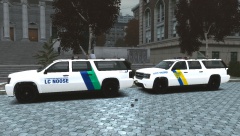 Nice to see you're enjoying my mod. Good work on the skins, they go really well with the car! But, are you having any bugs, glitches, anything like that?
 -
Download this application called 'OpenIV'. After downloading, open the shortcut called 'run openiv'. It'll then give you options to 'select game'. Select the Grand Theft Auto IV option (unless you have EFLC, in which case, click the EFLC one). After that, a window with folders will show up. To the left side of this window, you'll see a list of folders. Select the 'models' folder. Then you'll see a folder called 'cdimages'. Open this folder. After that you should see a list of little blue boxes with orange streaks in them. Click the box that says 'vehicles.img' beside it. Then look for this blue and yellow shield, next to which says 'Edit mode'. After entering edit mode, press the little green 'plus' sign. Another window will open, in this window look for the folder you downloaded from me. In my download there were folders which read the name of the vehicles, such as 'CRUISER', 'RANGER' etc. In these folders titled 'CRUISER', 'RANGER' etc., you will find two files, one which ends with .wft, the other ending with .wtd. Hold ctrl, and select both, then press 'import'. Job done, simple huh?
- 19 comments
- 2 reviews
-
-
-
 You mean this? : '> I was actually using this as source: http://www.thenationspulse.com/wp-content/uploads/2013/10/Wallpaper-Battlefield-4.jpg
 -
-
Now has a dragon I was half-assed to add to the picture: http://imgur.com/xKpNPby
-
-
I can add a dragon! But no dinosaurs i'm afraid...
-
Thanks for the comments! Ford4ever, I'm actually working on that at the moment! And it might actually be possible to add an out-of-place rotating light on the stryker, I'll see what I can do lol!
-
From the album: Random Content
Too much free time you see :/ -
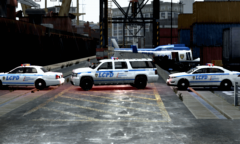 Yup! But keep going...

![[Ingame/WIP] 3D Interior for DSF CVPI.](http://s3-gallery.int-cdn.lcpdfrusercontent.com/gallery/album_1575/sml_gallery_20324_1575_546478.png)


