


Creators: Due to background reprocessing of files, approvals and file security checks may be delayed. Thanks for your patience.


CrossFire
Members
-
Joined
-
Last visited
Everything posted by CrossFire
-
If it says strict NAT type, you can only play online with very few people, because a lot of people's internet are conflicted with strict NAT types, I suffer the strict NAT type as well, can't play with my clan a lotSexiness.If he was "wasting your time", you should have not posted in the first place.
 Well the thing is, he has them as we'll, and I was joking. Secondly, if you have any concerns as to how I got them, please PM me.Just add the textures like you normally do with .wft's, but when importing, go to File > merge, then pick your fileSig P226.I was not aware of this, he never posted it on the testing forums...LCPDFR is for general policing, not detective work, vdH PoliceHelper's upcoming update will have two new features that are somewhat undercover, one being prostitution stings, the other I can not tell you.Hi.Unless the boy was aiming the gun at the officer(s), there was no need to shoot him
Friends in high places
lol ^
I meant I just got the new modelsCorrect me if i'm wrong...but are you saying school shootings aren't news?
Well the thing is, he has them as we'll, and I was joking. Secondly, if you have any concerns as to how I got them, please PM me.Just add the textures like you normally do with .wft's, but when importing, go to File > merge, then pick your fileSig P226.I was not aware of this, he never posted it on the testing forums...LCPDFR is for general policing, not detective work, vdH PoliceHelper's upcoming update will have two new features that are somewhat undercover, one being prostitution stings, the other I can not tell you.Hi.Unless the boy was aiming the gun at the officer(s), there was no need to shoot him
Friends in high places
lol ^
I meant I just got the new modelsCorrect me if i'm wrong...but are you saying school shootings aren't news?
From the album: Grant's Models
I think new wins, what do you all think?Are you serious?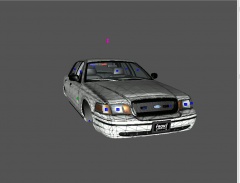 NOTE: The grill lights are kinda black because Zmod puts a shadow effect on some things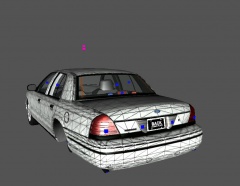
From the album: Grant's Models
The models in the pictures before this one will NOT be released, I was told by a few modders not to release my first models, although most of them worked perfectly, they won't be released
From the album: Grant's Models
The models in the pictures before this one will NOT be released, I was told by a few modders not to release my first models, although most of them worked perfectly, they won't be released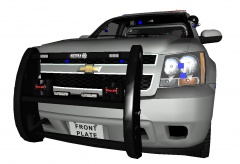 Can't wait to test it out!This. Will. Be. Awesome. Although it'll be a pain in the ass if for whoever;s taking the screenshotsThis is not the topic to post that in, a quick Google search should show you how


