Dhruv
Members
-
Joined
-
Last visited
Everything posted by Dhruv
-
-
Oh,thanks Nutt. Well,pretty disappointed to see the 3.6L.That version has its wheels flickering/fluctuating all the time.Have used it b'fore.
- 15 comments
- 3 reviews
-
-
-
-
Rancher...
-
But still enough to run a IV with mods.Strange enough.
-
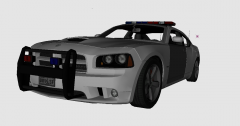 Check pm.
 -
At least I,personally,mention the credits AND the link to the actual model which the skin is supposed to be used on.
- 6 comments
- 3 reviews
-
He prolly doesn't have the rig required to deal with it.
-
-
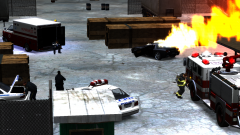 And the cop is searching for his doughnut box. Sorry for double post.A gallery bug won't let me edit my post.
 -
LMFAO! Now thats Liberty City.
-
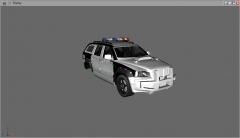 No...especially the backup requestor.
 -
-
-
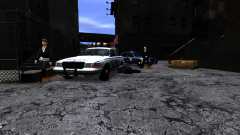 And the suspect walks away.
 -
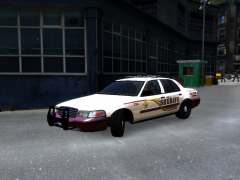 Interesting skin!
 -
-
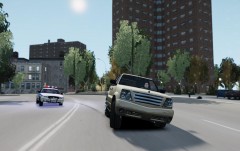 Funky!
 -
-
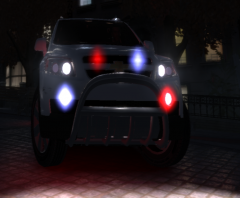 You made me Jizz,rasta.
 -
LMFAO!! Sorry :sleep:
-
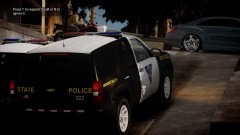 Thats strange.I always saw Caine's Tahoes with NYPD or OPD styled liveries.But it definitely looks cool!
 -
Good work with the Captiva,rudeboy.Respect. There some bugs and ting.I an I just 'gwan let ya know:
- 12 comments
- 4 reviews