Skip to content
View in the app

A better way to browse. Learn more.

LCPDFR.com

A full-screen app on your home screen with push notifications, badges and more.

To install this app on iOS and iPadOS
  1. Tap the Share icon in Safari
  2. Scroll the menu and tap Add to Home Screen.
  3. Tap Add in the top-right corner.
To install this app on Android
  1. Tap the 3-dot menu (⋮) in the top-right corner of the browser.
  2. Tap Add to Home screen or Install app.
  3. Confirm by tapping Install.

CVPI ELS Enabled 1.0.0

(0 reviews)

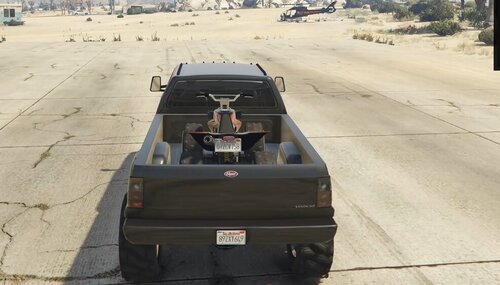
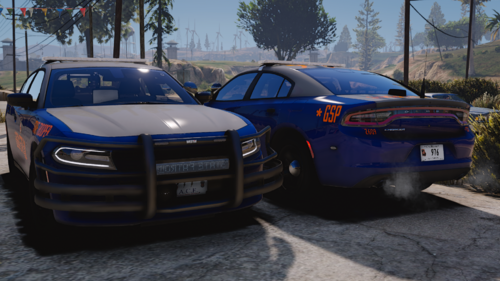
2 Screenshots

NOTE: DO NOT RE-UPLOAD WITHOUT PERMISSION.

1st Model Up-Load


User Feedback

Recommended Comments

ititanisdead

Members

I don't get it. There is no ELS for GTA V, yet this is ELS enabled. Your pictures also say "OpenIV", in which this may be a GTA IV model? Can you clarify on this?

I don't get it. There is no ELS for GTA V, yet this is ELS enabled. Your pictures also say "OpenIV", in which this may be a GTA IV model? Can you clarify on this?

Openiv is for GTA 5 also

KoalaScars

Members

This is not a gtaV vehicle.... 

ROCCO1911

Members

yea no ELS as far as i know but hell BxBugs is working on them maybe the release is soon?

Mitchell

Members

.wft is a gta4 file. I don't know why you put this in the GTA 5 mods section.

BeetleBeast72

Members

I don't get it. There is no ELS for GTA V, yet this is ELS enabled. Your pictures also say "OpenIV", in which this may be a GTA IV model? Can you clarify on this?

Open IV is a program you use to access GTA V files, as far as i know there is no such thing as Open V

Roblox720

Members Author

Sorry if I put this in the GTA V section qq. But yes this is for GTA IV. My bad.

And uh this is in IV section,

ititanisdead

Members

Sorry if I put this in the GTA V section qq. But yes this is for GTA IV. My bad.

And uh this is in IV section,

No worries, a mod prob moved it.

Create an account or sign in to comment

Account

Navigation

Search

Search

Configure browser push notifications

Chrome (Android)
  1. Tap the lock icon next to the address bar.
  2. Tap Permissions → Notifications.
  3. Adjust your preference.
Chrome (Desktop)
  1. Click the padlock icon in the address bar.
  2. Select Site settings.
  3. Find Notifications and adjust your preference.