Skip to content
View in the app

A better way to browse. Learn more.

LCPDFR.com

A full-screen app on your home screen with push notifications, badges and more.

To install this app on iOS and iPadOS
  1. Tap the Share icon in Safari
  2. Scroll the menu and tap Add to Home Screen.
  3. Tap Add in the top-right corner.
To install this app on Android
  1. Tap the 3-dot menu (⋮) in the top-right corner of the browser.
  2. Tap Add to Home screen or Install app.
  3. Confirm by tapping Install.

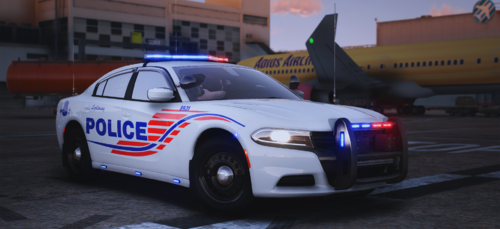
Taurus Clinton Police Department (Mississippi) 1.0.0

(0 reviews)

1 Screenshot

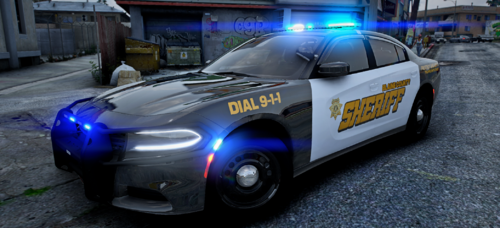
Clinton Police Department textures for the Taurus apart of the https://www.lcpdfr.com/files/file/16583-els-bcso-vehicle-pack/ vehicle pack. His pack should have an option for all blues, so that should be all you need. The font is updated from the preview to match the real font used by the department.

User Feedback

Recommended Comments

ProvidenceLaw

Members

(edited)

Looks really good. Do you by chance remember the font used in the photo? Thanks in advance.

Edited by ProvidenceLaw

Gamebreaker18

Members Author

6 hours ago, ProvidenceLaw said:

Looks really good. Do you by chance remember the font used in the photo? Thanks in advance.

Oh man, it's been such a long time since I worked on that texture, I believe the font was apart of the "impact" font family.

ProvidenceLaw

Members

1 minute ago, Gamebreaker18 said:

Oh man, it's been such a long time since I worked on that texture, I believe the font was apart of the "impact" font family.

I didn't think of that one. Thanks.

Gamebreaker18

Members Author

1 minute ago, ProvidenceLaw said:

I didn't think of that one. Thanks.

You're welcome bud!

joshtheman165

Members

i like this texture alot if u can or when every you fill like may u do a McComb ms police charger or tahoe 😁

Create an account or sign in to comment

Account

Navigation

Search

Search

Configure browser push notifications

Chrome (Android)
  1. Tap the lock icon next to the address bar.
  2. Tap Permissions → Notifications.
  3. Adjust your preference.
Chrome (Desktop)
  1. Click the padlock icon in the address bar.
  2. Select Site settings.
  3. Find Notifications and adjust your preference.