Skip to content
View in the app

A better way to browse. Learn more.

LCPDFR.com

A full-screen app on your home screen with push notifications, badges and more.

To install this app on iOS and iPadOS
  1. Tap the Share icon in Safari
  2. Scroll the menu and tap Add to Home Screen.
  3. Tap Add in the top-right corner.
To install this app on Android
  1. Tap the 3-dot menu (⋮) in the top-right corner of the browser.
  2. Tap Add to Home screen or Install app.
  3. Confirm by tapping Install.

NSW Police Tac vests [EUP] 1.0.0

(0 reviews)

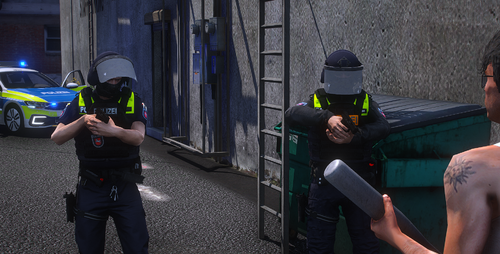
14 Screenshots

2 nsw tac vest skins 1 for patricktan112's vest: 

and one for hanako's: (must use the one without the logo on the front task 000)
 

User Feedback

Recommended Comments

Fish And Chaps

Members

Absolutely amazing just like usual, but i was wondering if you had a template for the badge as i would like to put my officers name on it and just add the little more extra detail but if its private that's all good just thought i might ask anyways, Have a good one 😄

Synysterfence7x

Members Author

(edited)

2 hours ago, Fish And Chaps said:

Absolutely amazing just like usual, but i was wondering if you had a template for the badge as i would like to put my officers name on it and just add the little more extra detail but if its private that's all good just thought i might ask anyways, Have a good one 😄

Just open the png in Photoshop, colour match and paint over the name then chuck yours on 😉

Edited by Synysterfence7x

Fish And Chaps

Members

1 hour ago, Synysterfence7x said:

Just open the png in Photoshop, colour match and paint over the name then chuck yours on 😉

Thanks I didn't think of that god im dumb sometimes 😄 thanks for the quick response as well 

lspdfraaaaaa

Members

Any plans for a VICPOL type vest in future?

weenielul

Members

how do i install this texture it says its a dds file

Create an account or sign in to comment

Account

Navigation

Search

Search

Configure browser push notifications

Chrome (Android)
  1. Tap the lock icon next to the address bar.
  2. Tap Permissions → Notifications.
  3. Adjust your preference.
Chrome (Desktop)
  1. Click the padlock icon in the address bar.
  2. Select Site settings.
  3. Find Notifications and adjust your preference.