




ineseri
Friends of LSPDFR
-
Joined
Everything posted by ineseri
-
Nothing to see here! This topic has been closed by LCPDFR.com staff. If you feel that this topic has been closed in error, please report this post.
-
Are you using TrafficFlow? Most likely that is the feature of TrafficFlow, and not LCPDFR. As for the rest, there's no real way to change it as random cops on the street will still join a pursuit no matter what the ini setting is.
-
It'll work, I've done it before. Altough flying them without changing handling-lines etc is a different tale :P
-
Despicable. Teachers are supposed to be a moral standpoint in a students life and set good examples.
-
Make sure that you've unchecked "read only" from the file settings, otherwise you can't save it.
-
Remove your unsupported third-party mods and try again. It will probably work a lot better without them. It is most likely because LCPDFR is designed to work with a vanilla copy of the game, not modded.
-
If you configure your configurationfile like BlackJesus1 said, you will most likely prevent it. Why it happens though is because LCPDFR is not supported with third-party mods, especially high-poly car mods.
-
Just like you normally would, only the directory is different. Should be X:Program FilesSteamSteamappscommon.
-
Did you read the readme?
-
Not a feature of LCPDFR, but of TrafficFlow. Please ensure to read the readme of all mods that you download to avoid confusion in the future. All features of LCPDFR are listed, and in most other mods you download you can find a manual with a list of features.
-
Nothing to see here! This topic has been closed by LCPDFR.com staff as it is a support topic concerning an unsupported version of LCPDFR. We do not support old versions of LCPDFR, and recommend you use and download the latest version. If you feel that this topic has been closed in error, please report this post.
-
Let's keep on topic now :)
-
Run the file called "UpdateTitle.exe". Please extract the files first though. You can donate, to the site and project itself; https://www.lcpdfr.com/index.php?app=supporter§ion=proxy&to=mrmysterious_44@hotmail.com&mid=1&donationType=LCPDFRTOPBAR-DONATE972
-
But did you install the patch?
-
Lol, that's.... Nice I guess?
-
Yes, download the latest patch. https://support.rockstargames.com/hc/en-us/articles/200145406-Grand-Theft-Auto-IV-Patch-7-Title-Update-v-1-0-7-0-English-1-0-6-1-Russian-1-0-5-2-Japanese-
-
-
From the album: ineseri's Random Gaming Screenshots
-
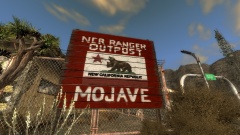
From the album: ineseri's Random Gaming Screenshots
-
From the album: ineseri's Random Gaming Screenshots
-
Going a bit off-topic, but yes we can see the report and sure we can act on it too. But if it is a severe issue, a supervisor or member of management must deal with it.
-
With content I mean "text". Just posting a Youtube video with subtext makes no sense.
-
I beg to differ with you. I don't see myself better than anyone else. In fact, I try to engage in topics and discussions and not only in my moderator uniform, but as a member. I think that is a vital part of being a member of the Community Team; See to the communtity, and not get stuck in a "moderator-only" mode. If this was something aimed at me, you are free to send me a PM. I'd like to know if I fucked up somewhere.
-
Nothing to see here! This topic has been closed by LCPDFR.com staff as it has been posted in the wrong forum section. This forum is not for LCPDFR support requests. Please post your topic in the LCPDFR Support Forum instead, following the clearly presented instructions there. If you feel that this topic has been closed in error, please report this post.
-
In the future, you might want to add more content to your post. A youtube video link won't cut it.


