Piarulli246
Members
-
Joined
-
Last visited
Everything posted by Piarulli246
-
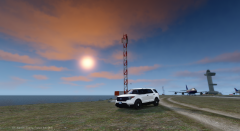
From the album: Images by Foward
Francis International Airport. -
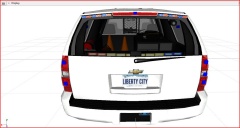 Ions are too big.
 -
-
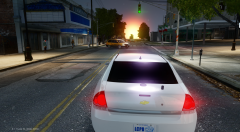
From the album: Images by Foward
Car: ENB: Cj24's Private -
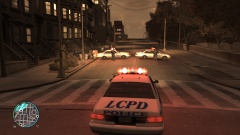 Never crashed from it dude.
 -
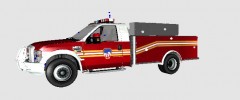 Haven't really seen him around and this picture was from 1 year ago so I don't know lol. You might get lucky though:)
 -
Whelen Liberty Mega Pack 2.0! So after a little while of a break due to stupid school/work, I will be going to start working on the Liberty Pack again. School is coming very close to the end so I will have more time and hopefully pump these cars out. Over the time gone, I've acquired 2 new vehicles; a 2013 Interceptor and 2013 Interceptor Utility. I will be changing these cars up a little bit from the first time due to ELS v8 but they will be similar. Pictures will be posted and you guys will be updated. Thanks for all the support<3!
-
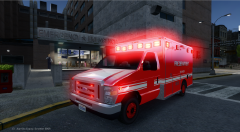 Thanks
 -
Thanks dis.
-
Thanks! Lmao Thanks!
-
From the album: Images by Foward
-
Always playing games with us-_-
-
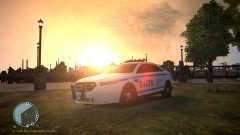 You should disable your hud and radar because your pic would look 5x nicer. :)
 -
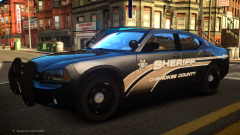 Beautiful!
 -
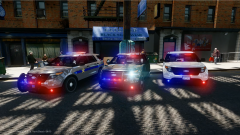 Thanks! They should be released very soon.
 -
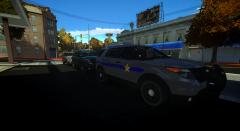 That's nice.
 -
-
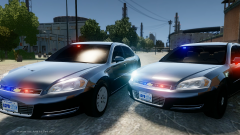 Not to bad on them. I got the opacity about 10 away from full black and the lights come through fine.
 -
-
I think the front can use some more lights like on the grill and a dash light if you want it to be like a "Xmas Tree". the back is pretty nice also.
- 29 comments
- 5 reviews
-
-

- 1
-
-
Yes they are lol. I <3 dark tints!
-
Yea I have the Unmarked one w/o the rambar. I don't want to fill this pack with like 6 FPIUs lol.
-
From the album: Foward's Releases
Available Here: -
-
From the album: Foward's WIP