Piarulli246
Members
-
Joined
-
Last visited
Everything posted by Piarulli246
-
It should be REQ no REL since you are not releasing the vehicle, you simply want it done.
-
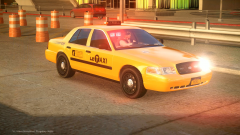
From the album: Images by Foward
Responding through Manhattan -
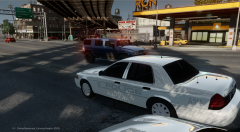
From the album: Foward's Releases
Skin by Thehurk. To be released soon. -
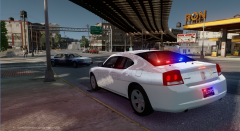
From the album: Foward's Releases
Skin by Thehurk. To be released soon. -
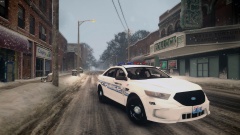 Great picture, looks fake almost hah. What map?
 -
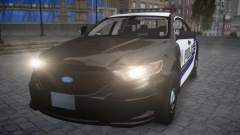 Looks great Sharp!
 -
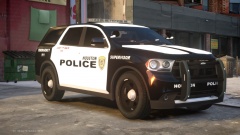 Ions plastered everywhere.
 -
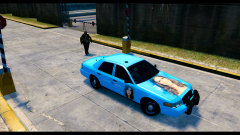 Creep.
 -
-
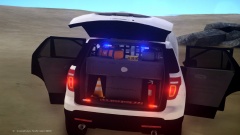 The Ions are way to big.
 -
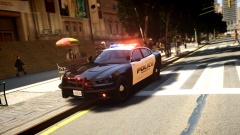 Looks great Moker.
 -
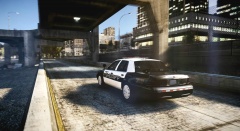 Those are the skins we used when I was PRP. Loved those skins.
 -
-
-
-
Well the Tahoe isn't a PPV. It still has all it's badges, door mold, and the fog lights. The Explorer looks like shit. It isn't a Police Interceptor because the the grill is supposed to be black, the door handles black, the mirrors are supposed to be black and not have an indicator on them, and the headlight, indicators, and taillights are wrong. The Explorer rims look like shit too. I would really work on the cars before you release and go off of real life pictures of the police versions of those vehicles.
- 20 comments
- 7 reviews
-
-

- 9
-
-
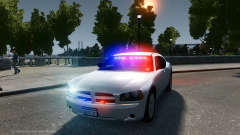 Thanks
 -
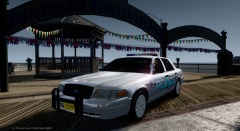 I just updated it but it will take time for it to be accepted. Should be out soon.
 -
Just noticed the name because I just copied it from my other picture. So yea I guess.
-
Thanks! It will probably be updated today soon.
-
From the album: Foward's WIP
Going to update the vehicle to have hubcaps if anyone wants to use them. -
-
-
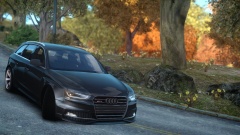 Such a sexy picture!
 -
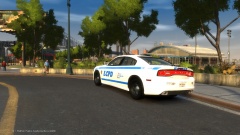 Nah.
Nah.