




Illusionyary
Members
-
Joined
-
Last visited
Everything posted by Illusionyary
-
Okay, rendering is basically like saving a video file. All you need to do, is import the video file into your editing software (Windows Live Movie Maker) and save the file, that's it. Of course, you can fiddle around with the settings and edit the video if you like, but you don't have to.
-
Ah that's why, it's a raw file. I'm amazed it's not like 50GB's, that's a usual file size for Fraps. Anyway, if you have Windows Live Movie Maker (If you don't, just download it, it's free), just render it through that and that'll chop down a lot of the file size.
-
Alright then; a few questions: What file type is it? What did you record it with? What editing software do you use?
-
Usually you can do it via your video editor, but if whatever reason your video editor doesn't have a compressor (it should), you can use HandBrake. Generally, I render the video through my editing software and then compress it again afterwards; chops the file size right down.
-
Why not compress the video? 4GB's will take ages to upload anyway.
-
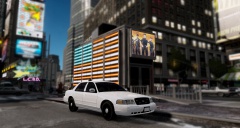 Is that the NFS model? Interesting lighting setup, I like the grill lights.
 -
![skin request [WIP]](//s3-gallery.int-cdn.lcpdfrusercontent.com/gallery/album_2124/sml_gallery_45963_2124_197840.jpg) Very nice!
Very nice! -
MODERATOR NOTICE Please don't Necropost or hijack topics, create you're own in the appropriate forum section.
-
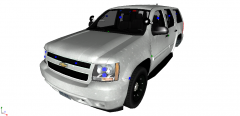 I think it is, I searched "SFPD Unmarked Tahoe" on Google, so there's a chance it's not it, but it looks like it has California License Plates so it might be.
 -
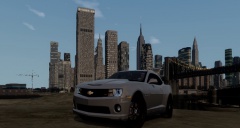 I'm sure we all want to see a police version! :)
 -
Please don't hijack others threads, if you want or have an idea for a modification you can create a topic here and if someone likes the idea, they may just make it for you: http://www.lcpdfr.com/forum/802-suggestions-requests/.
-
What font did you use for the slogan/motto Hurk? When I did mine I used Brush Script and that seemed to fit pretty well.
- 14 comments
- 7 reviews
-
MODERATOR NOTICE Wrong Section, moving. Use a picture editing program (Paint.net, GIMP, Photoshop, ect) to remove the text, and then add your own.
-
I think it's department choice. The SFPD have them:
-
I came up with my username a few years back, I'm terrible of thinking up names, so it literally took me about 2 hours to come up with it. I think my name had something to do with my TV being branded under "Sharp" or something along those lines. As for the meaning, there isn't one.
-
-
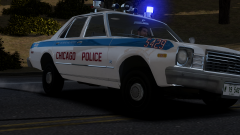
From the album: Illusions
HERE COMES THE FUZZ! -
![Chicago through the years [CPD PACK] released](//s3-gallery.int-cdn.lcpdfrusercontent.com/gallery/album_771/sml_gallery_24493_771_2181090.png) Compeast. I love you. <3
Compeast. I love you. <3 -
Unfortunately due to the limitations of GTA IV, it's impossible to have a "proper" sounding Q siren with the long "Q" bursts. I'm not a fan of Firetruck sirens for IV since all the emergency vehicles share the same siren sounds, but here's two I found here on LCPDFR. http://www.lcpdfr.com/files/file/4190-federal-q2b-siren-hd-with-loud-and-new-horn/ '?do=embed' frameborder='0' data-embedContent>>
-
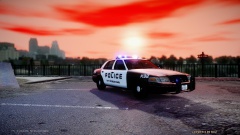 And thus, the apocalypse has begun. Seriously though, what is going on with the colour of the sky?
 -
I don't at the moment, but I'm going to create an account at some point, adding the dates will be annoying though since it's been months since I've watched a certain series. I like both, however I prefer the dubs since I can concentrate more on the visuals rather than the subtitles. I am getting used to the subtitles now though, and I swear I'm slowly learning some Japanese from it lol.
-
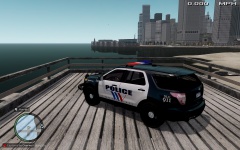 Huh? The LAPD use the Arjent lightbar not the X2100.
 -
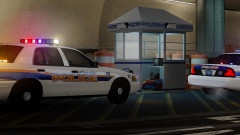 Agreed, it is a great shot. The skins are nice too. <3
 -
Leslie Nielsen is by far my favourite comic actor, I was really upset when he pasted away. The Naked Gun 33 1/3: The Final Insult was on TV earlier tonight. I've seen it about 4 times, but I watched it anyway. It's hilarious.
-
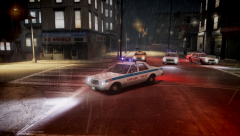 HAVE MY BABIES!

![skin request [WIP]](http://s3-gallery.int-cdn.lcpdfrusercontent.com/gallery/album_2124/sml_gallery_45963_2124_197840.jpg)
![Chicago through the years [CPD PACK] released](http://s3-gallery.int-cdn.lcpdfrusercontent.com/gallery/album_771/sml_gallery_24493_771_2181090.png)
