
Everything posted by Will
-
-
-
-
This topic has been moved to the appropriate forum. Please post in the correct location in the future.
-
They've acknowledged this, and their advice is to update WinRAR. https://twitter.com/RAGEPluginHook/status/653410115794640896 7Zip also works just fine.
-
It should be working now, but one of my friends says it's still broken.
-
I believe it's because some of Steam's functions are down for maintenance: https://steamstat.us/
-
It isn't that you need to install Windows 10, Microsoft now redirects that specific link to the Windows 10 download. Try this one: http://www.microsoft.com/en-us/download/details.aspx?id=34429 If that one doesn't work, try this one: http://www.microsoft.com/en-us/download/details.aspx?displaylang=en&id=8109 Your topic has been moved to LCPDFR Support Requests. Please post in the correct location in the future.
-
This topic has been moved to the appropriate forum. Please post in the correct location in the future.
-
This topic has been moved to the appropriate forum. Please post in the correct location in the future.
-
http://www.lcpdfr.com/forums/topic/55885-lspdfr-03-busted/
-
LSPDFR doesn't use an officer name. You probably have a plugin that does though, check your .ini files for your plugins. You can already do this. I assume you already know this, since you mention the interaction menu, but just in case: Hold down E to stop the peds in your immediate vicinity, then press E again to interact with them. They shouldn't walk away until you walk away.
-
Your thread has been moved to LCPDFR Support Requests as it isn't a LSPDFR Support Request.
-
This topic has been moved to the appropriate forum. Please post in the correct location in the future.
-
This topic has been moved to the appropriate forum. Please post in the correct location in the future.
-
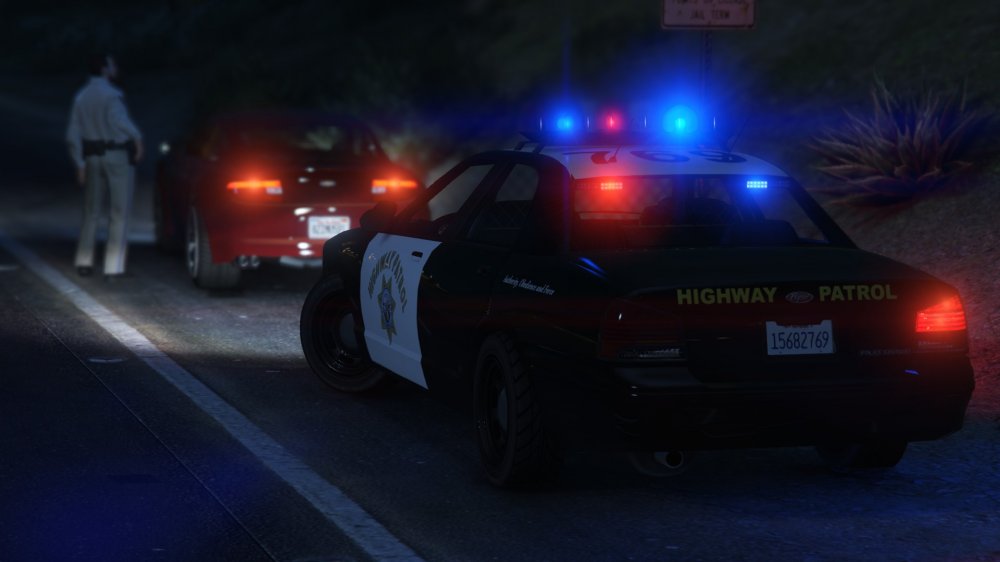
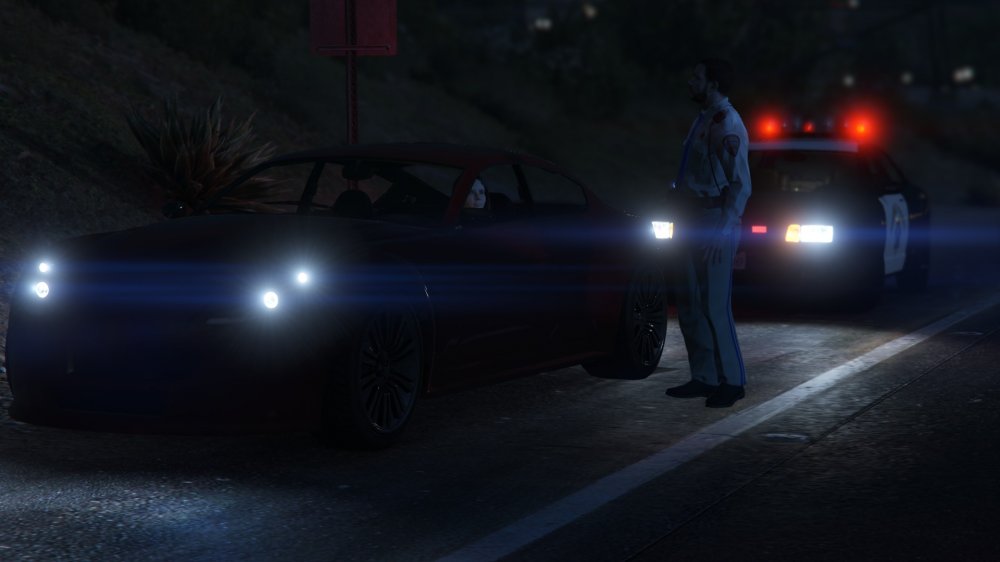
I actually managed to take decent screenshots, so naturally I'm posting them everywhere.
-
From the album: LSPDFR
Traffic stop on the night shift, the second. -
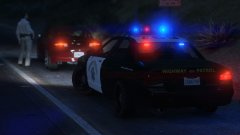
From the album: LSPDFR
Traffic stop on the night shift. -
Use 7Zip to extract the files instead.
-
This topic has been closed by LCPDFR.com staff as it is a support topic concerning an unsupported version of LCPDFR. We do not support old versions of LCPDFR, and recommend you use and download the latest version (http://www.lcpdfr.com/files/file/4607-lcpd-first-response/) If you feel that this topic has been closed in error, please report this post.
-
Should be 0x0EA58C7C according to this: http://www.lcpdfr.com/forums/topic/51498-gta-v-sirens-hash-list/
-
If you don't have it on Steam, you can still verify your game cache. Follow the instructions in the following link, and use the -verify commandline: https://support.rockstargames.com/hc/en-us/articles/202518358-Available-Command-Lines-for-GTAV-on-PC
-
This topic has been moved to the appropriate forum. Please post in the correct location in the future.
-
I have the Kraken Chroma, I'd definitely recommend it for the audio quality (although I'm not one to go to for advice on audio). However, if you wear glasses, they might start to hurt after a while. They have a tight fit, especially if you have a big head. You can set up macros to switch between them. It's a bit complicated though.
-
I'm pretty sure Hoth is supposed to be hard. My team won on both sides earlier.