



RipplyTiger151
Friends of LSPDFR
-
Joined
-
Last visited
Everything posted by RipplyTiger151
-
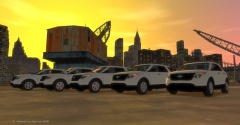
From the album: Ripply's Works
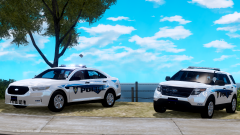
Liberty City Police Department have recently received their newest fleet members from the Ford Motors Industry in Chicago. These 5 Ford Explorers were bought using a $600k grant given by a local business who's headquarters is in Chicago. Most of the money that was not used will be to purchase new technology such as radios, computers, and state of the art vehicular equiptment. Credits: Model originally by Evanscornelius Modified by Him1250 and even further by RipplyTiger151 PI Hubcaps by Vertex3D (Model may or may not be released locked. Model WILL NOT be released unlocked.) -
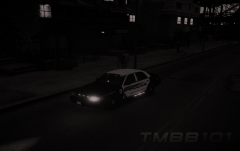 The car is a bit flat when you edited the pic. I do like the filter though.
 -
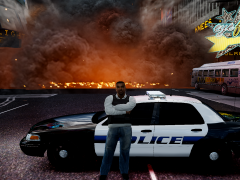 Photoshop'd.
 -
My suggestion is to reimport the car.
-
 *gets tissues for tears and other white stuff.
 -
-
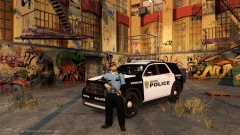 The model looks ok. The Dodge Durango isn't really my cup of tea but it looks alright. It would be better if you could use a more proper rim. Also, what XBR and Crossfire were saying was constructive critism. It is very rude to come after someone like that. People who judge people by the way they act aren't having a good time right now. This won't be gaining my download. But good job.
 -
-
![Atlanta Police CV Pack [REL]](//s3-gallery.int-cdn.lcpdfrusercontent.com/gallery/album_722/sml_gallery_3386_722_482982.jpg) Looks good!
Looks good! -
-
 Lookin good Jason!
 -
-
Alright, I am gonna give my criticizim on this skin. This may be a little harsh but you do need it. First, use the real colors, that stripe that looks green is supposed to be dark-yellow, that is the first noticeable thing about the skin. Secondly, your stripes need to be the same size and shape, having one stripe slanted does not help realism because that is nowhere close to being realistic. Thirdly,
- 28 comments
- 3 reviews
-
-

- 5
-
-
... agree with Trent... You obviously have a good computer, why use your phone to take a picture if you could use bandicam or fraps. Their both free if you get the trial versions which allow screenshots. People aren't gonna be able to see the skin if you take pictures like that which lowers the chance of downloads. Please use a recording software to take your pictures.
- 28 comments
- 3 reviews
-
-
- 1
-
-
![Federal Signal Vison SLR [WIP]](//s3-gallery.int-cdn.lcpdfrusercontent.com/gallery/album_2718/sml_gallery_138650_2718_5490.jpg) Looking good.
Looking good. -
-
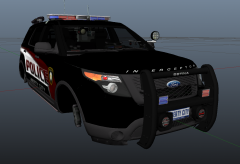 Why does this look so familiar........ can't put my finger on it.
 -
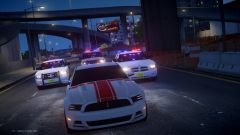 Awesome Picture!
 -
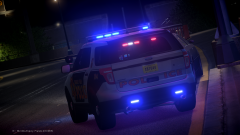 Its different.
 -
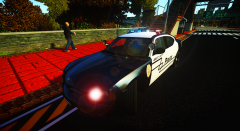 Looks nice! What ENB?
 -
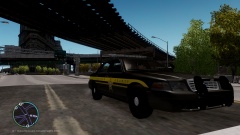
From the album: Beta Testing
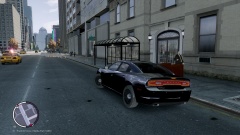
Car/Skin by me, Ped by EVI/Textured for SCSO by me -
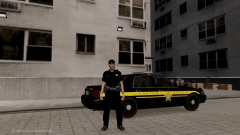
From the album: Beta Testing
Car/Skin by me, Ped by EVI/Textured for SCSO by me -
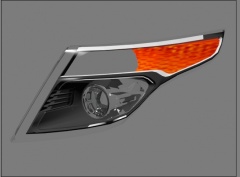 Please do!
 -
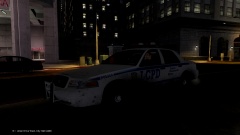
From the album: Beta Testing
Car by Bxbugs123, is released. -
No, no, no... the C stands for Community (Staff) and the Coffee cup shows they are taking a break... bingo! The LCPD:FR Community Staff are taking a break after the release of 1.0c!

![Atlanta Police CV Pack [REL]](http://s3-gallery.int-cdn.lcpdfrusercontent.com/gallery/album_722/sml_gallery_3386_722_482982.jpg)
![Federal Signal Vison SLR [WIP]](http://s3-gallery.int-cdn.lcpdfrusercontent.com/gallery/album_2718/sml_gallery_138650_2718_5490.jpg)
