
RipplyTiger151
Friends of LSPDFR
-
Joined
-
Last visited
Everything posted by RipplyTiger151
-
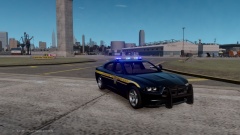
From the album: Ripply's Works
Seen a few people on FR put pictures of cars from the departments in the counties around me and thought I would go ahead and and one. This is the 2012 Dodge Charger (model by me) with the Sumter County Sheriffs Office skin (yes, this is out of SC and the car does not yet have equipment) -
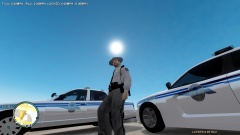 Ummmm.... SCHP cars aren't white, xD.
 -
 Sick! They look so accurate. Especially the Columbia PD!
 -
Not too bad, the only thing I suggest is to capitalize the word 'enforce' in "To enforce & Protect". Otherwise not bad.
- 6 comments
- 1 review
-
-
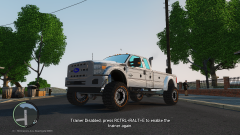 Hmmmm I think I know where this is from, lol.
 -
-
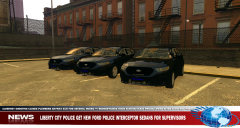
From the album: Ripply's Works
Check out the video of the car just before one of the supervisor takes it for a spin on the beach: -
-
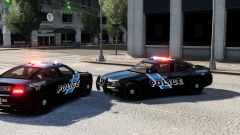 Cough... here. The only thing is that my CVPI is missing out of that pack for some odd reason...
 -
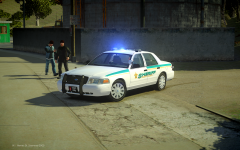 Maybe if it had some more stuff like cameras, etc.
 -
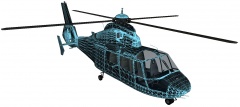 Very, very nice!
 -
-
Any 700 series graphics card will allow your GTA to run excellent. I have a 630 and I get 35 w/o ENB so I am pretty sure that will get you what you want. (Let alone probably run CryENB).
-
![[WIP] 2014 GMC 3500 Ambulance V2.2](//s3-gallery.int-cdn.lcpdfrusercontent.com/gallery/album_722/sml_gallery_3386_722_165949.jpg) Looks very nice! Please release it!
Looks very nice! Please release it! -
Heres their Tahoe:
-
My home town: and a town in my state:
-
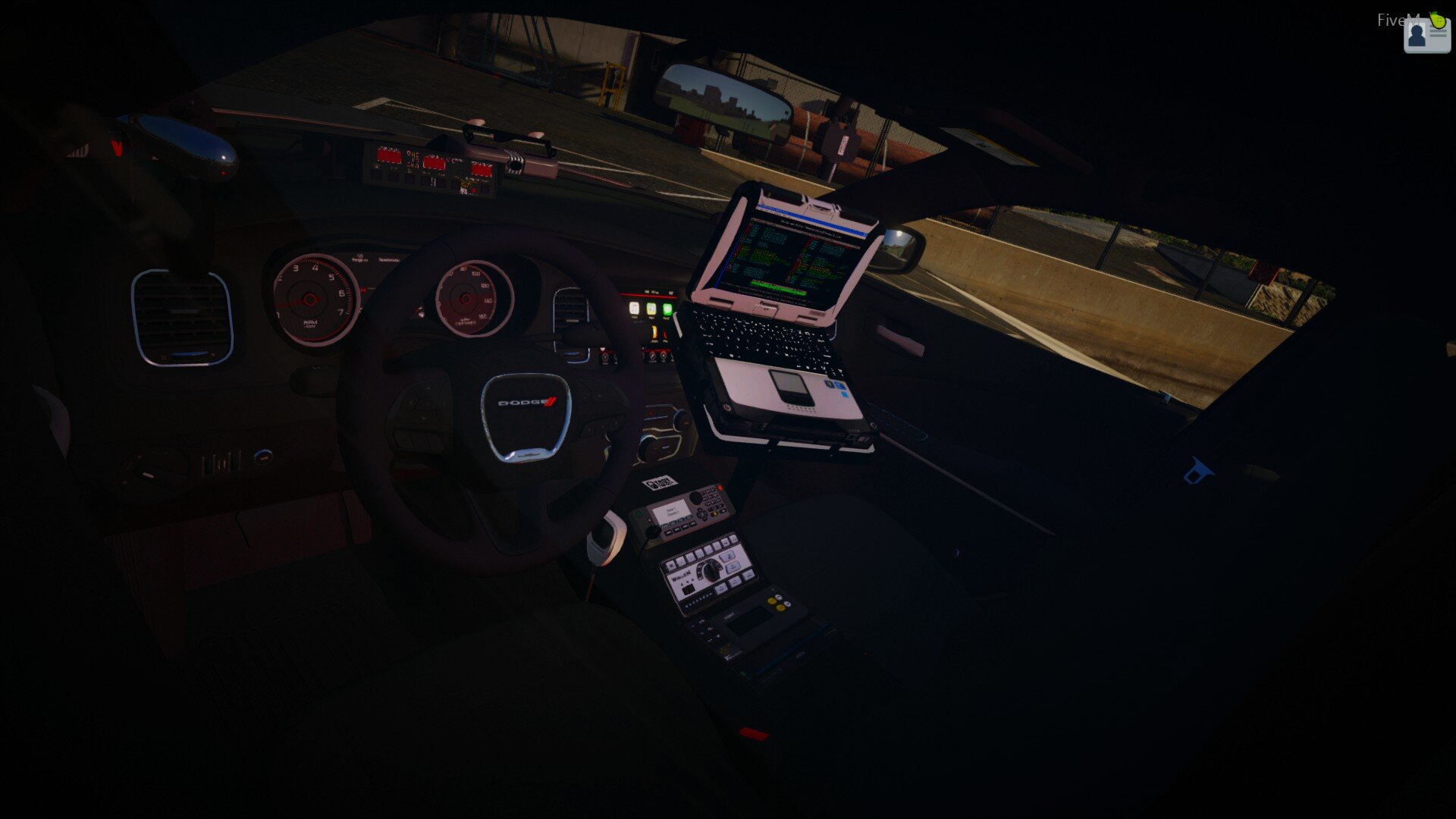
Mine: Panel: Ctrl+B Airhorn: R Everything else is pretty much default. Heres all the key codes: http://help.adobe.com/en_US/AS2LCR/Flash_10.0/help.html?content=00000520.htm
-
A variety of pictures from my game.
-

From the album: GTA:IV Gameplay/Action Pics
Charger by Him1250 -
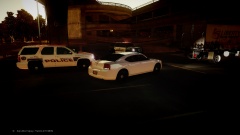
From the album: GTA:IV Gameplay/Action Pics
Spoiler Vehicles by Him1250 -
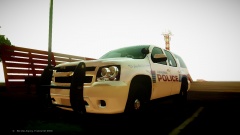
From the album: GTA:IV Gameplay/Action Pics
Tahoe by Him1250 -
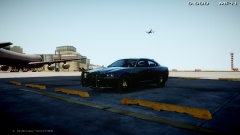
From the album: GTA:IV Gameplay/Action Pics
Spoiler Charger by Him1250 -
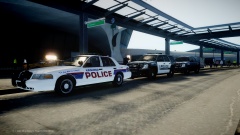
From the album: GTA:IV Gameplay/Action Pics
Vehicles by Him1250 -
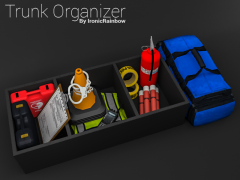 NICE! I love the render!


![[WIP] 2014 GMC 3500 Ambulance V2.2](http://s3-gallery.int-cdn.lcpdfrusercontent.com/gallery/album_722/sml_gallery_3386_722_165949.jpg)