Zhivko
Members
-
Joined
-
Last visited
Everything posted by Zhivko
-
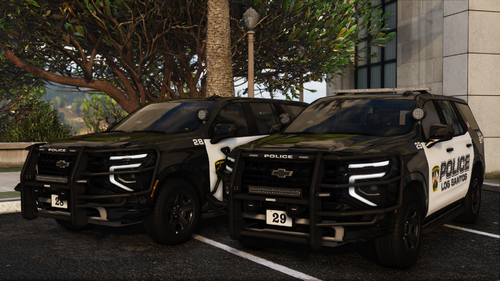 Hi for some reason the ELS on any of the cars are not working for me. When try with different vehicle all good. If you can help me, I would appreciate it. Thanks
- 45 comments
- 7 reviews
-
-

- 1
-
-
 This is one of the most unique plugins here in LSPDFR for me! 10 out of 10. Top work!
- 320 comments
- 15 reviews
-
-

- 1
-
-
-
-
.thumb.png.656f907bc2febc81911b0b821cb502c8.png) @EndeRz Go to your ReportPlusAplication folder and open date->and look for file called "userprofiles" and in that file you can see it.
@EndeRz Go to your ReportPlusAplication folder and open date->and look for file called "userprofiles" and in that file you can see it.- 350 comments
- 44 reviews
-
-
- 1
-
-
 FOR ME EVERYTHING WORKS GREAT AFTER THE UPDATE! THANK YOU FOR THE FAST FIX!
- 251 comments
- 21 reviews
-
-
- 1
-
-
-
The last update si broken. LSPDFR crashes every time. @NikBoykiller Same issue!
- 251 comments
- 21 reviews
-
-
- 1
-
-
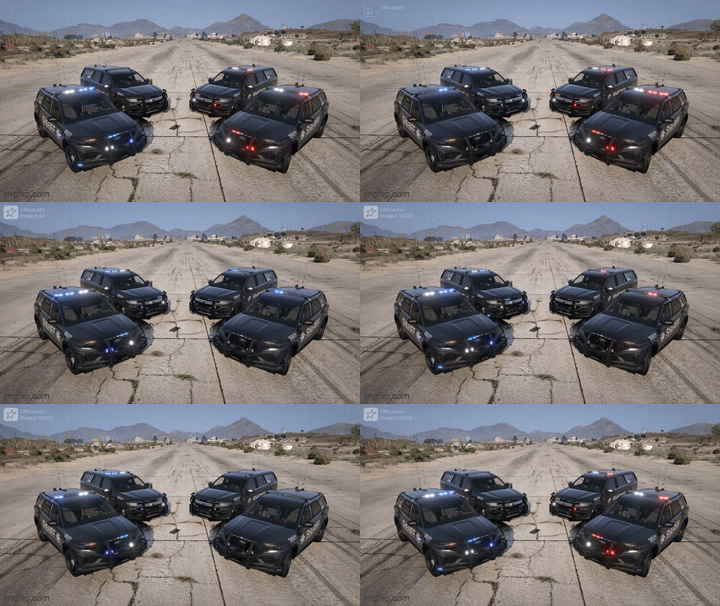 Great Vehicle!
 -
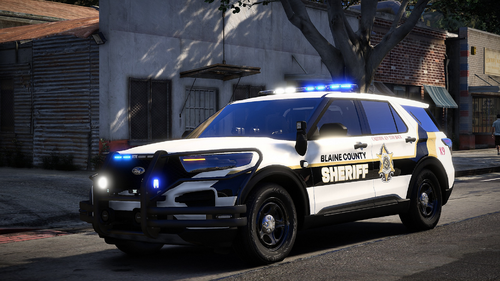 Great Work!
 -
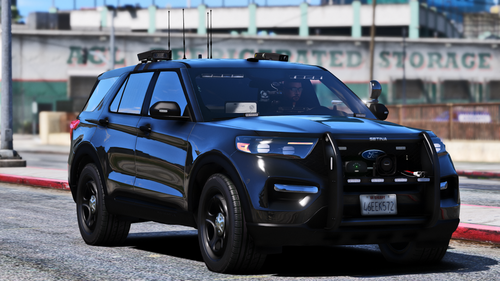 Your work and cars are one of my favorites!
 -
TOP WORK!
-
-
 Top Work! Thank you for your work and making us enjoy our patrols with great cars!@
- 161 comments
- 12 reviews
-
-
- 1
-
-
-
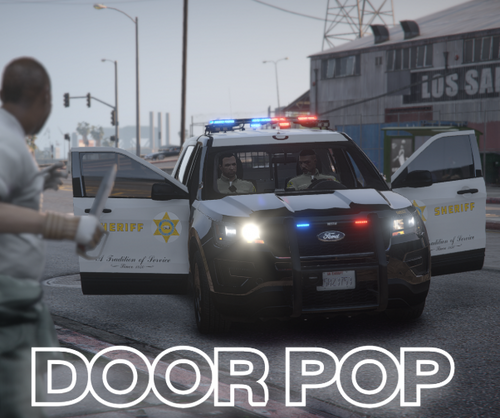 I think this is one of the most Unique Scripts in this website. Thank you!
 -
-
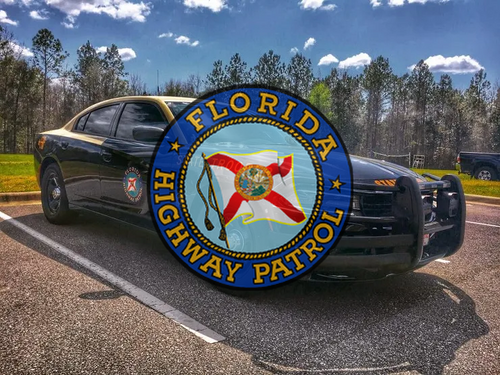 Great work!
 -
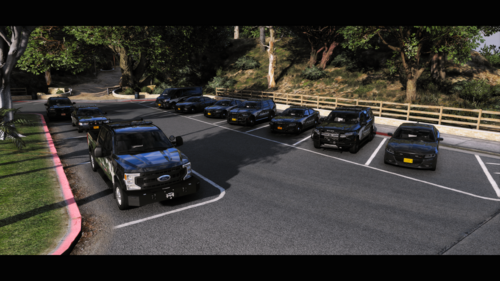 Great skin! Great fit
 -
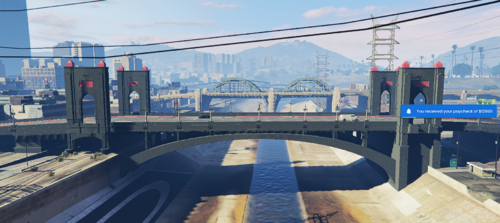 For me the link doesn't work. for the updated sip file
 -
-
-
Hi there. First thanks for your work making such a realistic police computer. For me everything works great. But I wanted to us my laptop while I am playing on my desktop pc but I couldn't make it work. do you have any idea why is that. I will attach a screenshot of the message I get when I try to open it. and also I have installed Java and the kit. it works when is on the compute I play. Just doesn't when I try sepatare. Thanks in advance
- 350 comments
- 44 reviews
.thumb.png.656f907bc2febc81911b0b821cb502c8.png)