



Lennyy
Community Team
-
Joined
-
Last visited
Everything posted by Lennyy
-
This is definitely not the stock LSPD ped. It's either a EUP MP model or the PEDS mod. I'm not using the latter hence why I can't tell you which is which. Looks like an EUP MP model to me though.
-
Grab it from NuGet if you need the SDK. Wasn't quite sure whether you just asked for the latest RPH build or specifically the SDK.
-
You're at the part of the story where Michael and Franklin aren't allowed inside the city. Either continue playing the story until you can safely enter the city again or revert to a previous safe. What you can do is install a 100% gameconfig but that'll overwrite your story progress if you intended to play that fully. If you use GTA simply for LSPDFR, install the savegame.
-
Can you be a bit more descriptive? When you initiate a traffic stop, you usually don't interact with officers but rather the driver/passengers.
-
-
It's included with the latest version of LSPDFR. If you want the SDK, it's on NuGet.
-
Were red dots also added to your minimap? Did these SUVs attack you?
-
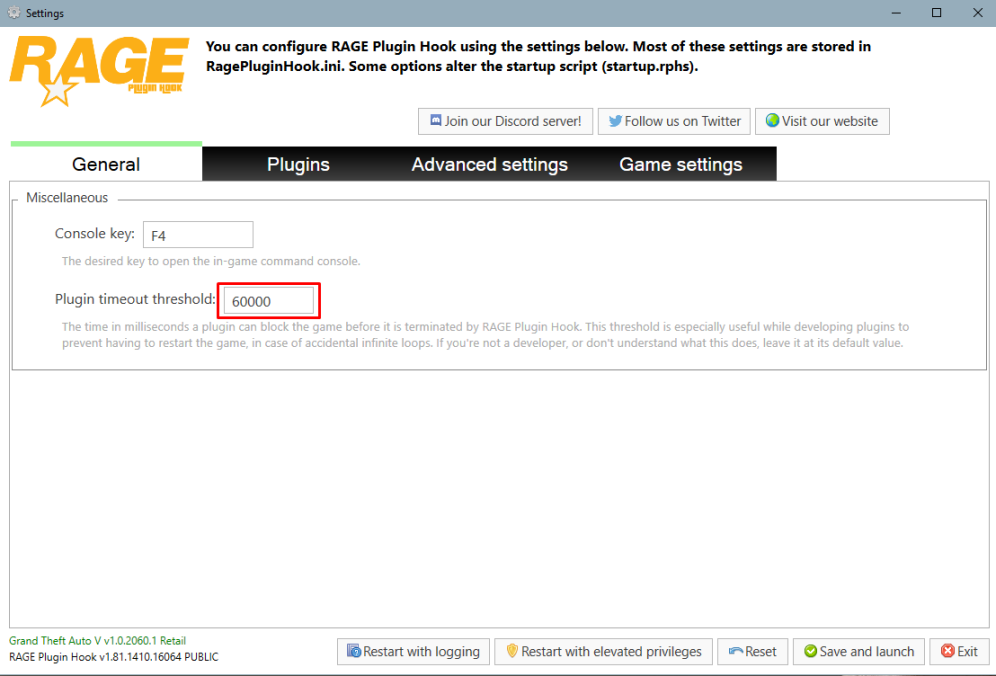
Start Rage and hold the shift key or press the cog icon ⚙️. Set the number you see in the RPH settings to 60000 instead of 10000. Hit save and launch. After that, update the following: 686 Callouts Callout Launcher HypersCallouts Immersive Ambient Events JM Callouts remastered MCCallouts Your topic has been moved to LSPDFR 0.4 Support. Please post in the correct location in the future.
-
You are still missing IPT.Common. You are also missing RawCanvasUI. Also, delete AssortedCallouts.
-
"[1/23/2025 2:48:12 PM.417] LSPD First Response: Exception message: Impossible de charger le fichier ou l'assembly 'IPT.Common, Version=1.4.4.0, Culture=neutral, PublicKeyToken=null' ou une de ses dépendances. Le fichier spécifié est introuvable." Télécharger l'IPT.Common ici: https://github.com/Immersive-Plugins-Team/IPT.Common/releases/tag/1.4.4 La .dll va dans votre GTA V répertoire principal. Download the IPT.Common and put it into your main GTA V directory. Your topic has been moved to LSPDFR 0.4 Support. Please post in the correct location in the future.
-
The same file is still failing to decrypt. Did you attach the same log twice? Doesn’t look like a new one.
-
No indication of a crash. Rename mods to _mods and retry.
-
No. If you rename your mods folder to _mods, it’ll simply deactivate. If that doesn’t crash anymore the mods folder is the problem. If you rename it back to „mods“ without the _, it’ll work again. Your mods aren’t gone they are just deactivated.
-
Navigate to your GTAV/lspdfr/lspdfr.ini and set AmbientSpawn.DisableRandomUnits = true.
-
Delete Mujaahid Ali.ls in lspdfr/chars and retry.
-
Is your mods folder still renamed to _mods while it's crashing? If so, also rename the LSPDFR folder inside the Plugins folder to _LSPDFR and retry. If that still doesn't work perform a clean reinstall of LSPDFR manually.
-
LSPDFR does not contain a virus. You most likely infected your PC with malware from a different site.
-
Attach the entire log please. Your topic has been moved to LSPDFR 0.4 Support. Please post in the correct location in the future.
-
You'd have to ask the developer of that clothing. It's not part of the stock EUP I think.
-
This topic has been moved to the appropriate forum. Please post in the correct location in the future.
-
Rename mods to_mods and retry.
-
You're welcome!
-
-
Happy to help!
-
You're welcome, happy to help!

