
Charlie686
Members
-
Joined
Everything posted by Charlie686
-
You've most likely done something wrong or haven't installed a Gameconfig/Packfile + Heap adjuster
-
In the vehicles files (.ytd)
-
Rename your mods folder to _mods Does it still crash?
-
No problem.
-
Copy the update folder from your game files into your mods folder 🙂
-
No problem! Happy to help 🙂
-
That text bar is form GrammarPolice. You can change it in the ini files.
-
No problem. Any more issues let me know 🙂
-
-
Before posting, I advise you look at FAQ pages. The answer to your issue is in here: https://docs.google.com/document/d/1Hp2Qco0qsgKfohkhjYWUxTr2OF7NSCkp8uSZwWz6rRQ/edit
-
1. You downgraded your game. Update it. 2. ScriptHookV needs to be updated. Remove it.
-
Attach your RagePluginHook log -> a text document found in your main directory
-
Connecting? Could you expand on that for me?
-
No. You need to use a trainer to access them 🙂 Then put on the uniform called "s_m_y_swat_01"
-
Yes.
-
RagePluginHook has been updated. All we need now is SHV.
-
RagePluginHook has been updated. ScriptHookV will be updated at some point.
-
No. You can play GTAV with mods, but scripts that use ScriptHookV such as ELS will not work.
-
ScriptHookV has not been updated. Wherever you heard that, it is fake news.
-
Is it EUP?
-
No. It typically takes a few days.
-
A log is created even if there isn't a crash. Please check your main directory for that.
-
No problem. Any other questions let me know.
-
Just wanted to say, LSPDFR most likely won't be requiring an update. Just RAGE and ScriptHookV.
-
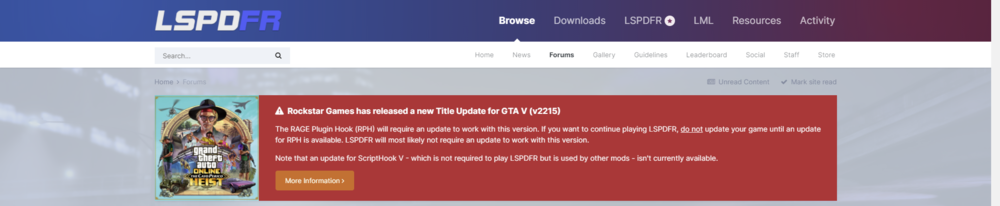
Read the massive red banner.