OfficerArchie
Members
-
Joined
-
Last visited
Everything posted by OfficerArchie
-
-
-
 Don't know if this is a problem or just on my end, but every time I get a petrol theft callout, when it comes to the point of looking at the cctv footage LSPDFR crashes and my game hangs until I kill it. I have run the albo LSPDFR error checker and it says all is fine with my files, and I have the latest version of assorted callouts (0.0.6.2), and running on the RPH v36 Alpha.
- 1,081 comments
- 166 reviews
-
.thumb.jpg.4066677156985e22489bfecddc2f6c45.jpg) You can manually extract the files from the OIV file using WinRAR and install yourself.
You can manually extract the files from the OIV file using WinRAR and install yourself.- 376 comments
- 81 reviews
-
-
Is there an issue with the latest update file (1.4)? Tried to download several times, broken file.
- 376 comments
- 81 reviews
-
Bugs includes a copy of his Radiance v1.6 in the download already. If you just want the modded bits, copy and paste emmissive section into your current visualsettings file.
-
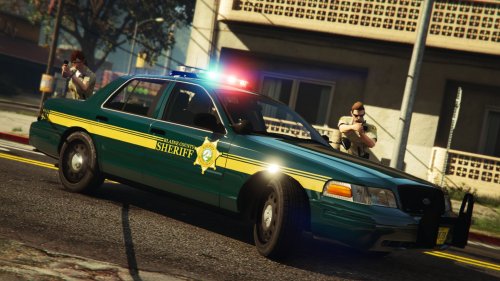 Thanks for the Impala addition mate, just one query, is the color on the lower (left hand side of vehicle) stripes and star supposed to be a darker shade than the other side?
- 5 comments
- 7 reviews
-
Great work, nice, clean and simple, and love the color blend. Would love to see the same livery for explorer and impala!
- 5 comments
- 7 reviews
-
-
-
-
-
-
-
-
-
-
-
-
-
-
-
-

.thumb.jpg.4066677156985e22489bfecddc2f6c45.jpg)