



Keith.
-
Joined
-
Last visited
Everything posted by Keith.
-
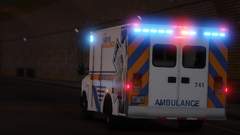
From the album: Officer Wades photos
-
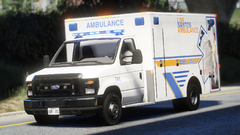
From the album: Officer Wades photos
-
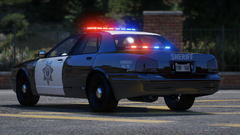
From the album: Officer Wades photos
-
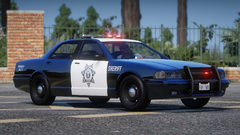
From the album: Officer Wades photos
-
I don't usually go for map mods. But I installed L.C.P.P just out of curiosity. Just the emergency vehicles you get with it it alone are worth it. Ladder trucks, working tillers the list goes on.
-
I finally got LSPDFR to work ( for once ) but none of my police vehicles load in. It just spawns the original in game cars. What am I doing wrong?
-
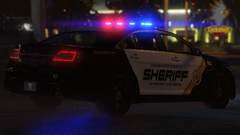
From the album: Officer Wades photos
-
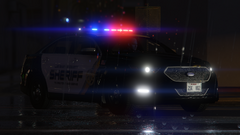
From the album: Officer Wades photos
-
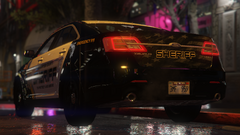
From the album: Officer Wades photos
-
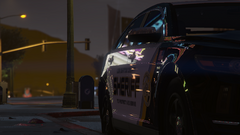
From the album: Officer Wades photos
-
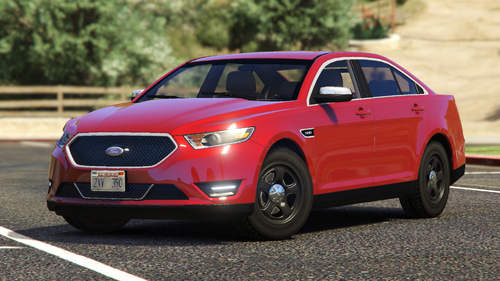 It's been sitting on my comp doing nothing for a few years. I got the model from Turbosquid in 2020 and I've been meaning to release it for ages, but totally forgot about it. It's templated and comes with blank black and white textures. Best handling line is TALEGATE I've put the column shift from my E350 and removed the standard shifter. It leaves room for police equipment. Release it locked
 -
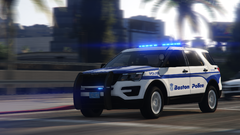
From the album: Officer Wades photos
-
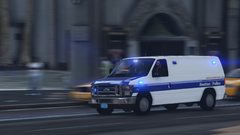
From the album: Officer Wades photos
-
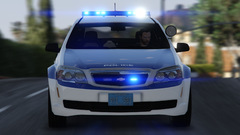
From the album: Officer Wades photos
-
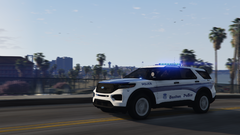
From the album: Officer Wades photos
-
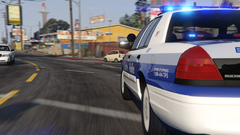
From the album: Officer Wades photos
-
-
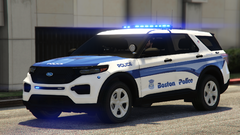
From the album: Officer Wades photos
-
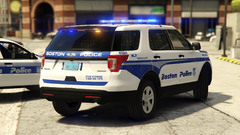
From the album: Officer Wades photos
-
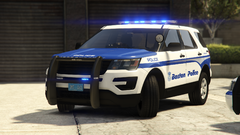
From the album: Officer Wades photos
-
I want to have better puddle reflections in my game, but I don't want to start adding all different ENB's and shaders, as I like how my game looks. The first pic is what I have. The second is what I want to achieve. Any advice on what to change would be appreciated.
-
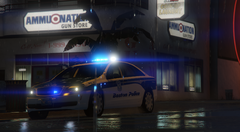
From the album: Officer Wades photos
-
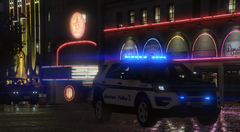
From the album: Officer Wades photos
-
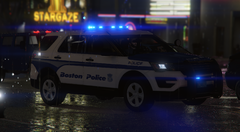
From the album: Officer Wades photos
-
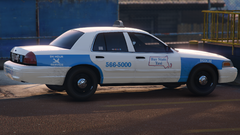
From the album: Officer Wades photos



