




Yasd
Community Team
-
Joined
-
Last visited
Everything posted by Yasd
-
is it working now? I dont think this was "the" solution for the crash solving.
-
Your log shows the typical signs for a corrupt mods folder. pls try to rename the mods folder to _mods and start the game again.
-
you installed calloutz in the wrong directory. You installed it in: GTAV/plugins it belongs in: GTAV/plugins/LSPDFR it will not save your crash, but you will have callouts 🙂
-
go in your main gta folder, open commandline.txt with notepad+ + or the windows editor and delete everything out of there.
-
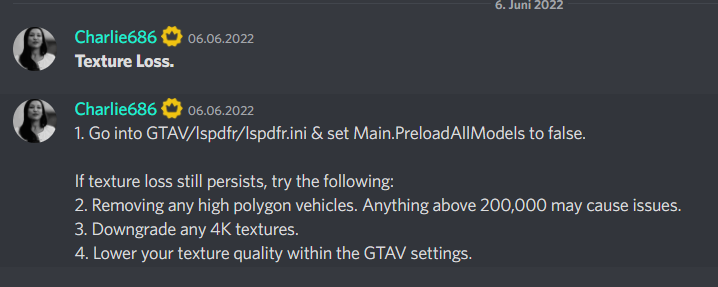
this is called texture loss and you can do the follwing: this is from the LSPDFR-TS discord server.
-
post your ragepluginhook.log from the main gta folder. what mods do you have installed outside of the mods folder? graphic mods?
-
you forgot to install the https://www.gta5-mods.com/tools/heapadjuster it gives gta more memory space.
-
Try the following: Start gta and rph as admin disable geforce overlay, sometimes causes problems add your whole gta folder as an exception in your antivirus and in the default windows antivirus try the steps on page 4 on the rph faq: https://docs.google.com/document/d/1Hp2Qco0qsgKfohkhjYWUxTr2OF7NSCkp8uSZwWz6rRQ/edit
-
This error means you have corrupt game data. The solution is to verify your game data. GTA checks your game files and redownload if needed. Tutorial:
-
sry im not able to help ...
-
post your ragepluginhook.log, your asiloader.log and your els.log from the main gta folder! 🙂
-
at least the log is saying it xD : Is steam version: True
-
start with updating gta and delete everything out of it that do not belong to gta. we cannot support a lspdfr version this old. there are so many features new, imagine 4 years ahead.
-
Have you updated scripthookv?
-
Command line option -nodx is specified. DirectX will not be initialized. is that on purpose you disabled directx?
-
4 years ago?
-
.thumb.jpg.090734a51854d25c87128010b5898bde.jpg) So it goes into prop_busstop_02+hifr.ytd? But there is no file thats being replaced... Nevermind i found it. Its the prop_busstop_04+hifr.ytd for example, this file is in the same directory as the readme describes: GTA V/mods/x64h.rpf/levels/gta5/props/roadside/v_utility.rpf/ prop_busstop_poster_01.dds -> ? prop_busstop_poster_02.dds -> prop_busstop_05+hifr.ytd prop_busstop_poster_03.dds -> prop_busstop_04+hifr.ytd
So it goes into prop_busstop_02+hifr.ytd? But there is no file thats being replaced... Nevermind i found it. Its the prop_busstop_04+hifr.ytd for example, this file is in the same directory as the readme describes: GTA V/mods/x64h.rpf/levels/gta5/props/roadside/v_utility.rpf/ prop_busstop_poster_01.dds -> ? prop_busstop_poster_02.dds -> prop_busstop_05+hifr.ytd prop_busstop_poster_03.dds -> prop_busstop_04+hifr.ytd -
Love the idea of the mod! But can you describe exactly where and how to install the replace files like prop_busstop_poster_01.dds? Thank you!
-
Where did you get your gta?
-
sry no crash in the log!
-
 Awesome! Must have callouts I use and they never get boring! Many callouts with various locations and low crashes, thats what I need!
- 311 comments
- 60 reviews
-
-

- 1
-
-
Always post your ragepluginhook.log from the main gta folder! Update RageNativeUIFirst make sure you have the latest RageNativeUI, when installing plugins a old RageNativeUI is coming with it, link: https://github.com/alexguirre/RAGENativeUI/releases start rph and gta as an admin disable GeForce experience overlay rename mods folder to _mods add your whole gta folder as an exception in your antivirus and default windows antivirus go to page 4 on the rph faq: I am not on pc so no link right nowAlways post your ragepluginhook.log from the main gta folder when wanting support!


.thumb.jpg.090734a51854d25c87128010b5898bde.jpg)
