


0taku
Friends of LSPDFR
-
Joined
Everything posted by 0taku
-
If that didn't work then I'm not to sure. You could try they Zmod forums and see if someone else has the same problem. http://forum.zmodeler3.com/viewforum.php?f=31
-
Try Changing AA to 8 samples and Mesh geometry to Always, then relaunch and try again
-
Under setting, which is the button between 'edit' and the question mark
-
What are the setting for the rendering Deivce
-
So are the viewports (the windows) just blacked out?
-
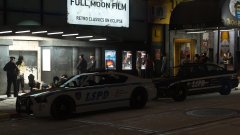 Niko and Roman what are they doing In LS
 -
Thanks, While I did leave out a lot of bug fix, My goal was just to give the 'basic' idea of how to do it. Much like showing someone how to import a model
-
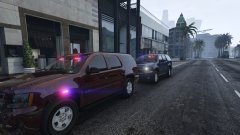
From the album: 0taku media
Two LSPD Tahoe's on scene of a Store robbery -
.jpg.85b138ab90025392dfbda71cc04b74ee.jpg) As long as I get the red head
As long as I get the red head -
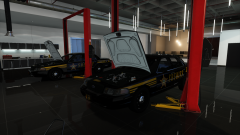 Nice
Nice -
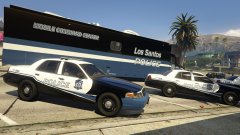
From the album: 0taku media
some of the LSPD CVPI's and a MCC parked outside on of the stations -
-
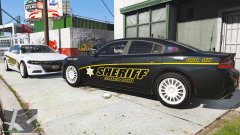 Are the hubs public?
 -
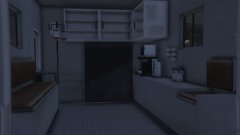 Someone forgot to change the blown light
 -
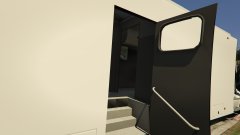 See last two images, as in ones I've posted
 -
From the album: 0taku media
All of this is still very much a W.I.P. And could change. -
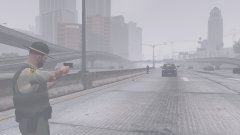 Damn, that fog
 -
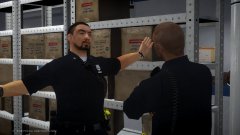 "Welcome to the cave...it just the evidence locker, but cave makes it sound cooler. "
 -
-
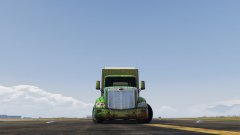 Yes, might have todo some resizing. but yeah. it's an improvement over the crap old on I was working on but lost the file
 -
From the album: 0taku media
-
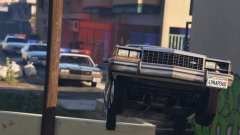 I fixed it for you
 -
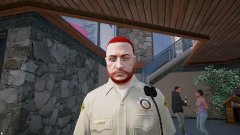 All the LS air, Its toxic
 -
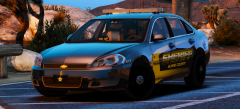 It will, In due time
 -
That looks like my impala


.jpg.85b138ab90025392dfbda71cc04b74ee.jpg)


