
Cyanotic
Members
-
Joined
-
Last visited
Everything posted by Cyanotic
-
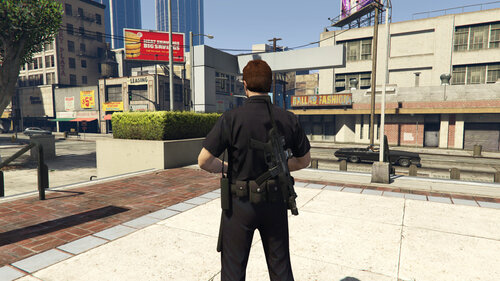 Nevermind, i figured it out. I use these settings and it works well. OffsetPosition = -0.1,0.22,-0.02 Rotation = 165,165,0.0
- 248 comments
- 21 reviews
-
-

-

- 8
-
-
-
-
-
-
-
 Wheels don't seem to stay when I exit the vehicle. Have to go back to stickywheels for now unfortunately.
- 262 comments
- 21 reviews
-
-
- 2
-
-
 I really like this mod. I agree with @sergeantFrank above though. I rarely play in first person, I definitely understand having the overlay only work in 1st person but allowing the audio to be turned on and repeat in 3rd person at least would be epic.
- 168 comments
- 35 reviews
-
-
- 1
-
-
They're not from me. The last couple of uploaded scripts have taken 6+ hours to be ready to download. Just wondering if there was a reason behind this.
-
Why does manual review for uploaded files seem like it's taking so much longer now than it used to?
-
-
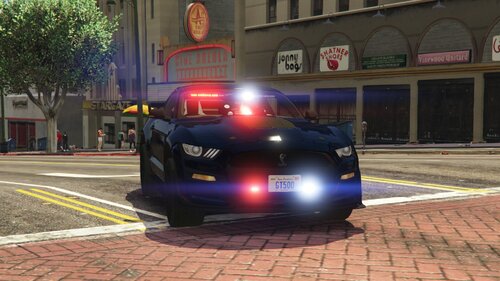 I don't play with many unmarked cars but THIS ONE is awesome and will definitely be added to my game. Very well done.
- 19 comments
- 3 reviews
-
Beautiful car. The back 2 small lights on the passenger window go out entirely if any tint is added. The driver side works fine.
- 19 comments
- 3 reviews
-
 Great work on this, had to do some slight editing for conflicting codes but overall works beautifully alongside officer status menu. This helps to provide so much realism. Thank you so much for this! Really hope to see you keep adding..
- 7 comments
- 3 reviews
-
Would love to see you implement 10-23 officer arrived on scene and have it actually play the officer arrived on scene audio! Great work on this though i dig it.
- 7 comments
- 3 reviews
-
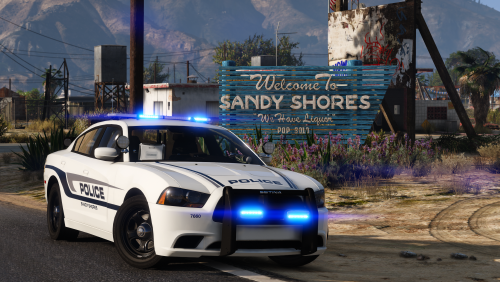 This thing is gorgeous. Simple yet effective lighting. REALLY wish it had a TA with some amber lights but overall this vehicle is on point.
- 25 comments
- 6 reviews
-
-
- 1
-
-
 There is a fix for that. I had to do a bit of editing a WHILE back but got mine to work fine now.
- 19 comments
- 1 review
-
-
- 1
-
-
no blaine county when I go on duty? Only LSSD
-
**scripts** play your audio speed radar **mods** cop holster dashcam V emergency lighting status eup menu hold my gun KTFDO More Control V Spotlight ALPR lite better EMS Interaction+ Officer status Plugin Stop the ped Traffic Policer Ultimate backup vocal dispatch XScanner Natural Vision VisualV *various texture and audio modifications that I've done myself. **callouts* assorted callouts peterUcallouts simpleCallouts tacco highway callouts
-
OH wow. I couldn't play with 20-35 fps. I would go crazy. I also record and stream though so that would be no bueno. I dropped a lot of packs that had repeat call outs in them, and took out most of the packs that I had that weren't optimized for the new LSPDFR and got my fps to 60-70 with everything loaded. Definitely call outs and bad optimization killing FPS. I should also note that I play with everything turned all the way up in the settings as well as use VisualV and Natural Vision.
-
I can easily run GTAV over 120 fps. When I start LSPDFR I'm usually getting around 70-90 fps then I go on duty and it goes to 40, sometimes dipping below 32, specially in the city. Specs: Windows 10 pc i7 8700k @3.7 GTX 1080ti 32gb ddr4 ram
-
-
-
My dumb ass did a manual update and forgot to include the plugins folder lol. All is well now. Thank you for your help.
-
I don't know. I wasn't really interested in that feature so I didn't look. I'll test that out though.