Him1250
Members
-
Joined
Everything posted by Him1250
-
 No issues, pretty stable callouts.
- 47 comments
- 5 reviews
-
-

- 1
-
-
- us
- rph
- lspdfr callout
- open source
-
Tagged with:
-
 Amazing work bro!
 -
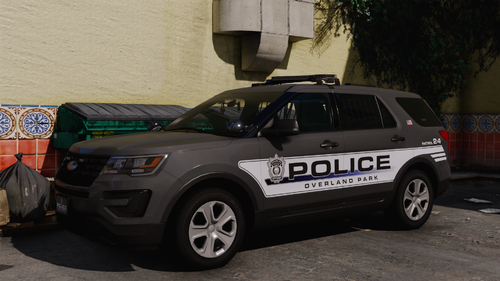
Models by me. Some are released, some aren't. That how it be.
-
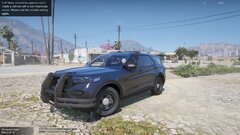
From the album: Him1250's Models
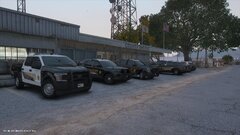
Don't mind *some* missing textures, fixed after the screenshots were taken.© HIM1250/BLUE LINE MODS
-
-
is that for sure the plugin that causes this text box to come up?
-
Here you go. RagePluginHook.log
-
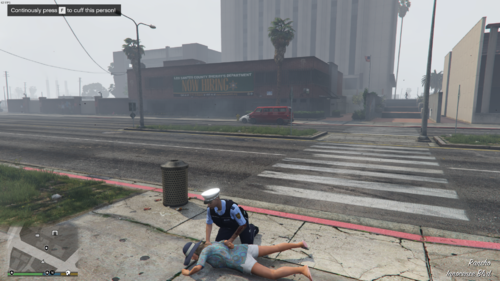
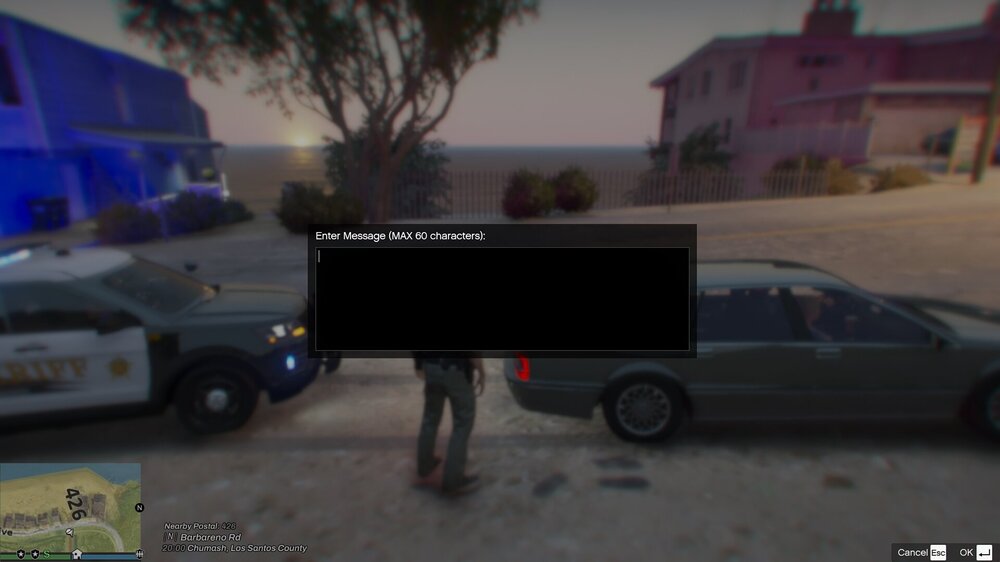
Howdy, I've been having this issue lately. Does anyone know which plugin causes this and how I could fix it? I'm not able to respond to calls when this is happening, restarting the game will fix it but then it'll occur after so often. I'd like to eliminate the problem altogether. Thanks!
-
 Is there anyway you could add the ability to "force" extras for the AI aswell so if you wanted to run a specific extra or set of extras for a specific model, you could?
 -
-
It's fucked up the community has come to this point. I understand the concept behind making money for paid vehicles, hell I do it myself. It's really low for someone to scam multiple people and then give them the big ol' middle finger but I am not surprised, this is the GTA community after all. Hasn't changed in the 10 years I've been active..
-
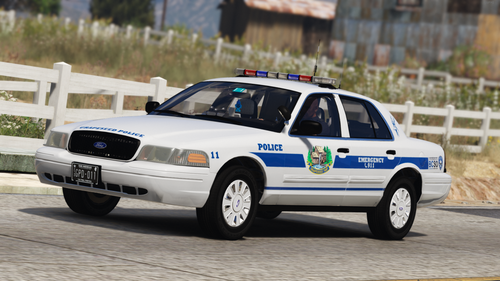 Looks great!
 -
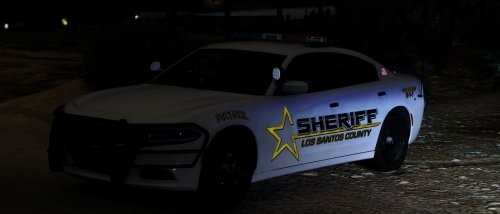
 Holy shit you're alive
 -
 Holy shit, you're "back"
 -
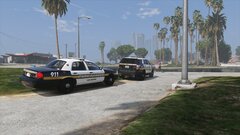 Great to see you back!
 -
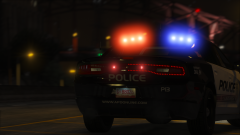 The cars can be downloaded here.
 -
 Don't like it? Don't use it, it's that simple.
 -
Who are you? I can't recall who you are. /s Glad to see you're back! Hope all is well.
-
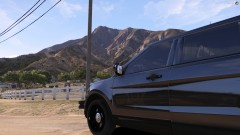
From the album: Him1250's Models
Car by me. -
 Wonder what this could be
 -
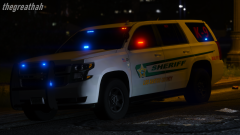 Glad to see you're back!
 -
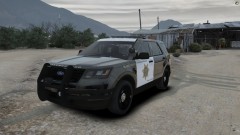
From the album: Him1250's Models
-
No, it's been stated in the past that LSPDFR has no intentions being ported over to FiveM.
-
I believe you mean @ineseri and yes, he was a badass.
-
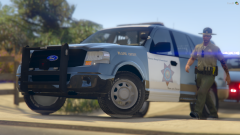 I wonder who's beautiful model that is...