.jpg.e891f29aa7e4ee9b573d99a5dfa67c58.jpg)
Prophet
Members
-
Joined
Everything posted by Prophet
-
-
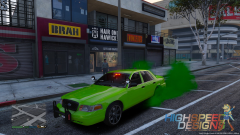
From the album: San Andreas
Don't mind shitty picture quality, I took this using steam's screenshot function and apparently that makes my game look potato.© HighSpeed Designs
-
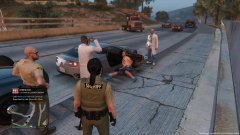
From the album: San Andreas
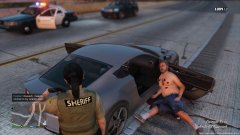
From the album: San Andreas
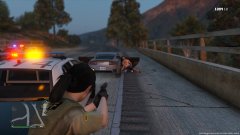
From the album: San Andreas
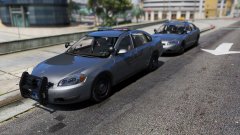
From the album: San Andreas
© HighSpeed Designs
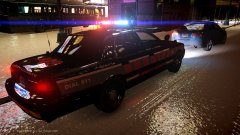
From the album: San Andreas
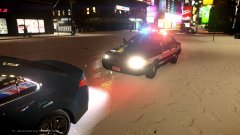
From the album: San Andreas
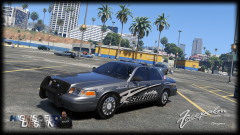 I will soon!Most definitely!
 Greetings from the Staff at LCPDFR! Today we’ve had the special opportunity to meet another great LCPDFR Community Member taking the charge at making LSPDFR and GTA-V the ultimate police simulator. This specific individual has gifted us with an all-in-one modification that gives us the free range to create our own law enforcement personas as we patrol the streets and roads of San Andreas. If you haven’t guessed it yet we are obviously speaking in part of Alex_Ashfold and his Emergency Uniform Pack! So without further adieu our interview with Alex_Ashfold.
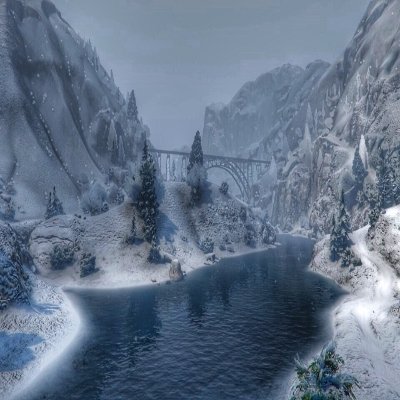 Greetings everyone and welcome to the fourth installment of the Community Staff Favorites. I hope you all enjoy the amazing work submitted and selected for this week. Thank you once again for all the great submissions so without further ado (in no particular order) the Community Staff’s chosen Favorites.
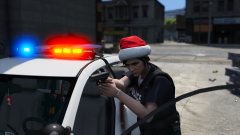 ;)
where do you see ponies? Where is that even coming from xD
Ponies?
I sense... jealousy.
Loser.
;)
where do you see ponies? Where is that even coming from xD
Ponies?
I sense... jealousy.
Loser.
From the album: San Andreas
When are you gonna let me get at those Wayne County Sheriff liveries ;)This video may be able to help you. https://www.youtube.com/watch?v=pg5amYXB4rICurrently, there is no other way (At least not that I know of) to do so.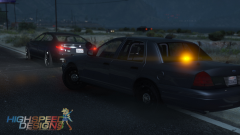 The rest of the pack has to be done first ;)
From the album: San Andreas
© HighSpeed Designs
.thumb.jpg.f7d19f85fad406630fb24c5fa819cf86.jpg)