
Officer ufo1
Members
-
Joined
-
Last visited
Everything posted by Officer ufo1
-
 Great Audio files! Works great, installs easy. For anyone interested check out my LSPDFR YouTube/Officer ufo1 tutorial video showing step by step how to install BetterDispatchAudio. Link for tutorial:
- 311 comments
- 39 reviews
-
 Great Script Mod! I have a LSPDFR YouTube/Officer ufo1 Tutorial showing step by step how to install HeroCop; here's a link for the Tutorial:
- 542 comments
- 98 reviews
-
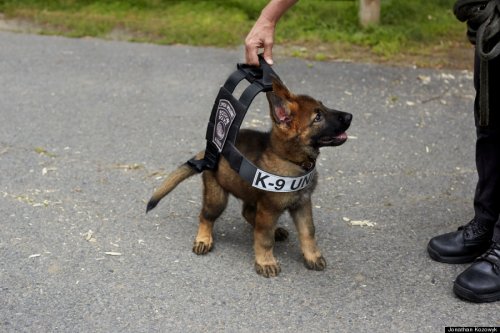 Great textures! I have a LSPDFR YouTube/Officer ufo1 tutorial showing step by step how to install these German/Belgian Shepherd Textures. Here's a link for the tutorial: https://www.youtube.com/edit?o=U&video_id=ug6lSnTRMGU
- 14 comments
- 3 reviews
-
 Here's a link for my YouTube/Officer ufo1 LSPDFR tutorial showing step by step how to install these Sheriff Deputy Peds created by Troopercharles: https://www.youtube.com/edit?o=U&video_id=CgdVO7HjeoU
- 108 comments
- 19 reviews
-
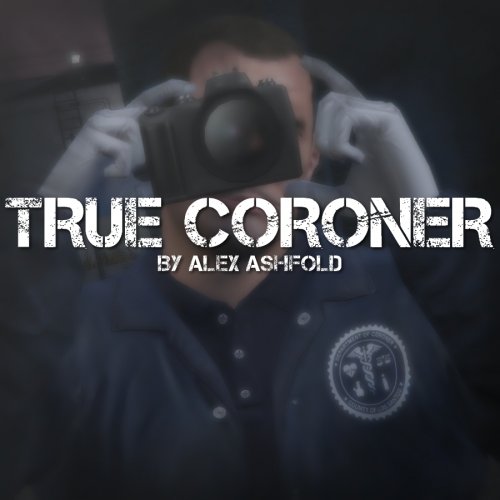 Great coroner peds! Here's a link for my YouTube/Officer ufo1 LSPDFR tutorial showing how to install these coroners step by step: https://www.youtube.com/edit?o=U&video_id=CgdVO7HjeoU
- 23 comments
- 18 reviews
-
Great Peds! I featured them & gave you a shoutout in the following YouTube/Officer ufo1 LSPDFR patrol video: https://www.youtube.com/edit?o=U&video_id=QxZnIPO4smA
- 108 comments
- 19 reviews
-
-

- 1
-
-
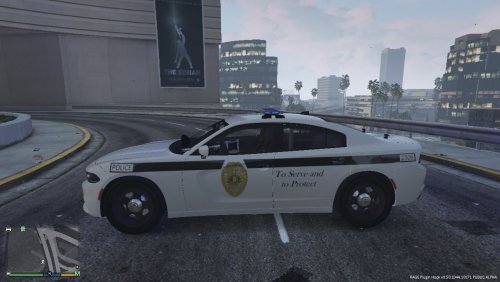 Allow me to be the first to congratulate you with 5 stars. Nice Job; the pack is complete and includes a skin/texture for all 7 of Captain14's LSPD vehicles. I featured them in the following LSPDFR (YouTube/Officer ufo1) patrol video: https://www.youtube.com/edit?o=U&video_id=sJZw2abZcxU
- 12 comments
- 1 review
-
.thumb.png.9d0943161b37f863c291d6d6664edefb.png) For some reason this plugin always works correctly when I call for "Air Support" from the default backup menu (Down on the Right Stick) . And by work correctly I mean the "Air Support" unit only follows the suspect with the spotlight. However, when I call for "Air Support" from Albo1125's Police Smart Radio the "Air Support" unit follows either the suspect or me with the spotlight, depending on who's closer to the "Air Support" unit. When the "Air Support" unit follows me with the spotlight rather than the suspect the Plugin does not seem to be working correctly.
For some reason this plugin always works correctly when I call for "Air Support" from the default backup menu (Down on the Right Stick) . And by work correctly I mean the "Air Support" unit only follows the suspect with the spotlight. However, when I call for "Air Support" from Albo1125's Police Smart Radio the "Air Support" unit follows either the suspect or me with the spotlight, depending on who's closer to the "Air Support" unit. When the "Air Support" unit follows me with the spotlight rather than the suspect the Plugin does not seem to be working correctly.- 366 comments
- 33 reviews
-
.thumb.jpg.61de846de400ca98f85d205992527de1.jpg) I saw a couple of comments/reviews from people having trouble with the install. BxBugs123 has 2 or 3 cars that are actually "automatic installs" and install easier than most other vehicle mods if you know what you're doing. I have a tutorial showing how to install 2 different vehicles by Bxbugs123, a 2014 Charger, and 2011 CVPI. Check out my channel on YouTube and check out my LSPDFR tutorial series. Link for my YouTube channel (officer ufo1): https://www.youtube.com/channel/UCJXHem2KMevP-aG-2qiKmVw
I saw a couple of comments/reviews from people having trouble with the install. BxBugs123 has 2 or 3 cars that are actually "automatic installs" and install easier than most other vehicle mods if you know what you're doing. I have a tutorial showing how to install 2 different vehicles by Bxbugs123, a 2014 Charger, and 2011 CVPI. Check out my channel on YouTube and check out my LSPDFR tutorial series. Link for my YouTube channel (officer ufo1): https://www.youtube.com/channel/UCJXHem2KMevP-aG-2qiKmVw- 265 comments
- 83 reviews
-
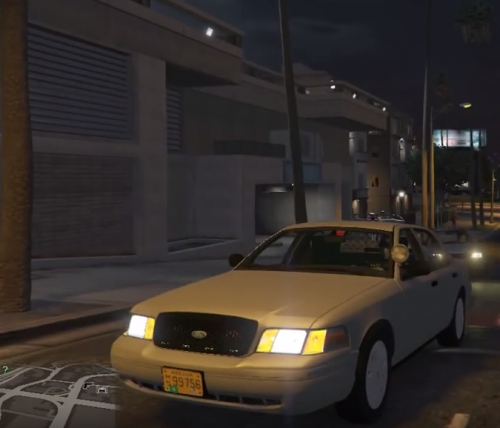 Great unmarked pack. Fit perfectly on Captain14's 2011 CVPI & the pack includes 4 different unmarked colors. Great job!
- 13 comments
- 1 review
-
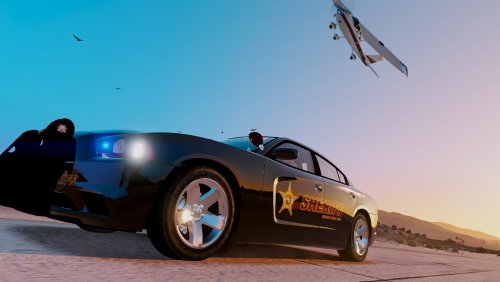 An amazing pack. Great work, and on behalf of everyone who loves Captain14's Vehicles thanks. You included at least 1 skin for every single one of Captain14's pack vehicles.
- 13 comments
- 4 reviews
-
-
- 1
-
-
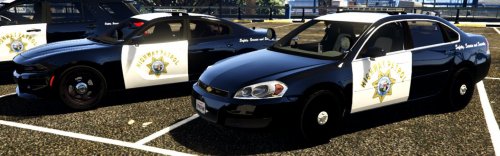 Great pack! The pack is complete & includes skins for all 7 of Captain14's vehicles.
- 2 comments
- 2 reviews
-
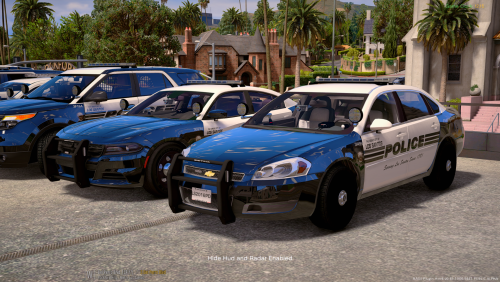 Great texture pack, and it was complete, there was one for all 7 of Captain14's vehicles. I like the stripes on the rear bumpers.
- 23 comments
- 6 reviews
-
-
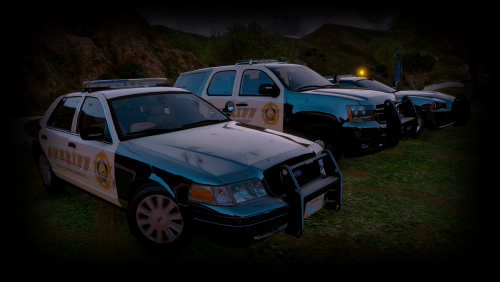 Great pack, and it was an automatic install using Open IV. I have not seen a single vehicle creator who has vehicles that are automatic install with the exception of Captain14 & 3 by Bxbugs123; why is that? Apparently Captain14 is the BEST vehicle creator and we look forward to seeing more from him!
- 445 comments
- 108 reviews
-
.thumb.jpg.bfad1c193dd40b9d539eefd7c5187a5a.jpg) Great car with the best detail I have seen. And what's even better is BxBugs123 is a little smatter than every other vehicle creator because he is the only one with several vehicles (including this one) that can be installed automatically via the Open IV package installer (with the exception of Captain14 who also has 3 vehicle packs that are also automatic installs).
Great car with the best detail I have seen. And what's even better is BxBugs123 is a little smatter than every other vehicle creator because he is the only one with several vehicles (including this one) that can be installed automatically via the Open IV package installer (with the exception of Captain14 who also has 3 vehicle packs that are also automatic installs).- 157 comments
- 46 reviews
-
.thumb.jpg.6c80ecc7060134b39a0d153a8d09ac1f.jpg) Great job. This vehicle is an automatic install using the Open IV package installer. With the exception of Captain14 I have not seen another vehicle creator with vehicles that can be installed with the Open IV package installer. That tells me Bxbugs123 & Captain14 are way more advanced than the rest of the vehicle creators.
Great job. This vehicle is an automatic install using the Open IV package installer. With the exception of Captain14 I have not seen another vehicle creator with vehicles that can be installed with the Open IV package installer. That tells me Bxbugs123 & Captain14 are way more advanced than the rest of the vehicle creators.- 107 comments
- 24 reviews
-
Great vehicle, BxBugs123 is the leading vehicle creator in my opinion. His vehicles have the most detail and several of his cars can be installed automatically via Open IV package installer. I have not seen another creator who has vehicles that are automatic install using Open IV package installer with the exception of Capatin14.
- 265 comments
- 83 reviews
-
-
- 1
-
-
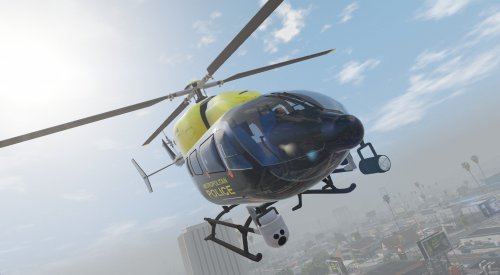 Nice Helicopter, great job!
 -
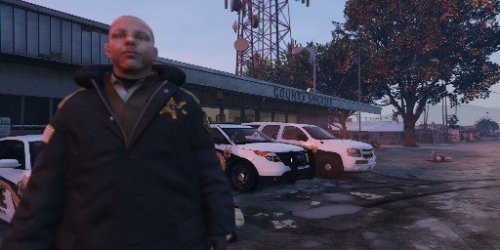 The Download includes 5 folders for 5 skins for 5 of Captain14's 7 Vehicle Mega Pack, so even if there were actually 5 skins it would be incomplete, but there are not 5 skins, there are only 3 skins! The FPIU folder is empty, and the Tahoe folder is empty. Very poor job.
 -
-
-
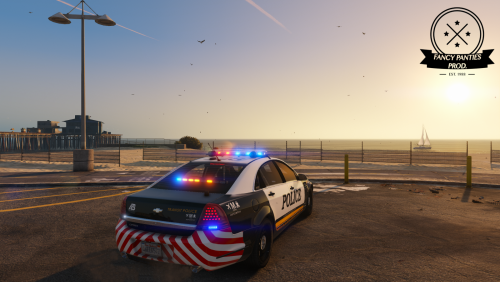 Difficult to install because the files were created improperly by todays standards (Captain 14 & BxBugs123 have vehicles that are automatic install). The Read me was poorly made, only advanced modders can get install this car properly.
- 34 comments
- 15 reviews
-
-
- 1
-
-
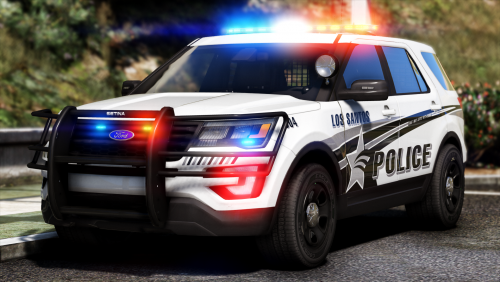 Difficult to install and get working properly. The creator would do well to learn from creators like Captain 14 and Bxbugs123 who have simplified the process and have automatic installs using Open IV.
- 427 comments
- 75 reviews
-
-
- 1
-
-
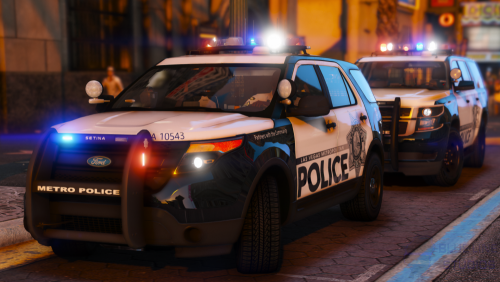 Difficult to install and get working properly. The creator could learn a lot from creators like Captain 14 and BxBugs123 who have simplified the install process.
- 67 comments
- 25 reviews


.thumb.png.9d0943161b37f863c291d6d6664edefb.png)
.thumb.jpg.61de846de400ca98f85d205992527de1.jpg)
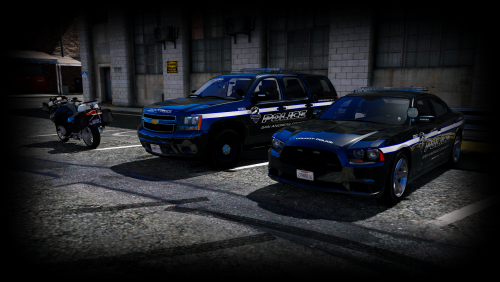
.thumb.jpg.bfad1c193dd40b9d539eefd7c5187a5a.jpg)
.thumb.jpg.6c80ecc7060134b39a0d153a8d09ac1f.jpg)