


Joe C Wilson
Members
-
Joined
Everything posted by Joe C Wilson
-
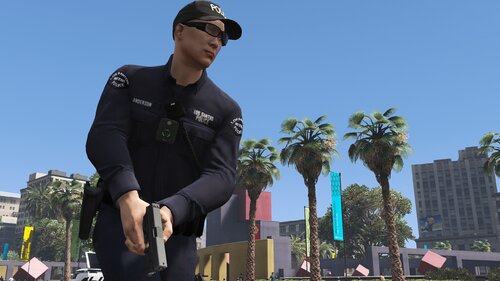 Do you have EUP Law & Order 8.2 + Serve & Rescue 1.4? Did you install the data folder files and all ultimate backup files? Are you using other backup mods?
- 944 comments
- 23 reviews
-
GTA 5 LSPDFR #51 - Stolen Police Vehicle | BCSO '11 CVPI via @YouTube
-
GTA 4 LCPDFR 1.1 #08 - Car Explodes After Pursuit | FIB '08 Suburban via @YouTube
-
-
-
N/A
-
Some of the best of the best
-
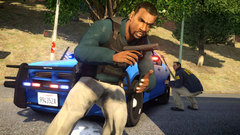 Grand Theft Auto 4 Screenshot 2021.11.17 - 17.15.24.54.png
-
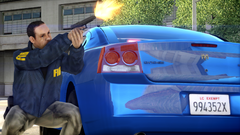 Grand Theft Auto 4 Screenshot 2021.11.17 - 17.13.10.81.png
-
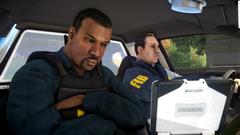 Grand Theft Auto 4 Screenshot 2021.11.17 - 01.22.42.13.png
-
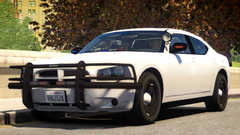 Grand Theft Auto 4 Screenshot 2021.11.17 - 01.15.00.89.png
-
.png.011905e9f229d6503279599a8f4bbf6a.png) Screenshot (345).png
Screenshot (345).png
-
.png.0d3dbee1967119ba526cd30cba5d5880.png) Screenshot (344).png
Screenshot (344).png
-
 enb2021_5_29_17_5_18.thumb.jpg.5ef086794fd8d3f6175bce3586f6bab0.jpg
-
.thumb.png.3ce8fe657c6ce4f213479ab193d3b0b0.png.524ab34b45ba544f3e04c6ae4cabf0d6.png) 1587336604_Screenshot(18).thumb.png.3ce8fe657c6ce4f213479ab193d3b0b0.png
1587336604_Screenshot(18).thumb.png.3ce8fe657c6ce4f213479ab193d3b0b0.png
-
.thumb.png.1e697023d3f61f99aebcb11fecf364e1.png.1e4fca0ea94b3b10ccf30e35e3214784.png) 701765710_Screenshot(313).thumb.png.1e697023d3f61f99aebcb11fecf364e1.png
701765710_Screenshot(313).thumb.png.1e697023d3f61f99aebcb11fecf364e1.png
-
.thumb.png.58775d235eabad0bc022231ddd220d81.png.8a311ace083f3fdd2673eb3ca1ee2b94.png) 81046631_Screenshot(12).thumb.png.58775d235eabad0bc022231ddd220d81.png
81046631_Screenshot(12).thumb.png.58775d235eabad0bc022231ddd220d81.png
-
 backgrounder.thumb.jpg.e89b9524293a32f200133fea8494c0d2.jpg
-
.thumb.png.46305776797bf1f1c0a959b778caf4d0.png.6c35c035d861c608b13d4e03eec1823f.png) 970544194_Screenshot(197).thumb.png.46305776797bf1f1c0a959b778caf4d0.png
970544194_Screenshot(197).thumb.png.46305776797bf1f1c0a959b778caf4d0.png
-
.thumb.jpg.283036f6158cec09c1bd06b8156f2b37.jpg.01f226c8046a06f57312c03e7c66ace9.jpg) 1711790311_backgrounder(1).thumb.jpg.283036f6158cec09c1bd06b8156f2b37.jpg
1711790311_backgrounder(1).thumb.jpg.283036f6158cec09c1bd06b8156f2b37.jpg
-
.thumb.png.fff1cd04b75b9a8cf06aef669833b35b.png.97ac8bff90f27883f6ea718bf9a6eafb.png) 1956628941_Screenshot(4).thumb.png.fff1cd04b75b9a8cf06aef669833b35b.png
1956628941_Screenshot(4).thumb.png.fff1cd04b75b9a8cf06aef669833b35b.png
-
-
From the album: 2021
-
From the album: 2021
-
N/AInstalled some new cars and peds for LCPDFR.. FIB patrol soon?
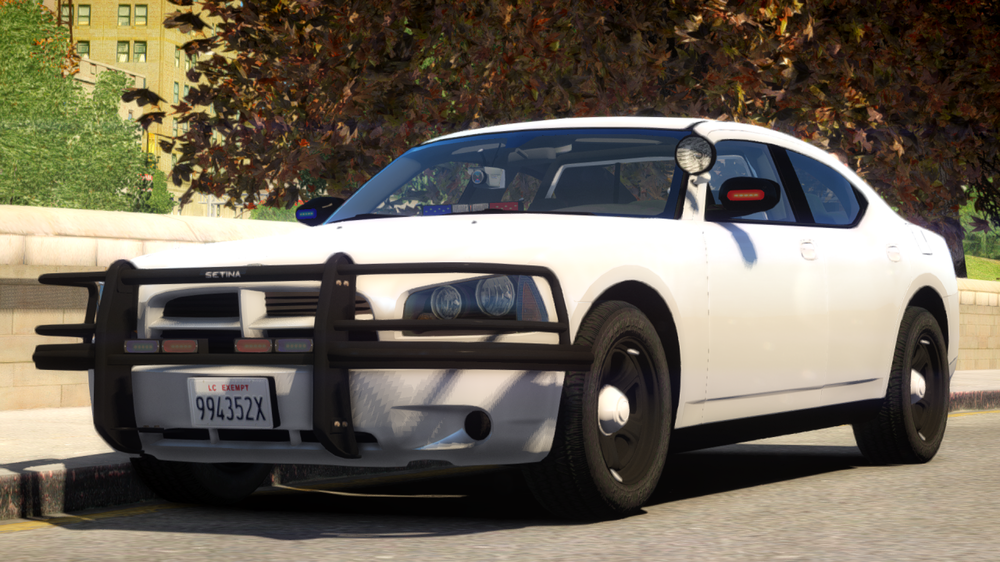
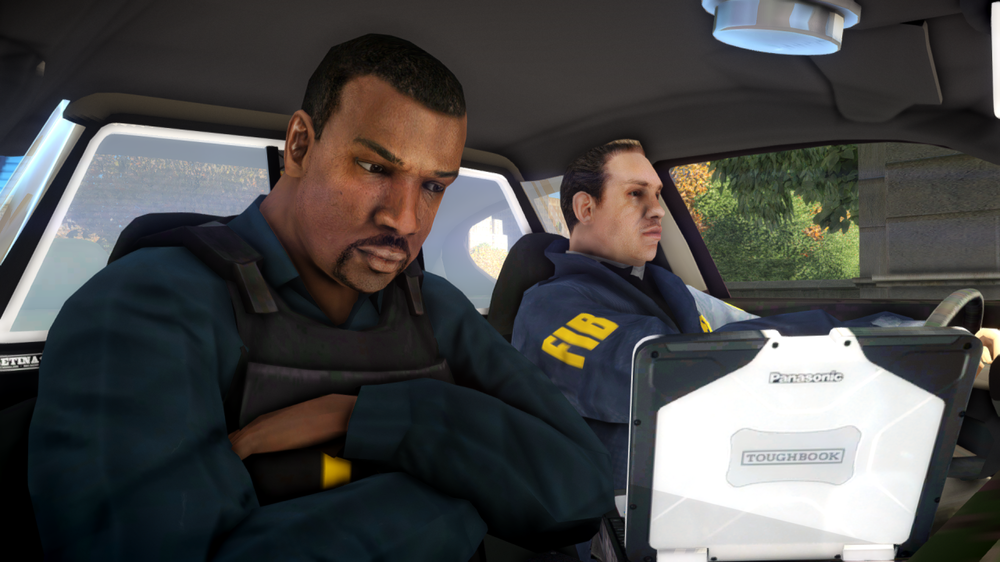
From the album: 2021
From the album: 2021
GTA 5 LSPDFR #50 - Chamberlain Hills Pursuits | PSP '13 Sedan via @YouTube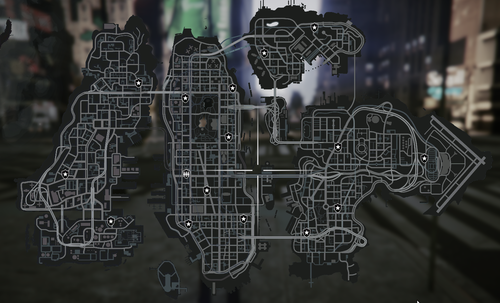 Does Liberty City V Remix have those flooded tunnels at all? Having stations in Liberty City in V is very nice, but the map of IV can be buggy in some areas. If this version of Liberty City has no flooded tunnels and roads, then I'd put this in my game for sure!
You're not using any other backup configurations are you? More than likely you're using EUPFR and my files are conflicting with those. I recommend reinstalling the LSPDFR data folder, and Ultimate Backup.
Does Liberty City V Remix have those flooded tunnels at all? Having stations in Liberty City in V is very nice, but the map of IV can be buggy in some areas. If this version of Liberty City has no flooded tunnels and roads, then I'd put this in my game for sure!
You're not using any other backup configurations are you? More than likely you're using EUPFR and my files are conflicting with those. I recommend reinstalling the LSPDFR data folder, and Ultimate Backup.- 944 comments
- 23 reviews
Your world events frequency is invalid. If you want to completely disable them here's my settings. WorldEvents.IntervalMultiplier = 0.0f WorldEvents.MaxNumberOfEvents = 0 Think of IntervalMultiplier as the minute and the second for the setting (so 4.0f will be 4 minutes). You can increase the IntervalMultiplier to 10.0 and MaxNumberOfEvents to 1 so one event will start every 10 minutes. Hope this helps!


.png.011905e9f229d6503279599a8f4bbf6a.png)
.png.0d3dbee1967119ba526cd30cba5d5880.png)
.thumb.png.3ce8fe657c6ce4f213479ab193d3b0b0.png.524ab34b45ba544f3e04c6ae4cabf0d6.png)
.thumb.png.1e697023d3f61f99aebcb11fecf364e1.png.1e4fca0ea94b3b10ccf30e35e3214784.png)
.thumb.png.58775d235eabad0bc022231ddd220d81.png.8a311ace083f3fdd2673eb3ca1ee2b94.png)
.thumb.png.46305776797bf1f1c0a959b778caf4d0.png.6c35c035d861c608b13d4e03eec1823f.png)
.thumb.jpg.283036f6158cec09c1bd06b8156f2b37.jpg.01f226c8046a06f57312c03e7c66ace9.jpg)
.thumb.png.fff1cd04b75b9a8cf06aef669833b35b.png.97ac8bff90f27883f6ea718bf9a6eafb.png)


.png.49b4b0e23cb0d7df2c043c7f6a137b7e.png)
.png.67b2a34c7c882c8460e266def21b19ac.png)


Account
Navigation
Search
Configure browser push notifications
Chrome (Android)
- Tap the lock icon next to the address bar.
- Tap Permissions → Notifications.
- Adjust your preference.
Chrome (Desktop)
- Click the padlock icon in the address bar.
- Select Site settings.
- Find Notifications and adjust your preference.
Safari (iOS 16.4+)
- Ensure the site is installed via Add to Home Screen.
- Open Settings App → Notifications.
- Find your app name and adjust your preference.
Safari (macOS)
- Go to Safari → Preferences.
- Click the Websites tab.
- Select Notifications in the sidebar.
- Find this website and adjust your preference.
Edge (Android)
- Tap the lock icon next to the address bar.
- Tap Permissions.
- Find Notifications and adjust your preference.
Edge (Desktop)
- Click the padlock icon in the address bar.
- Click Permissions for this site.
- Find Notifications and adjust your preference.
Firefox (Android)
- Go to Settings → Site permissions.
- Tap Notifications.
- Find this site in the list and adjust your preference.
Firefox (Desktop)
- Open Firefox Settings.
- Search for Notifications.
- Find this site in the list and adjust your preference.