CiscoFan
Members
-
Joined
-
Last visited
Everything posted by CiscoFan
-
I was at work when this happened, this all was in the same area as my work. If you see that Lowe's on Charleston, I work at LV.Net and that Lowes's is in the same parking lot as my work. I was in the area of the shootout when it happened
-
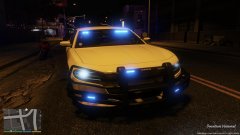 You and your guesses... XD... it is a 2016 Dodge Charger.
 -
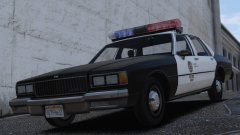 Takes me back to watching Terminator 2: Judgement Day
 -
-
http://gtapolicemods.com/downloads.php?do=file&id=2259 Here you go.
-
I will also do it.
-
I can do it for you when I get home, please PM me.
-
You need to find the siren you desire and modify it to your liking.
-
You need to download the xml version of it on GTA5-Mods.
-
You'd need to edit your carcols.ymt
-
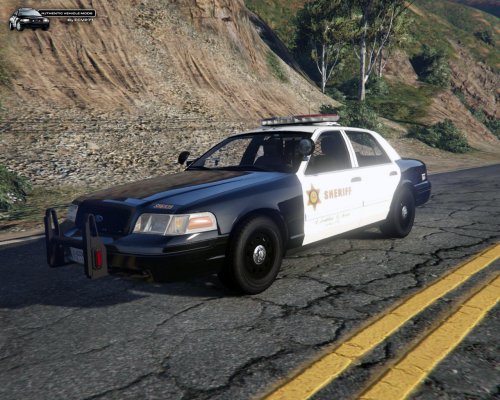 Well you can use extra_1 and extra_2 for the ram bar so that it spawns with either and have the newer ram bar like what Bxbugs123 did with his LASD CVPI.
- 75 comments
- 13 reviews
-
-
-
-
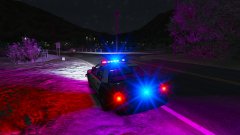 Well that is true, though in Vegas, they are not as blinding... gotta love light pollution though. Also halogens are not as blinding.
 -
The lights are blinding...
-
I am not getting upset over it, I am laughing my ass off about it...
-
Drixxxx
-
I see that you changed what I have said buddy
-
North Las Vegas
-
we tried that, but I can try with the corona facing the camera.
-
Is that from Forza Horizon 3?
-
You are going to need to rotate it 45 degrees
-
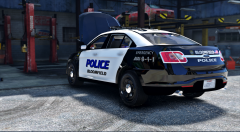 that is a 2012 by F5544
 -
And the gif is not showing up... rip.