


Reddington
Members
-
Joined
Everything posted by Reddington
-
You're most welcome. :)
-
No worries, I was wondering if both posts had done something to trigger it. Thus far, I've only seen this happen on file comments that were a few years old, which leads me to think there was either some type of site issue back then that led to it, or something that was updated since then caused it.
-
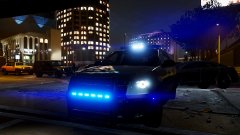
From the album: Red's LSPDFR chaos
-
Moderator notice: Please do not redistribute vehicle files that aren't yours. If you're curious who the owner is, take screenshots and post those. If you feel this topic has been closed in error, please report this post.
-
You're missing advancedhookv.dll. This comes with the ELS download.
-
Please take a screenshot of your main GTA V directory.
-
Alright, thanks.
-
Can you link to where you saw this, please?
-
Good luck. :)
-
Do me a favor, remove repair and wash. Now go back into the game and try using ELS. Any change? If no, try this: In OpenIV, go to ASI Manager and uninstall ASI Loader and OpenIV.ASI and then click install again to reinstall them. Next, restart your PC, and try loading into the game again and see if that works. If it still not working, please post the ASI log and ELS log files.
-
To my knowledge there isn't a way to change that. You can, however, press N and set your status as busy. This will stop callouts unless you force them with X. B is for backup.
-
I don't believe there is. Do you have a trainer? If so, use that. If you don't have a trainer, here - https://www.gta5-mods.com/scripts/simple-trainer-for-gtav
-
Do you have ScriptHookV?
-
Your topic has been moved to LCPDFR Support Requests. Please post in the correct location in the future.
-
This is from Sam's file, correct? I'm guessing the massive like button is a result of the messed up posting format that a few members have. I tried editing their post to see what caused it, and I think it has to do with the members not posting anything of their own, just quoting. I could be wrong about that.
-
Thank you! :)
-
Try this, please. In OpenIV, go to ASI Manager and uninstall ASI Loader and OpenIV.ASI and then click install again to reinstall them. Next, restart your PC, and try loading into the game again and see if that works. If it still not working, please post the ASI log and ELS log files.
-
Hi there, Your log isn't helpful, especially since it says this: Are you positive you're pressing the correct key? I use RAW and ELS, no issues at all. This topic has been moved to the appropriate forum. Please post in the correct location in the future.
-
Even so, it still counts as a very strange, unusual police car, and could be quite fun. :P
-
Nuuu, just helpful. :P Thank you!
-
1) Did you install the ELS VCF into the pack_default folder? 2) Do you have ScriptHookV? 3) Do you have advancedhookv.dll in your main directory?
-
At this point, we have nothing else to tell you. You can try using said traffic control mod, but if it doesn't do what you're wanting, you're just gonna have to deal with on or off for ElsTrafCTRL.
-
All you really need to use for traffic stops is Traffic Policer, this allows you to move the AI to a better location. There's really nothing you can do about putting actual cameras on the cars.
-
Unfortunately, putting the actual cameras on the vehicle falls under vehicle development, something I know nothing of. However, you can still use ALPR+ without the cameras.
-
Lets be real, there are plenty of strange emergency vehicles. Example one is the police raptor/monster truck. lol


