


Reddington
Members
-
Joined
Everything posted by Reddington
-
Please take a screenshot of your ELS folder and the contents within it.
-
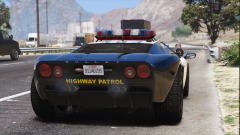 Please be ELS enabled!!
 -
From what I remember, that happens if there is some type incompatibility. Remove everything except LSPDFR, Rage, ScriptHookV and ELS.
-
You're most likely on part of the story where Michael is banned from the city. Play more of the story until that is resolved.
-
You should be able to find them in OpenIV by going to mods-->update-->update-->x64-->data. This topic has been moved to the appropriate forum. Please post in the correct location in the future.
-
Your topic has been moved to GTA V Support, this is not LSPDFR related. Please post in the correct location in the future.
-
You're welcome. :)
-
You can solve this by doing one of two things. Both will work so it doesn't matter which you choose. 1) Open your Simple Trainer and go to its second page. You'll see "keybindings enabled". Disable them.. Or 2) Open your Simple Trainer config, find "keybinds" and disable it.
-
In OpenIV, go to ASI Manager and uninstall ASI Loader and OpenIV.ASI and then click install again to reinstall them. Next, restart your PC, and try loading into the game again and see if that works. This topic has been moved to the appropriate forum. Please post in the correct location in the future.
-
Change the handlingid to POLICE3. The police3 is GTA 5's version of the Taurus anyway,
-
Hm, replace the new meta lines with lines from vehicles that previously worked. All you need to do is change the name and handlingid to match the vehicle you added.
-
If the problem was the meta file, it'd be crashing on loading and populating world. Are you able to load into GTA V via Steam or the GTA V.exe?
-
You said you reinstalled the game, but did you also reinstall your plugins? If so, remove all of them, including scripts and give it a try.
-
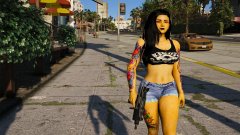 Damn, what ped model is this?
 -
It functions in a similar way, but unlike Computer+, you have to alt tab to use that one, it is not integrated.
-
Your topic has been moved to GTA V Support, this is not LSPDFR related. Please post in the correct location in the future.
-
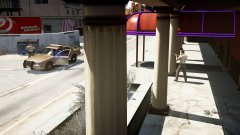
From the album: Red's LSPDFR chaos
-
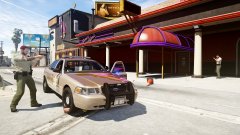
From the album: Red's LSPDFR chaos
-
Nope! You do not use the SDK folder at all. That is more for developers.
-
Try using another script and see if it works. There's a chance speed radar might not be up to date.
-
Did you try loading back into the game to see if it works? I assume you just gave up trying in game when it didn't work upon reloading. In my experience, the game doesn't respond well when trying to add something new while the game is open.
-
You're most welcome. :)
-
If you messed up the vehicles.meta, the game would crash at loading. If the vehicles spawn and work fine, you did it correctly. :)
-
Honestly, don't bother with the vehicles.meta the authors provide. Unless you're super OCD about things, using the vehicles.meta of the POLICE slot for add-on law enforcement vehicles will work flawlessly. All you need to change in the meta is the name of the vehicle (which includes the gameName, txdName, and, modelName) the handlingid, and the audionamehash to match that of your add-on car.
-
Can you please link to a video where you're seeing this? Computer+ is the only one of its kind. By chance, were you watching Youtubers who were playing on FiveM? If so, they're using a custom thing that is specific to FiveM only and is not LSPDFR related.


