Reddington
Members
-
Joined
Everything posted by Reddington
-
-
-
If your game is up to date, and you get that error even after updating ScriptHook V, I recommend clean installing SHV.
-
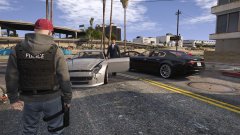
From the album: Red's LSPDFR chaos
-
Your topic has been moved to GTA V Support, this is not LSPDFR related. Please post in the correct location in the future.
-
Search Warrant combined with Stop the Ped is a very efficient combination, and I recommend it.
-
I unfortunately cannot answer that, as I just my computer screen. 😛 Have you tried using other trainers? Does it happen with them as well?
-
Check my FAQs, I provide a few methods for fixing this.
-
Your topic has been moved to GTA V Support, this is not LSPDFR related. Please post in the correct location in the future.
-
I have this happen sometimes even with my add-on spawner, and usually it happens as a result of lag. I am able to spawn them once the lag goes away.
-
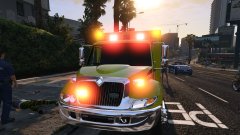
From the album: EMS/Fire duty
-
No problem! Is there any particular reason almost all the emergency vehicle entries, even the ambulance, is using SHERIFF handling?
-
You're welcome! Have fun!
-
Your topic has been moved to GTA V Support, this is not LSPDFR related. Please post in the correct location in the future.
-
Latest patchday, patchday19's vehicles.rpf is where the vehicles go. Make sure you're using a mods folder.
-
Your topic has been moved to GTA V Support, this is not LSPDFR related. Please post in the correct location in the future.
-
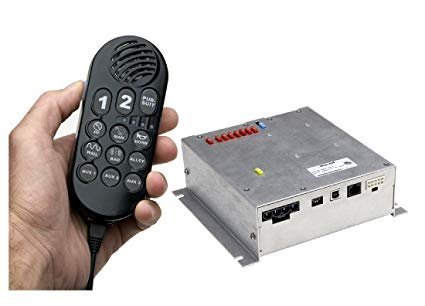 I really like this siren, the audio is nice and loud and the looping seems fine. My only complaint is the airhorn. There appears to be some buzzing when you hold it down.
- 21 comments
- 3 reviews
-
-

- 1
-
-
If you feel this topic has been closed in error, please report this post.
-
No problem at all! Try reading this and see if it helps - http://openiv.com/?p=1132
-
Ha ha, no biggie! Let me explain what the mods folder is. It's essentially a shell that protects your files. So if you replace a car in the mods folder, it will not touch your core files, meaning if you deleted the mods folder, you'd still have your game working fine. Now, to make a mods folder, open your GTA directory as you would normally, not via OpenIV. Create a new folder named "mods" - no quotes. in OpenIV, go to update-->x64-->dlcpacks-->patchday19-->dlc-->x64-->levels-->gta 5-->vehicles. Click "edit mode". You should now see a big red box which warns you that you're not using a mods folder. One of the options it gives you is to create that path in the mods folder, click that. After, you should notice your directory has changed and you're in the mods folder. From there, do the steps listed in my previous post. 🙂
-
Of course! Open OpenIV, now navigate to mods-->update-->x64-->dlcpacks-->patchday19-->dlc-->x64-->levels-->gta 5-->vehicles. If you do not have a mods folder already. let me know and I'll walk you through those steps. Now click "edit mode" in the top right. Drag and drop the vehicle files into the vehicles.rpf. Click "edit mode" again, and you're done.
-
I said you don't need OpenIV for ELS. 🙂 You need OpenIV when installing vehicles.
-
This sounds like two separate issues, so lets get into the 'standard police car'. Did you install the car to your very newest patchday? I believe that would be patchday19.
-
-
Oh, it wasn't there before! Ah, found the problem. 🙂 There should not be a folder named "police.xml", it should be an XML document. All ELS enabled cars come with one. Here is my pack_default folder.