
unitedOrange66
Community Team
-
Joined
Everything posted by unitedOrange66
-
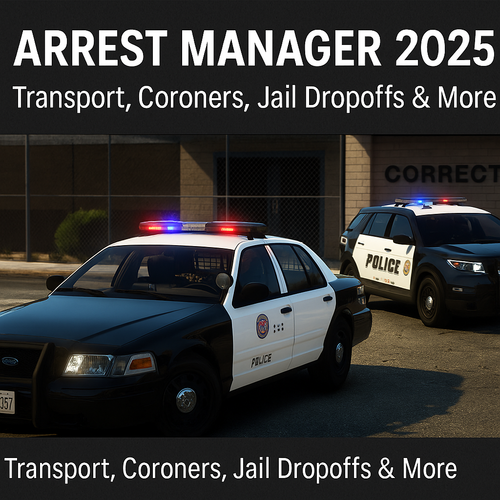 This is an updated version of the legacy plugin by Albo1125, which was created before STP and UB existed. There's no solid answer for which plugin is "better," since certain features in this plugin may be "superior" to STP, and vice versa. So it is at your discretion to decide which one you want to use.
- 20 comments
- 1 review
-
-

-

- 6
-
-
Your topic has been moved to GTA V Support, this is not LSPDFR related. Please post in the correct location in the future.
-
This topic has been moved to the appropriate forum. Please post in the correct location in the future.
-
This topic has been moved to the appropriate forum. Please post in the correct location in the future.
-
Your topic has been moved to GTA V Support, this is not LSPDFR related. Please post in the correct location in the future.
-
Your topic has been moved to GTA V Support, this is not LSPDFR related. Please post in the correct location in the future.
-
Your topic has been moved to GTA V Support, this is not LSPDFR related. Please post in the correct location in the future.
-
Your topic has been moved to GTA V Support, this is not LSPDFR related. Please post in the correct location in the future.
-
This topic has been moved to the appropriate forum. Please post in the correct location in the future.
-
Copy and paste the entire text into this XML Validator. It will tell you what corrections you need to make.
-
Your topic has been moved to LSPDFR 0.4 Support. Please post in the correct location in the future.
-
The latest version of LSPDFR/RPH only works on the latest game version of GTA V. In addition, we do not offer support for older versions of LSPDFR, RPH, or GTA V. Consider updating your game along with the necessary plugins and mods. If you feel this topic has been closed in error, please report this post.
-
This topic has been moved to the appropriate forum. Please post in the correct location in the future.
-
Are you no longer Are you no longer looking for support? This topic has been moved to the appropriate forum. Please post in the correct location in the future.
-
Your topic has been moved to GTA V Support, this is not LSPDFR related. Please post in the correct location in the future.
-
Your topic has been moved to GTA V Support, this is not LSPDFR related. Please post in the correct location in the future.
-
This topic has been moved to the appropriate forum. Please post in the correct location in the future.
-
This topic has been moved to the appropriate forum. Please post in the correct location in the future.
-
This topic has been moved to the appropriate forum. Please post in the correct location in the future.
-
This topic has been moved to the appropriate forum. Please post in the correct location in the future.
-
Your topic has been moved to GTA V Support, this is not LSPDFR related. Please post in the correct location in the future.
-
Your topic has been moved to GTA V Support, this is not LSPDFR related. Please post in the correct location in the future.
-
If you use a combination of damage mods, they might conflict.
-
Do you have damage tracker installed in your "Plugins" folder? What damage mod(s) are you using?
-
Do you have Rich Police Enhancement installed?