
unitedOrange66
Community Team
-
Joined
Everything posted by unitedOrange66
-
This topic has been moved to the appropriate forum. Please post in the correct location in the future.
-
This topic has been moved to the appropriate forum. Please post in the correct location in the future.
-
This topic has been moved to the appropriate forum. Please post in the correct location in the future.
-
This topic has been moved to the appropriate forum. Please post in the correct location in the future.Your topic has been moved to GTA V Support, this is not LSPDFR related. Please post in the correct location in the future.This topic has been moved to the appropriate forum. Please post in the correct location in the future.This topic has been moved to the appropriate forum. Please post in the correct location in the future.This topic has been moved to the appropriate forum. Please post in the correct location in the future.Where did you get RPH from? The latest version of RPH is included in the LSPDFR manual installation package. Your topic has been moved to GTA V Support, this is not LSPDFR related. Please post in the correct location in the future.Your topic has been moved to GTA V Support, this is not LSPDFR related. Please post in the correct location in the future.Please attach your Ragepluginhook.log, it is a text document located right next to Ragepluginhook.exe in the GTA V main directory. Your topic has been moved to GTA V Support, this is not LSPDFR related. Please post in the correct location in the future.
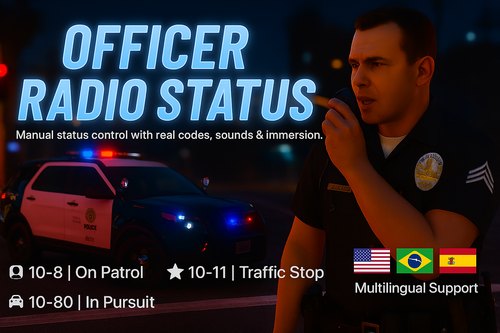 I wouldn't use "Shift" as the modifier key for hotkeys, because it will cancel your current traffic stop if you have initiated one. I'd recommend adding an option allowing users to change the modifier.
- 44 comments
- 1 review
-
-

- 4
-
This topic has been moved to the appropriate forum. Please post in the correct location in the future.Your topic has been moved to GTA V Support, this is not LSPDFR related. Please post in the correct location in the future.Your topic has been moved to GTA V Support, this is not LSPDFR related. Please post in the correct location in the future.This topic has been moved to the appropriate forum. Please post in the correct location in the future.Unfortunately older builds are unavailable, please consider updating your game. If you're experiencing issues with the latest build of LML, consider creating a support topic here.As far as I know, all functions related to ELS are integrated into the script itself, so there is no way to modify its functionality. This topic has been moved to the appropriate forum. Please post in the correct location in the future.EUP Peds Overhaul only replaces the single-player default LEO officers, officers spawning outside of the stations are multiplayer models. Their uniforms can be changed by installing a full EUP package with the proper LSPDFR configs. Your topic has been moved to GTA V Support, this is not LSPDFR related. Please post in the correct location in the future.This topic has been moved to the appropriate forum. Please post in the correct location in the future.This topic has been moved to the appropriate forum. Please post in the correct location in the future.This topic has been moved to the appropriate forum. Please post in the correct location in the future.This topic has been moved to the appropriate forum. Please post in the correct location in the future.This topic has been moved to the appropriate forum. Please post in the correct location in the future.