

unitedOrange66
Community Team
-
Joined
Everything posted by unitedOrange66
-
This topic has been moved to the appropriate forum. Please post in the correct location in the future.
-
This topic has been moved to the appropriate forum. Please post in the correct location in the future.
-
Your topic has been moved to LSPDFR 0.4 Support. Please post in the correct location in the future.
-
Make sure "AdcancedHook.dll" is updated, you can download the updated version on the ELS download page.
-
Your topic has been moved to GTA V Support, this is not LSPDFR related. Please post in the correct location in the future.
-
Your topic has been moved to GTA V Support, this is not LSPDFR related. Please post in the correct location in the future.
-
Your topic has been moved to GTA V Support, this is not LSPDFR related. Please post in the correct location in the future.
-
Make sure to update "AdancedHook.dll." Your topic has been moved to GTA V Support, this is not LSPDFR related. Please post in the correct location in the future.
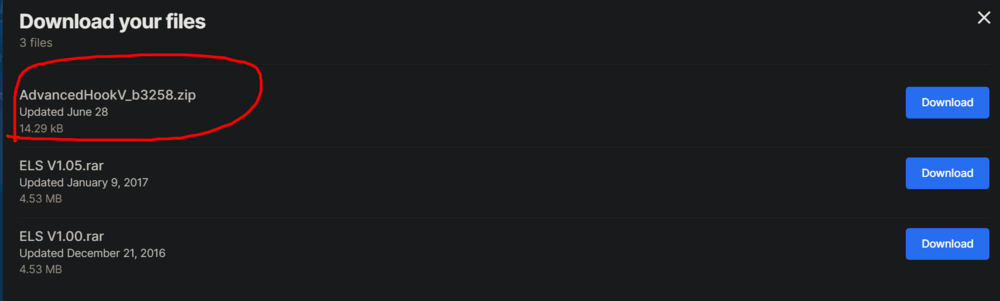
-
Your topic has been moved to GTA V Support, this is not LSPDFR related. Please post in the correct location in the future.
-
Are you using a legit copy of GTA V bought from Rockstar Games? LSPDFR and RPH only support the latest version of GTA V, make sure to update GTA V to its latest version.
-
@Minh Trung The other topic you made 5 hours ago on "How to install stuff" has been trashed. Please do not make duplicate topics on the same issue. Your topic has been moved to GTA V Support, this is not LSPDFR related. Please post in the correct location in the future.
-
Your topic has been moved to GTA V Support, this is not LSPDFR related. Please post in the correct location in the future.
-
Your topic has been moved to GTA V Support, this is not LSPDFR related. Please post in the correct location in the future.
-
Your topic has been moved to GTA V Support, this is not LSPDFR related. Please post in the correct location in the future.
-
This topic has been moved to the appropriate forum. Please post in the correct location in the future.
-
Your topic has been moved to GTA V Support, this is not LSPDFR related. Please post in the correct location in the future.
-
This topic has been moved to the appropriate forum. Please post in the correct location in the future.
-
This topic has been moved to the appropriate forum. Please post in the correct location in the future.
-
Your topic has been moved to GTA V Support, this is not LSPDFR related. Please post in the correct location in the future.
-
This topic has been moved to the appropriate forum. Please post in the correct location in the future.
-
Your topic has been moved to GTA V Support, this is not LSPDFR related. Please post in the correct location in the future.
-
Make sure you've replaced all of the necessary data files for that addon vehicle, including carvariations.ymt. Your topic has been moved to GTA V Support, this is not LSPDFR related. Please post in the correct location in the future.
-
This topic has been moved to the appropriate forum. Please post in the correct location in the future.
-
This topic has been moved to the appropriate forum. Please post in the correct location in the future.
-
You need to wait for an update from ScriptHookV as stated on the main page update banner. This topic has been moved to the appropriate forum. Please post in the correct location in the future.