
Slendis
Members
-
Joined
Everything posted by Slendis
-
 HOT DAMN
 -
LOL wtf you probably fucked something up big time
-
If you have installed ELS you do not have to hold a button.
-
-
If you would have used the search bar you would have found multiple different answers.
-
-
-
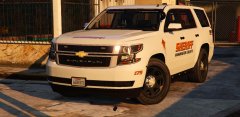 Exciting stuff!
 -
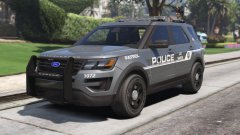 Oh god that is sexy
 -
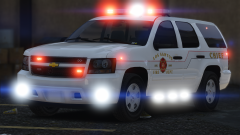 LMAO Same
 -
Looks like Meme Enhancer
-
 Why the hell not!
 -
Maybe a model with a Liberty II another one with a RX2700 and a slicktop? ;)
-
NOOOOOO! Why would he put a Liberty II on it if he want's it to match the Charger he released?! I freaking hate missmatched lightbars :/ Still looks hot af tho, reminds me of Snohomish County sheriff.
-
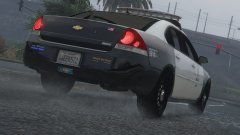 46EEK572 lol
 -
That would not work, since it would need to much work since a new vehicle gets released every day.
-
pr0n
-
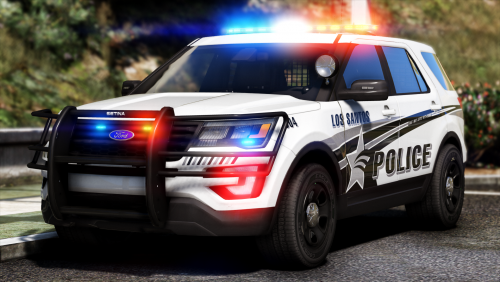 I think Problematic took most of screenshots, he uses Next generation shaders and VisualV :)
- 427 comments
- 75 reviews
-
-

- 1
-
-
If you don't comment to help. Please don't comment.
-
Update your ScriptHookV
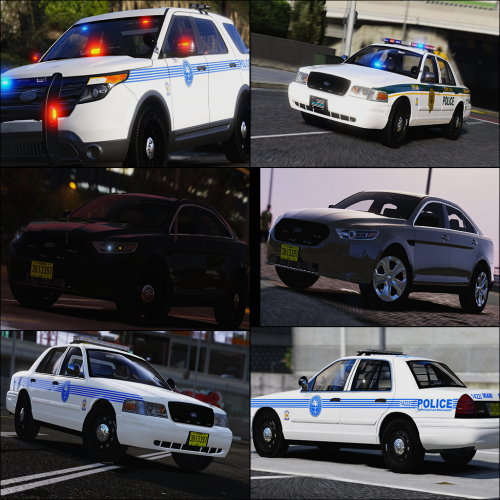 Hell yeah! You uploaded it again, and with ELS! Can't wait to try this will add review later :)
- 93 comments
- 28 reviews
-
-
- 2
-
Yeah probably becuse they think if they put ELS in the title they are gonna get more clicks and downloads. Don't really understand why tho.