GreenAid
Members
-
Joined
-
Last visited
Everything posted by GreenAid
-
Is there anyway to make it fullscreen windowed as some games have now? I mean so that you won't see the _ square X in the upper part :)
- 5 comments
- 4 reviews
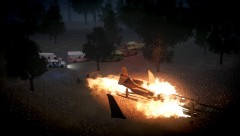 Safely into the shoreline? That really doesn't look like xDDA mod by Cp702, Traffic Spawn if I'm not wrong.
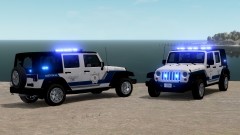 There is nothing wrong in it ninja, it's the 2012 version from GRID (I think). This looks awesome indeed! Plus the skin also!!
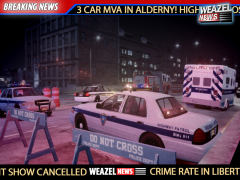 lol why everybody keeps writing AldernY? It's Alderney! xDDDDUsually extra 5 & 6, you should try editing them :)
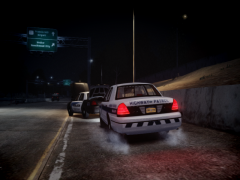 Says there are no DLs....
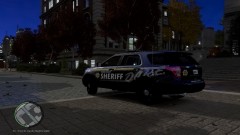 If it was LC would be better IMO :DI know.. But I was just noticing, since it could have been a real blimp :p
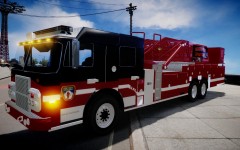 Cool!A blimp doesn't exist & if you could post a video of what you are talking about would be easier.
DPG model?Just try to copy / paste a red texture over a blue one then check with OpenIV.... if it's wrong move it & try again.Can't be Kevin's didn't fit, they are the same you can also see EVI's credits on it.
Cool!A blimp doesn't exist & if you could post a video of what you are talking about would be easier.
DPG model?Just try to copy / paste a red texture over a blue one then check with OpenIV.... if it's wrong move it & try again.Can't be Kevin's didn't fit, they are the same you can also see EVI's credits on it.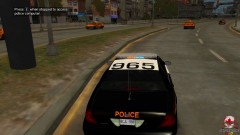 Howe can model be by unknown?? Either aznairsoftdude or Tim98.
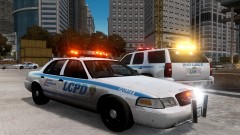 ....... Whose cars are those....
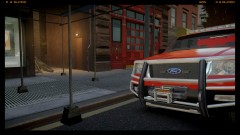 Guys but you ever watch the DL section??....
 Best thing is the banner on the lower part of the image :DPlus admin didn't lock this!
By the good ol' Caine?This is actually set very high, as you can see that radius of the secondary is very big. I suggest you to go into the enbseries & under the BLOOM section put radius1 to 1 & radius2 to 4.
Best thing is the banner on the lower part of the image :DPlus admin didn't lock this!
By the good ol' Caine?This is actually set very high, as you can see that radius of the secondary is very big. I suggest you to go into the enbseries & under the BLOOM section put radius1 to 1 & radius2 to 4.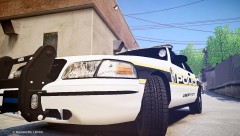 & your ENB?