GreenAid
Members
-
Joined
-
Last visited
Everything posted by GreenAid
-
There is a variable for bloom in timecycle too ;)
-
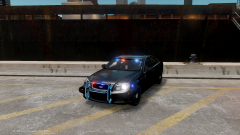 But that pushbar looks wrong from the pic... :)
 -
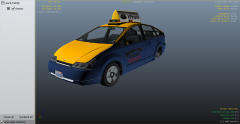 :DDD I NEED this!! GJ!
 -
-
 Kinda hard to see tho...
 -
 What does treaker mean lol?
 -
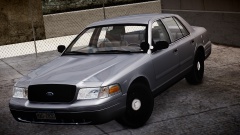 You find them in Germany? Cool!!
 -
 "Dude" look at the date....
 -
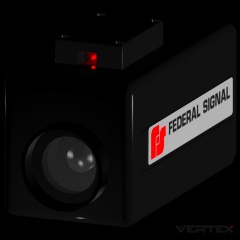 Lol how did you make that red LED :D
 -
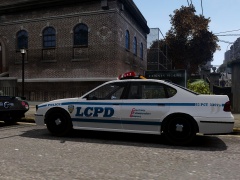 I'd say try putting the gta V's CVPI-like-car's rims! :D
 -
vehicles.img is the file you're looking for, the wtds & wfts are in there.
-
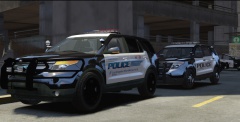 Yeah but since you're checking it too & Isn't the model yours? You will get to read it too ;)
 -
I second SweetFX, I had forgot about that lol. & Yard I don't think that's what he need since he said he already made that & it's not working good.
-
They are HUGE too! & that plastic on the lower part should be a solid grey colour, it looks green-ish to me.
-
You know you can just go into the file & swap it out?? It's the easiest thing in the world.
- 12 comments
- 9 reviews
-
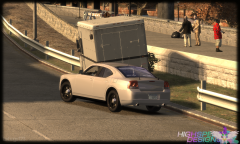 I dunno why but to me it fells like the car is too high/wheels are too pushed "inside"?
 -
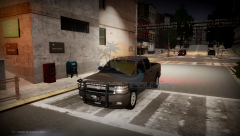 Ok, now go seriously read your title...
 -
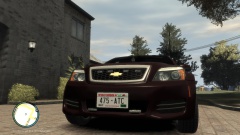 Haha Capisc' title xD
 -
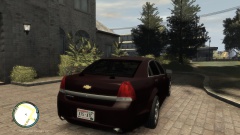 Nah, they are fine trust me.
 -
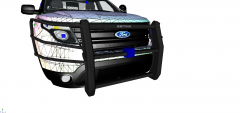 Oh I think many things, but one of them is: This looks really cool!!
 -
 & shitty cars!. No.
 -
hmm then I'm not sure there is a valid way sorry.
-
Doesn't sound really hard to understand: "with out the arjent" with those 05 hubbies & the antennas from second pic ;)
-
ApplyAntialiasing=true Be sure this is set ^ That up there will drop your FPS dramatically & seeing how your card's AA isn't rly effective, I assume it's not very powerful
-
There was a tutorial by cp274 (sorry if the name is wrong) that explained how to remove spawning parts from the model. Look around for it.