thegreathah
Friends of LSPDFR
-
Joined
Everything posted by thegreathah
-
-
From the album: HAH's Hoes
Take downs and scene lights turned on -
 Probably going to wait for Hurk's new base model! Then it will be very beautiful.
 -
From the album: thegreatHAH's Screenshots
-
.png.26fba9f08a8f8e935be4d772a49369d0.png) Orange County is nice.... But No ONE beats the Chargers of Hillsborough County
Orange County is nice.... But No ONE beats the Chargers of Hillsborough County -
.thumb.png.debb2e8fd42b234303e9e2473fb894e8.png) Yes I know, that’s how the base model came. I’ll work on fixing it for the next update. And to answer your other question, you are better off asking slendis because he set it up.
Yes I know, that’s how the base model came. I’ll work on fixing it for the next update. And to answer your other question, you are better off asking slendis because he set it up.- 100 comments
- 39 reviews
-
 Natural Vision
 -
From the album: HAH's Hoes
-
 Full fanfic pls and thnx
 -
Best skin ever
-
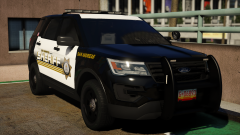
From the album: thegreatHAH's Screenshots
-
-
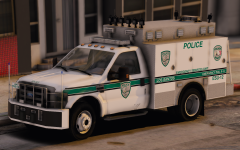 If you are talking about the trash bin....
 -
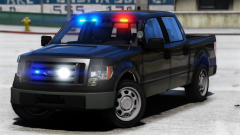
From the album: HAH's WIP Pics
-
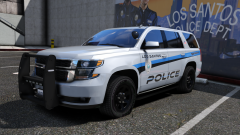 Funny you should ask! I have it open in zmod this second. I've been very distracted and unable to choose one project to work on. I hope to get out an update with this in it maybe tomorrow or the next day depending on work and other life things.
 -
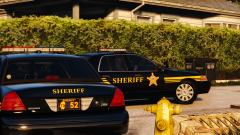 Lovin it!
 -
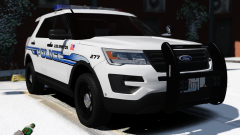
From the album: HAH's WIP Pics
-
-
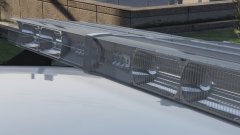 Fuck. Me.
 -

From the album: thegreatHAH's Screenshots
-
-
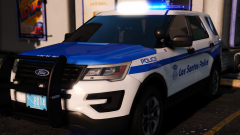
From the album: HAH's WIP Pics
-
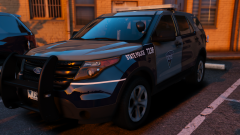
From the album: HAH's WIP Pics
-
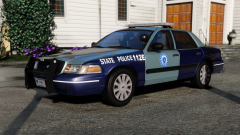 ahhhh. I see what you're saying now. Yeah, just kinda threw on the texture as a placeholder. Still have to get some proper lore-friendly ones on there.
 -
I was showing you the trim coloring. Just a general example.

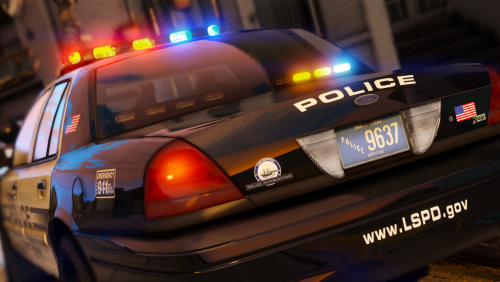

.png.26fba9f08a8f8e935be4d772a49369d0.png)
.thumb.png.debb2e8fd42b234303e9e2473fb894e8.png)