
Kilyin
Members
-
Joined
-
Last visited
Everything posted by Kilyin
-
 Is that Va State Police? Release that skin pls thx
 -
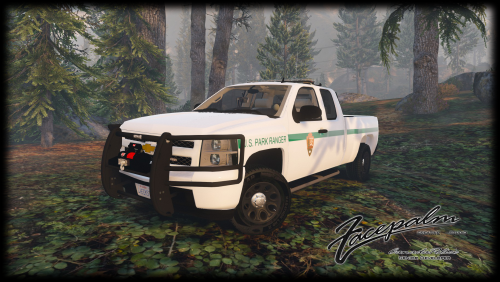 Put an <Item> before the line: <modelName>sheriff2</modelName> That's why it's crashing.
- 87 comments
- 23 reviews
-
Changes for 678.1 game version (these are only values I modified versus original gameconfig.xml). Works with Pinnacle of V and about 30ish addon/15-20 replacement vehicles and all game DLCs. YMMV. <PoolName>FragmentStore</PoolName> <PoolSize value="9550"/> <PoolName>Vehicles</PoolName> <PoolSize value="900"/> <PoolName>VehicleStreamRequest</PoolName> <PoolSize value="145"/> <PoolName>VehicleStreamRender</PoolName> <PoolSize value="135"/> <PoolName>VehicleStruct</PoolName> <PoolSize value="300"/> <PoolName>HandlingData</PoolName> <PoolSize value="800"/> <PedsForVehicles_Base value="130"/> <PedsForVehicles value="150"/> <VehicleAmbientDensityMultiplier_Base value="130"/> <VehicleAmbientDensityMultiplier value="150"/> <VehicleMemoryMultiplier value="800"/> <VehicleParkedDensityMultiplier_Base value="100"/> <VehicleParkedDensityMultiplier value="150"/> <VehicleUpperLimit_Base value="100"/> <VehicleUpperLimit value="260"/> <MaxVehicleModelInfos value="900"/> <MaxExtraVehicleModelInfos value="300"/> <MaxExtraWeaponModelInfos value="200"/>
-
-
-
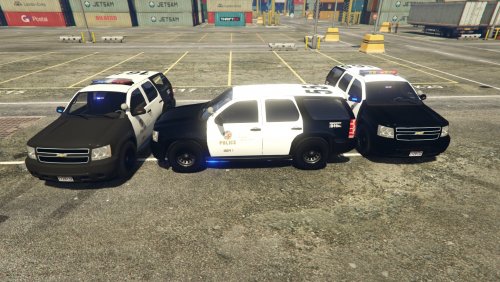 There is a typo on the Park Ranger skin, Law Enforcment should be Law Enforcement.
- 118 comments
- 18 reviews
-
I use RadianceV. I actually had that backwards, it looks fine from the front but dull in the rear. There is literally no bloom at all from the rear. Ignore the skin it's a WIP, and difficult since I can't open the .yft in OpenIV. ;) Video:
- 118 comments
- 18 reviews
-
on the sheriff model the arjent is bright from the rear, and very dull in the front. Looks pretty bad.
- 118 comments
- 18 reviews
-
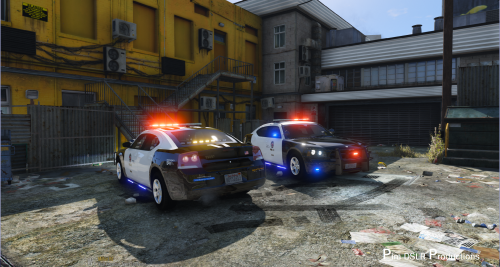 Cool car, has babies though in a heavy collision (entire car shell duplicates itself)
- 38 comments
- 10 reviews
-
-

- 1
-
-
Crashed when accepting the gang turf war callout:
-
-
Alphabetical order doesn't matter. I found a youtube tutorial about it, maybe that'll help.
-
You can also play as him from the RPH console, I think the command is PlayAsTenpenny and then obviously ForceDuity.
-
My cards are both at 99% usage regularly in GTA5 and I never drop to 20 FPS. That's just a sign your card is being properly utilized (99% usage).Hm, probably not, it was the first thing that came to mind since you mentioned 20 FPS.If using ENB with VisualV open enblocal.ini find [ADAPTIVEQUALITY] Enable=true Quality=0 DesiredFPS=20.0 change it to [ADAPTIVEQUALITY] Enable=false Quality=0 DesiredFPS=20.0 or [ADAPTIVEQUALITY] Enable=true Quality=0 DesiredFPS=60.0Already caught that once, they told me I was cured.
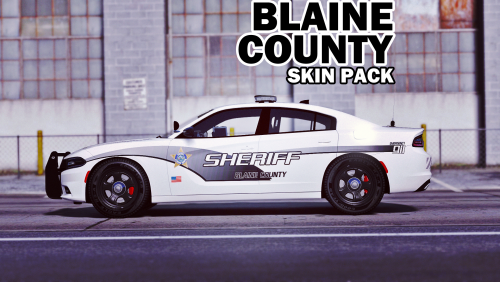
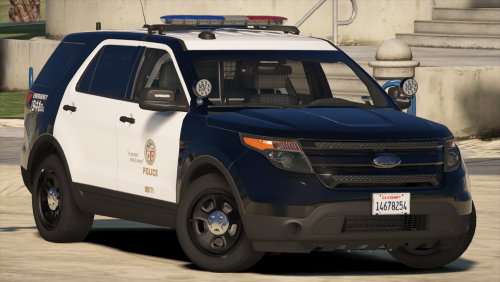 still using it as a standalone in the city and sheriff2 for the county, keep it coming ;)
- 563 comments
- 116 reviews
-
-
- 1
-
Negative.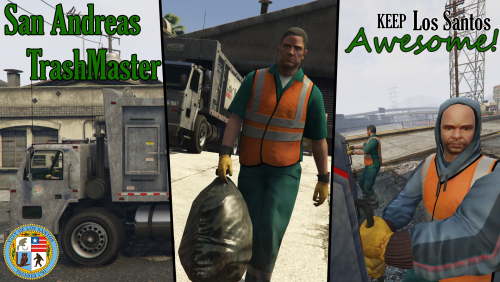 ...but you don't go on duty as a police officer when you're a trashman, so it's irrelevant. The point being, this has nothing to do with LSPDFR.
- 35 comments
- 14 reviews
-
-
- 1
-
My motherboard is old as balls, it's an ASUS RAMPAGE III Extreme which is an LGA1366 socket board. It barely supports SATA 3.0, but that doesn't seem to matter as my SSDs get some insane benchmarks. But as you can see here it only supports PCIE 2.0 - https://www.asus.com/ROG-Republic-Of-Gamers/RAMPAGE_III_EXTREME/specifications/. Hell this board and CPU are about 7+ years old and been overclocked from day 1, so that's a testament to ASUS and Intel. I'm gonna build a new PC relatively soon.