McKinnion
Members
-
Joined
-
Last visited
Everything posted by McKinnion
-
 Dayum son where'd you find this?
 -
Eleven.
-
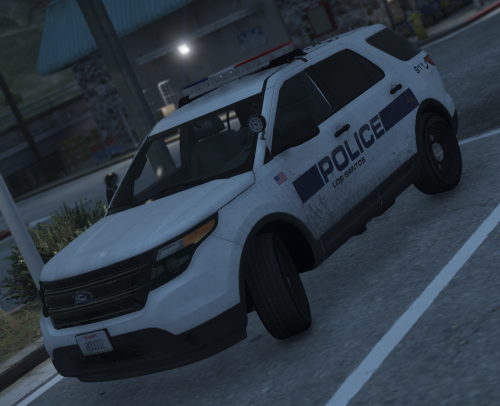 You should definitely make a full skin pack with this style livery! It's really nice
 -
I don't necessarily see a problem, it's just the weird patterns for the GTA V emergency lighting from what I can see
-
 You should make an unmarked police version of this. c;
 -
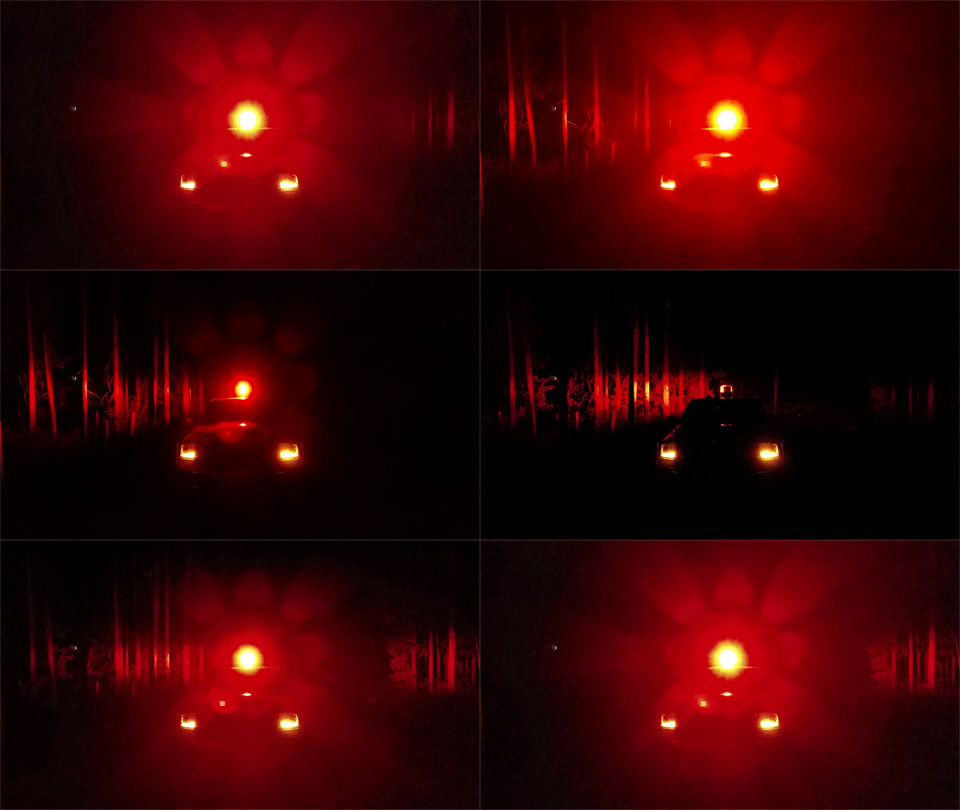
 The lighting setup on that thing is amazing!
 -
-
Oregon State Police is best state police.
-
Does it matter if you want AMD or NVIDIA? Any preferences there? They're just the two corporations that make the mainstream GPUs
-
 Holy balls that's a 10/10
 -
Any GPU with a PCI-Express 2-3.0 insert should work (every modern GPU has one) so we need to know how much you're willing to spend on the new card.
-
BlackJesus1 has a mod released that has snow weather clothing
-
-
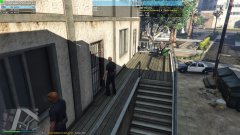 w-w-wWHat is thIS
 -
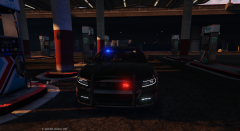 It has been released on GTA-5 Mods
 -
Did you install the plugin properly? With all of the folders in your Plugins/LSPDFR folder?
-
Most EVGA brand video cards come with DVI to VGA cables on them, my reference 760 had one in the package
-
You need to download and install the latest version of ragehook on www.ragepluginhook.net
-
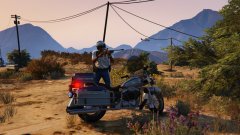 You should think about releasing them if you haven't thought of it already :D
 -
I love the bike texture.
-
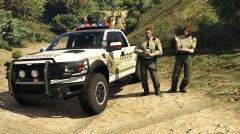 Truck > Sexual relations
 -
I saw some Oregon State Police undercover F-350s and Ford Explorers when swat was securing a road when Obama visited my city four days ago
-
This isn't the place to really offer to pay for content, this is a community driven site, not a buy for content site
-
Looking amazing!
-
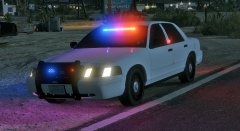 I like it a lot.