

Starmix
Members
-
Joined
-
Last visited
Everything posted by Starmix
-
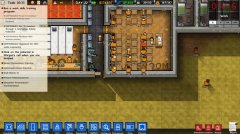
From the album: Prison Architect
Check out more screenshots on my steam profile! -
From the album: Prison Architect
-
From the album: Prison Architect
Check out more screenshots on my steam profile! -
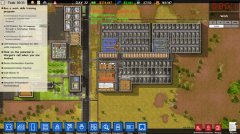
From the album: Prison Architect
Check out more screenshots on my steam profile! -
From the album: Prison Architect
-

From the album: Prison Architect
-

From the album: Prison Architect
Check out more screenshots on my steam profile! -

From the album: Prison Architect
-

From the album: Prison Architect
Check out more screenshots on my steam profile! -
I'm talking about VGA from the card, but in this case 960 + adapters is probably the best choice.
-
I've never delved into adapters, I'd imagine it'd be ideal to have a non stopping signal though. Compare the 950 to 960 on GPU Boss or game debate etc... and see which one gets the best price to performance
-
Could work.
-
Well, you are saying your running Watch Dogs modded, and then it is quite a powerful thing, but it depends on how long you want it really. So you need a VGA card, well, from my 3am thoughts, your not boned! Get yo self a 950, I've checked Palit, and they have VGA on them, can't say for anybody else though.
-
I think you may be able to squeeze a GTX 960 4GB into there without much of a bottleneck, CPU is fairly decent.
-
Motherboard and PSU info?
-
Of?
-
-
No, since you are not using the latest version of LCPDFR.
-
ELS worked fine for me with xliveless, cant see why it wouldn't.
-
The latest version of GTA V only works with Ragehook 28, anybody who says it works is lying.
-
Make sure you have OpenIV.asi and an asi loader installed.
-
Using them in GTA Online may get you banned. Use of them in Singleplayer should be fine.
-
How did I not see this here? Amazing.
-
Woo! Thanks for that, whoever did it.
-
Update to Ragehook 28, available at RagePluginHook.net