OJdoesIt
Members
-
Joined
Everything posted by OJdoesIt
-
-
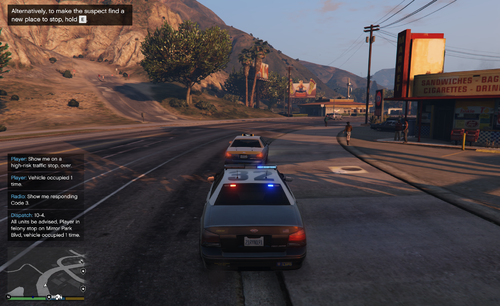 Let me cook up a hotfix for you guys. I'll try to have it submitted within 3 hours from now.
- 242 comments
- 18 reviews
-
-

- 1
-
-
I'll look into it. I'm not incorporating RDE, so its a different method for ped models.
- 242 comments
- 18 reviews
-
The requirements for the menu is that you're in a t-stop, there's an occupant, you're not in a callout, and that you press the keys. You can define the models yourself within the INI. You can call for a felony during a callout, but you cannot activate the menu. I've encountered too many crashes so I decided to disable the menu in calls.
- 242 comments
- 18 reviews
-
-
-
-
-
-
-
-
-
-
-
-
How are you warping the backup from this mod by using Arrest Manager? What function is that?
- 242 comments
- 18 reviews
-
-
.thumb.png.9d0943161b37f863c291d6d6664edefb.png) The mod never worked to be placed inside GTA5\Plugins. It always goes in GTA5\Plugins\LSPDFR After loading LSPDFR, go on duty. Try the command ForceDuty I don't understand.
The mod never worked to be placed inside GTA5\Plugins. It always goes in GTA5\Plugins\LSPDFR After loading LSPDFR, go on duty. Try the command ForceDuty I don't understand.- 368 comments
- 33 reviews
-
That is so confusing. Try removing CalloutsV.dll For further testing, remove all mods besides FelonyStop then test to see if they drive the same.
- 242 comments
- 18 reviews
-
Any mod that states say they alter a vehicle and ped attribute/characteristic. Give me a list of your current mods.
- 242 comments
- 18 reviews
-
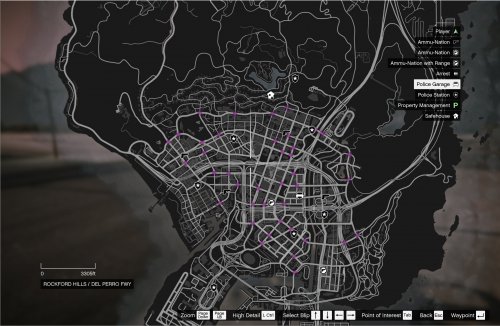 I'll add some type of notification for easier navigation.
 -
-
-
-

.thumb.png.9d0943161b37f863c291d6d6664edefb.png)