HomerS
Members
-
Joined
-
Last visited
Everything posted by HomerS
-
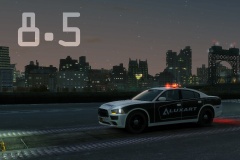 Oh my god! Didn't think this would happen!
 -
True Buggs, Zach, and Jeff talked about that on an ETS 2 video.
-
True. But how come two people with the exact same mods, one person has it and the other doesn't.
-
LAPD-LASD time!
-
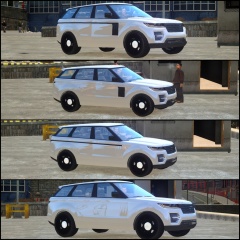 I think number 1. (going down)
 -
Wow nice copy! :P
-
I knew many people had it, but nobody has a solution!
-
Not impossible just very, very, very unlikely.
-
Welcome!
-
-
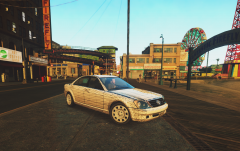 Yes they are... And they're awesome.
 -
Welcome Roy! If you need help with anything just PM me.
-
Very sad...
-
Good idea!
-
Good idea! I would play that! But what point of view would it be in? First Person, Third, or kinda Top Down like The Sims? So it's kinda a mix of GTA, LCPDFR, The Sims, and "Choose Your Own Adventure" books? Not bad.
-
It's getting wider! WTF is with the mouse!?!
-
What the hell... It's spinning faster!
-
It was spinning now it's not... Thank you internet god!
-
-
-
I like the concept,but.... I don't think the colors are right on it.
-
None have been released. I know Voo Doo has been working on one. But I don't know if it will be released.
-
-
-
Ummm... Runnng a stop sign when there's no cars? Does that count?