
Virzza
Members
-
Joined
-
Last visited
Everything posted by Virzza
-
-
.png.b2469b7d62d6fc4e8c8ef201c14498a1.png)
-
@TangoWhiskey88 Hm :/ That is really weird
-
You have to use a mods folder. Have you herd of this method before?
-
-
-
.png.1f23c635147cb50082f86412e616f1ca.png) That just ruined the picture. I should have croppped it ugh
That just ruined the picture. I should have croppped it ugh -
-
.png.9c38c7ddf164a31e32630049615513b8.png) I have VisualV with a modified visualsettings.dat
I have VisualV with a modified visualsettings.dat -
 I was excited for vehicle mods for GTA V... Not anymore I mean none are going to be released because people can't stand to release a file for a video game
 -
Wow this sucks :/
-
Does this mean I should start playing IV again?... :D
 Thank you man that's why I was confused. I actually checked the log and it said 1.1 so I was like ??? but that explains it! Thanks!
- 1,915 comments
- 242 reviews
-
-

- 1
-
I am using the one that came with LSPDFR 0.2b? I never installed a newer version- 1,915 comments
- 242 reviews
-
-
- 1
-
Hi, I have been using your mod but the version 1.1 STABLE has been crashing LSPDFR First Response. It happens after I arrest someone and hit '8'. It happened two times in a row. Below is my RageHook log :) RagePluginHook.log- 1,915 comments
- 242 reviews
-
-
- 1
-
I am not sure about 40 FPS but we will see an increase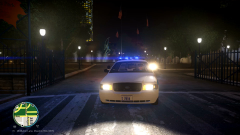 Releassse it bro!@jonahl Do you have a shortcut on your desktop to play GTA V?
Ah I just finished a pursuit and had to take a screenshot. The beauty of mods :D
Releassse it bro!@jonahl Do you have a shortcut on your desktop to play GTA V?
Ah I just finished a pursuit and had to take a screenshot. The beauty of mods :D.png.f18ec17c30477e6a3efd494d8c314678.png) Ah I just finished a pursuit and had to take a screenshot. The beauty of mods :D
Ah I just finished a pursuit and had to take a screenshot. The beauty of mods :D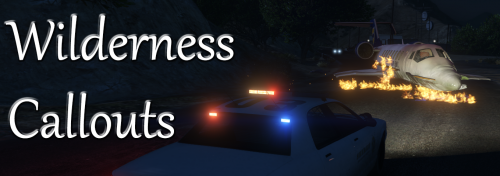 I am loving every single mod you are putting out for the community! Keep it uuuuup! :D
- 302 comments
- 66 reviews
What does this mean we can do??? I am very excited!

.png.6586770421f94fb512f382f60b339a48.png)
.png.b2469b7d62d6fc4e8c8ef201c14498a1.png)
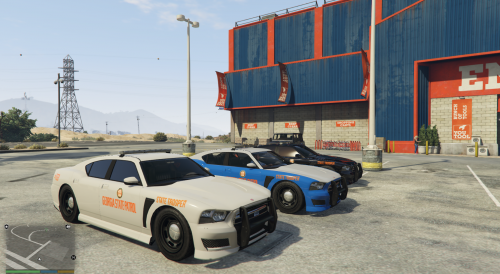
.png.1f23c635147cb50082f86412e616f1ca.png)
.png.9c38c7ddf164a31e32630049615513b8.png)
.png.f18ec17c30477e6a3efd494d8c314678.png)