



CameronLHC
Members
-
Joined
-
Last visited
Everything posted by CameronLHC
-
-
-
From the album: Cameron LHC's GTA V Pics
-
-
Medical Assist at Willies
-
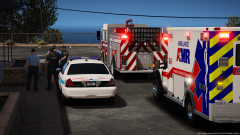 Medical Assist at Willies
-
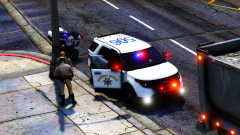 CVE Traffic Stop
-
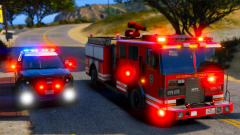 CHP and LSFD
-
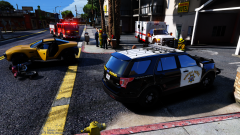 Minor Motorcycle Accident
-
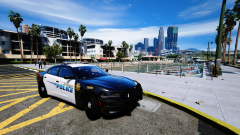 LSPD
LSPD
-
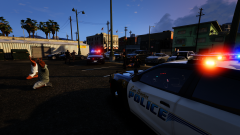 LSPD Out with Multiple Subjects Fighting
-
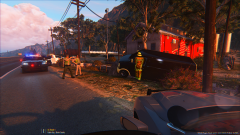 No Injuries After Stolen Vehicle Crashes
-
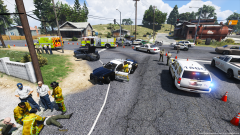 Deputy Injured in Crash While Pursuing DUI Suspect
-
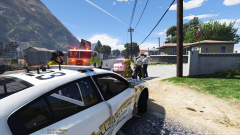 Deputy Injured in Crash While Pursuing DUI Suspect
-
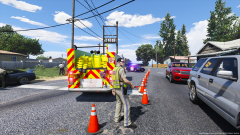 Deputy Injured in Crash While Pursuing DUI Suspect
-
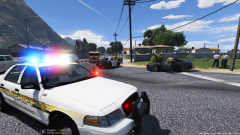 Deputy Injured in Crash While Pursuing DUI Suspect
-
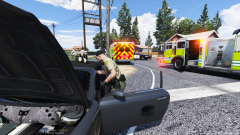 Deputy Injured in Crash While Pursuing DUI Suspect
-
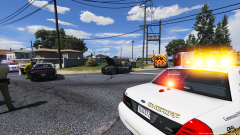 Deputy Injured in Crash While Pursuing DUI Suspect
-
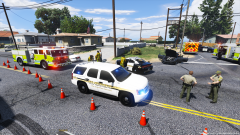 Deputy Injured in Crash While Pursuing DUI Suspect
-
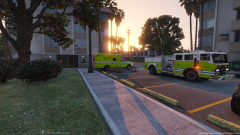 MDFR on Scene of a Medical Assist
-
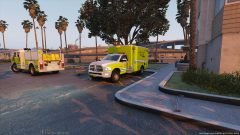 MDFR on Scene of a Medical Assist
-
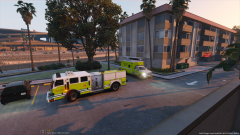 MDFR on Scene of a Medical Assist
-
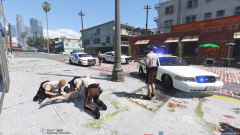 One in custody after foot pursuit with MDPD
-
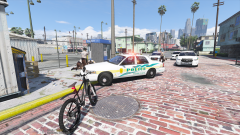 One in custody after foot pursuit with MDPD
-
-
From the album: Cameron LHC's GTA V Pics
-
 Amazing job on this and improving it to be even better than the older GTA IV mod was. This truly changes everything when it comes to night time patrols.
- 477 comments
- 73 reviews
-
The game just spawns extras randomly, it obviously cant tell that the two certain extras shouldn't spawn at the same time. The only way to stop it would be to change the carvariations as you said or use a trainer if the server you're on allows it.
-
What some modelers do is make the spotlights extras so people can choose what they want by toggling one or the other on and off. Just go into whatever trainer you have and mess with the car components.
-
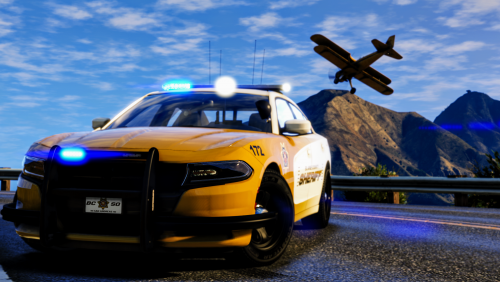 Awesome skins. The Taurus needs to be fixed though. The area around the windows should be black as it says on the template.
- 5 comments
- 11 reviews
-
-

- 1
-
-
 When you achieve better graphics than @Slendis and @Problematic
 -
 What graphics mods do you use if you don't mind ?
 -
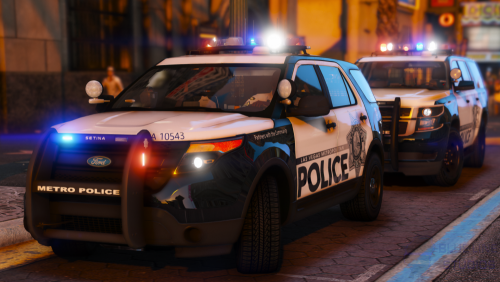 Good models but there are some inaccuracies and problems that need to be addressed with the FPIU. The push bar is the wrong model and should have two siren boxes underneath just like the Tahoe has. The front lighting on the push bar should alternate from whatever color it is (red or blue) to white. Also there should be alternating red and blue lighting in the taillights. I am not sure if the same lighting changes are the same for the Tahoe as I've never seen an LVMPD Tahoe before and there are no pictures or videos of them with their lights on that I have seen. The video below is a great reference for the explorers - Also for some reason the push bar on the FPIU is gray for me in game, shows up black in OpenIV though and the right taillight on the explorer is constantly on. Would love to see LVMPD's 2016 FPIU added later on if you could get a hold of Thehurks DEV model as the other 16 Exp DEVs are pretty ugly.
- 67 comments
- 25 reviews
-
I have edited the carcols.ymt that is including in the download to disable the headlight flash. @LVMPDFAN if you want to include this in the download feel free as some people have been requesting it. carcols.ymt
- 67 comments
- 25 reviews
-
-
From the album: Cameron LHC's GTA V Pics
© CameronLHC
-
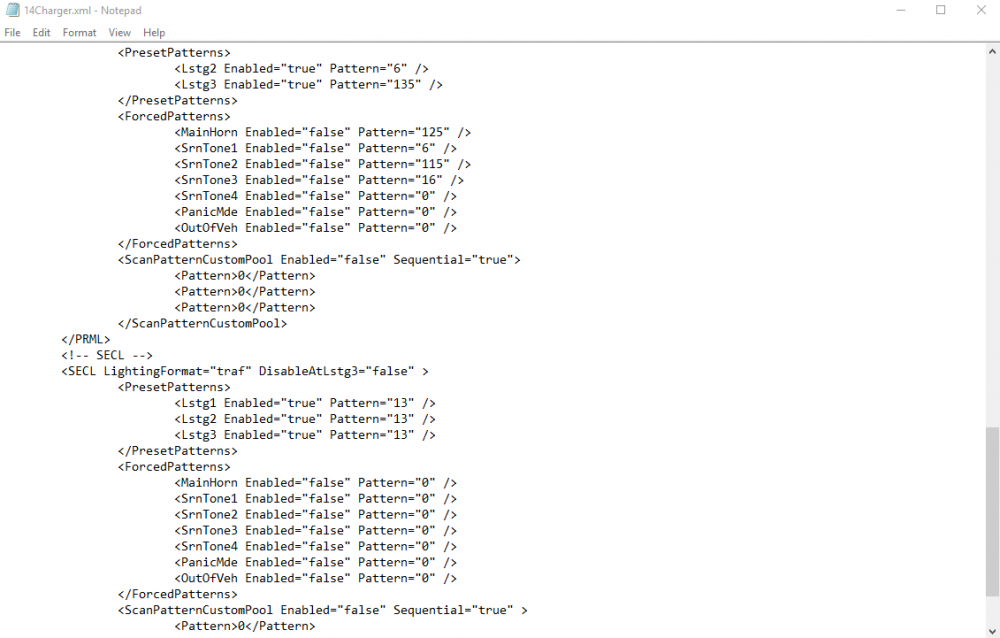
You have to disable ELS traffic control. The option is in the els.ini file. ElsTrafCtrlOn = falseSo first you want to find your cars xml file inside of the ELS folder. Once you have that open look for forced patterns and in between that you should see something about siren tones. If you don't want it to change the pattern on certain light stages just set them all to false like in the picture provided.
From the album: Cameron LHC's GTA V Pics
I might have fixed it. I think the problem was the few lines that I added before at the end were in the middle of the two cars when it should have been at the bottom. Also, yes you do need even ELS cars that are addons to have a carvariation for them to act as police cars. vehicles.metaTry it now vehicles.metaPlease post your vehicles.meta.There already is. Go to the Computer + page, hit download, and then download "Additional_ComputerPlusImageAssets.zip"Yes that would be something awesome to implement.You have to have the beta version 1.3.5.0 which is currently available. When you run a name and are looking at the person's info there is a drop down box in the top right for either a citation or arrest report. Also yes currently court cases are automatic with LSPDFR +, Albo is working on the feature of a court case being made whenever you give someone a court order.

