
Black Jesus
Members
-
Joined
-
Last visited
Everything posted by Black Jesus
-
Most authors decided not to allow people to publicly release any GTA V models that include converted versions of their IV parts and models. I personally don't understand the problem since they already released it for IV, so V should be no different. But we modders have to respect it, so many parts(A lot of the good stuff lol) are unavailable to use for public releases.
-
 Not very soon. Currently, we only have permission to convert
 -
Put the lightsemissive material above the vehicle's glass material, in the material browser.
-
From the album: GTA 5 Pics Black Jesus
© Black Jesus
-
From the album: Black Jesus GTA V WIPs
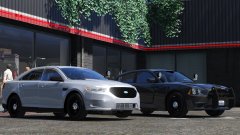
A '14 FPI and '14 AWD Charger were spotted at Premium Deluxe Motorsports, where the LSPD and LSSD purchase all of their fleet vehicles. -
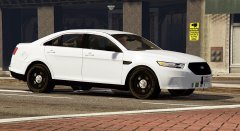 Nice convert
 -
So with GTA IV, all you had to do for more texture variations was to follow the pattern for that specific object in the wtd. Example: head_bla_a, head_bla_b, then you add head_bla_c. But in V, this doesn't work. Do I need to edit some ped variation file, or is this just impossible in V?
-
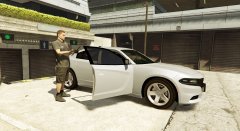 Some of newest gen charger use the last generations wheels and vice versa. I think 13-14.5(?) AWD models use the next gen wheels
 -
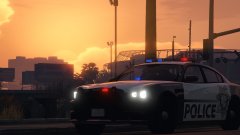
From the album: GTA 5 Pics Black Jesus
© Black Jesus
-
Starting on EP 2, because the first one was basically a clean unmodded game(which I hate), so Day 2 is the official start of the series.
-
I believe the lighting is developed by a local company, not Whelen, Code3 or Fedsig, so no one's made it yet.
-
 Yea I'm currently using your guide. I'll try and do it on my own first, but I'll probably need pm you later for help
 -
I'm just going to convert a bunch of lights and figure out how to make them work later lol
-
From the album: Black Jesus GTA V WIPs
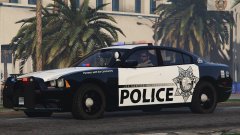
Finally finished my first IV-V conversion. Car still needs some work, I need to edit some textures and and add more equipment. I plan on adding a real lightbar(when I can figure it out). Car may or may not be released in the future, depends on what the author decides. I might make a 4k skin for the charger already released, and then I'll release the FPIU skins along with it. -
-
-
-
-
-
-
-
-
-
-