




CrossFire
Members
-
Joined
-
Last visited
Everything posted by CrossFire
-
Dat Super Duty :D
-
Happy Birthday!! Don't worry Harper, yours will come!!
-
Hello!! I'm here to show you how to make your ELS lights brighter, if you are using a ENB that you really like but the ELS lights are not bright, this is the tutorial for you!! (Pictures included if need :)) 1) Go to your GTA directory 2) Go to Common/Data 3) Look for Visualsettings.dat 4) once you find it, open it and look for "# other.emmisive.lights" 5) Change "car.default.emissive.on" to 100, 6) When you get in-game, if it's too bright, lower the number, if it's not bright enough, make it a higher number Any questions or comments? Post them below or PM me!!
-
Ummmmmm if you had read the whole topic name you would have saw it was Crown Vics only
-
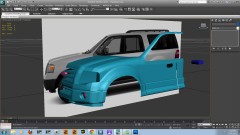 Looking good!! Hoping for a detective version!!
 -
I'm on alot, I just get off because nobody is on
-
-
There has been like six CVPI's made for FHP
-
Hello!! Ever wonder how you could get your game to run faster with ENB's? There are multiple ways of making GTA IV run faster,i'm going to list the the most common ways to make GTA IV run faster 1) Use a program called Razor Game Booster, what Game Booster does is look for programs that you are not using that it could close to make your game run faster. 2) (For AVG PC TuneUp users ONLY) Right click AVG PC TuneUP and you should see "Economy Mode", "Standard Mode", and "Turbo Mode" Click Turbo Mode and wait for Turbo Mode to finish switching to, your computer will go to a Windows Basic theme, and it should disable things that it feels your computer doesn't need, you should get a better framerate after that!! 3) Disable your computer security system 4)Close programs you are not using! Questions or comments, please post them below or PM me!
-
NOT a texturing tip or tutorial
-
Hello! Ever wonder how you can do a realistic Code 2 response? Well this tutorial will let you do that!!! 1) Make sure you have the latest patch of GTA IV (1.0.7.0) and the latest LCPDFR version (.95 RC2 R2) 2) Get in GTA IV 3) Start LCPDFR and wait for a call that would make you respond code 2 4) Turn on ELS and respond, but hit Numpad "/" instead of your siren 5) Cars should pull over (Use airhorn or Manual Siren if needed!) 6) Enjoy your Code 2 response!! Definitely works on ELS V6, most likely works on ELS V7 LINKS: ELS V7: LCPDFR .95 RC2 R2: Latest GTA IV patch update: http://support.rockstargames.com/entries/484496-Grand-Theft-Auto-IV-Patch-7-Title-Update-v-1-0-7-0-English-1-0-6-1-Russian-1-0-5-2-Japanese- (Choose language) Any questions? Comment on this thread, or PM me!
-
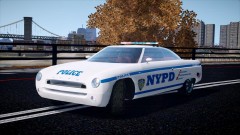 Looks kinda nice in real life:
 -
I like it!When units arrive on scene, terrorists come out of nowhere and start shooting at officers, like a ambush, or we could do something like 44 minutes: The north Hollywood shoot-out. I like Ninja's idea for like a COPS episodeMaybe like a bomb goes off at The Triangle, and there's a cinematic response
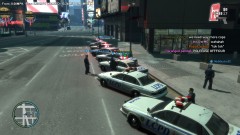 Is that LCPD logo a watermark?It does not crash you and, it almost never spawns two of the same car!Chikamru Traffic!I recently installed EFLC, and I was putting my cars in through openIV, and when I went to edit the handling, there was only bikes, boats, and that kinda stuff, no cars, so how do you edit the handling for TBoGT?No.No.'?do=embed' frameborder='0' data-embedContent>>re-install openIVInstall games for games for windows live


