




CrossFire
Members
-
Joined
-
Last visited
Everything posted by CrossFire
-
I think it would, but i'm not sure
-
-
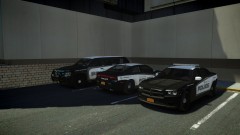 Just release it already!!!!!! :D
 -
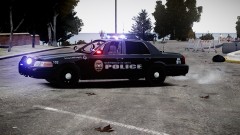 Nice skins!!! What ENB is that?
 -
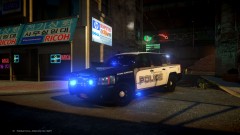 The ENB looks awesome and I would like to have it
 -
-
Hopefully i'm one of those people :D
-
-
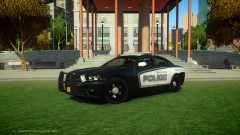 I've always been looking for that place!!!!!! Where is it??
 -
Do you know what tab is that inDid you seriously just upload your clan car pack, I'm not telling you how to run your clan, but most car packs are private
- 14 comments
- 11 reviews
-
-

- 2
-
1. GTA 4 2. Linksys 3. WirelessI have tried EVERYTHING to try to change my NAT type to Open, nothing has worked, I have tried restarting my router, opening ports, and everything like that, but nothing has worked, does anybody know how to change my NAT type from strict to open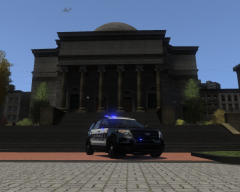 I mean I have a good computer but I have a 1280x1024 display as well lol
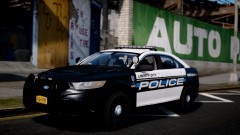 Do I smell a new skin pack coming it's way?
 Looks awesome!!!!I never got why they never acknowledged what department they were from, even though it was obvious they were Toronto PoliceDamn...What ENB is that?lol It's not GTA lol^^It Doesn't really matter what order you install them inTry messaging Micheal V. He may or may not help youRight now the admins are not accepting clans, I don't know when they will start clans back upTry Re-installing LCPDFRTop of Algonquin.

