




CrossFire
Members
-
Joined
-
Last visited
Everything posted by CrossFire
-
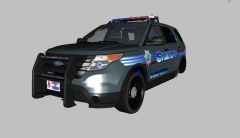 The lightbar is extra_10
 -
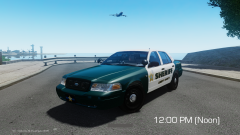 By BxBugs123/Trooper Dashie
 -
@Firefighter I usually don't release, because I'm not good with credits. But I usually give ENBs out to people who have good rep and PM me. @Sheriff not exactly a CryENB, but I do enjoy it. I would say about an 8/10 because I'm still working on it.
-
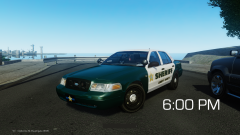
From the album: CrossFire's Pics V2
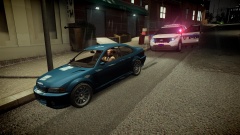
Still need to work on the bloom and the night. GOOOLLLLLDDDDD -
From the album: CrossFire's Pics V2
Still need to work on the bloom and the night. ROCK THE CASBAH -
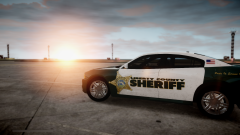
From the album: CrossFire's Pics V2
More like Nuclear bomb -
If you had read the full posts, the answer to all of those questions would've been answered. Also, I have solved the problem.
-
Hi, whenever I install a new ENB (I've installed 5 so far and they've all had the same issue), the HUD and Radar flicker and eventually disappear, the same with the pause menu. I don't know what in the ENB's are causing this, but it works fine without one. Anybody ever experienced this issue that can help me?
-
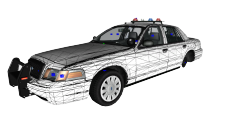
Like the model, not a fan of the wraparound (Would recommend that you include an option for wraparound, rambar, or no rambar.).
- 9 comments
- 1 review
-
-

- 1
-
-
I am having this issue as well, anyone have any ideas on how we could fix this?What extras are those lights mapped to?
 ICEnhancer? If so, what version?
 They look great!Tahoe all the way.
 IF YOU DON'T WANT PEOPLE TO COMMENT ON YOUR PICTURES DON'T UPLOAD IT. YOU CAN'T UPLOAD A PICTURE EXPECTING TO NOT GET COMMENTS.
If you don't care for people's opinions. Don't post the picture. You can't make people not comment on your picture.
So you're saying you don't like constructive criticism? If so, the only way you can't get it is to not post pictures. You need to accept what people say about your mods and not get pissy when they say negative things about your mods.
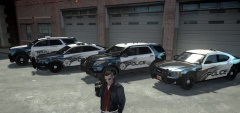
He's saying it's supposed to be the way it was before. No need for smartass comments.Oh I didn't make the skin. Vertex3D Made the skin and took the picture.Am I the only one who saw "Canadian police pack"?They all apply the same effects. I use both lol.Hoover's Tahoe only Police Department: And our only exception to the Tahoe only fleet: Hoover Fire and Rescue:Yes.
IF YOU DON'T WANT PEOPLE TO COMMENT ON YOUR PICTURES DON'T UPLOAD IT. YOU CAN'T UPLOAD A PICTURE EXPECTING TO NOT GET COMMENTS.
If you don't care for people's opinions. Don't post the picture. You can't make people not comment on your picture.
So you're saying you don't like constructive criticism? If so, the only way you can't get it is to not post pictures. You need to accept what people say about your mods and not get pissy when they say negative things about your mods.
He's saying it's supposed to be the way it was before. No need for smartass comments.Oh I didn't make the skin. Vertex3D Made the skin and took the picture.Am I the only one who saw "Canadian police pack"?They all apply the same effects. I use both lol.Hoover's Tahoe only Police Department: And our only exception to the Tahoe only fleet: Hoover Fire and Rescue:Yes.

