


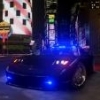


Ver.3.0 is available now!
Hello,
Ver.3.0 - Three cars added
1. Unmarked CVPI with SAP package (Chrome grill, Crown victoria emblem, hubcap)
2. Unmarked CVPI with Honeycomb grill and hubcaps (with Police Interceptor badge and black trunk trim)
3. Unmarked CVPI woth Honeycomb grill and Steel wheels (with Police Interceptor badge and black trunk trim)
What's new in Ver.3.0?
- Ver.3.0 cars made based on F5544's updated CVPI with HQ interior
- New lighting setup(only red and blue)
Ver.3.0 cars share same lighting equipment but setup is different
- Added steel wheel version
- Working spotlight (set as extra for Honeycomb grill model only)
- Also the rest of police equipment from earlier version
Ver.2.0 - cars have same feature as Ver.1.0 but Red/Blue lighting setup is added
Ver.1.0 - contains two vehicle models
1. Unmarked CVPI with SAP package (All blue lighting with Crown victoria emblem and chrome trim)
2. Unmarked CVPI with Honeycomb grill (All blue lighting with Police Interceptor badge and black trim)
Both models are made to replace police4 model,or you can use as an add on vehicle.
Make sure follow install instruction.
[Overview]
Both cars sharing most of same features
- Lighting setup is pretty similar but little different.
Front, side and rear.
- All blue (Ver.1.0) or Red/Blue (Ver.2.0 and Ver.3.0)
- Both models have hubcaps
- Arma Laptop and console
- Stalker Speed radar (extra for both models)
- Panasonic Dashcam (extra for both models)
- SecureCOM Antennas (extra for both models)
- Partition (Honeycomb grill model only)
- Two pushbars(Rhino pushbar and Setina Pb-200 plus one optional Setina wraparound. (Honeycomb grill model only)
[Liveries]
Despite the name of this pack, you can still use liveries.
Both models use standard cvpi template for F5544's CVPI, Add skins to ytd file by using openiv.
[Known Issues]
Check out second screen shot and look rear door light.
When you spawn or fix the car(both models).
You will see the small part of siren mesh(led texture when light is on) without siren is on.
Simply, turn your siren and turn it off. I will go away.
Thanks to all modders who gave permission to use and convert parts.
Special thanks to F5544 for answering all my questions!
***** PM or comment here if you have any problems or help *****
***** This download is exclusive to LCPDFR.com only. DO NOT REUPLOAD other places*****
***** Please contact me before you do anything with these cars!!!! *****
What's New in Version 3.0
Released
- Ver.3.0 cars made based on F5544's updated CVPI with HQ interior
- New lighting setup(only red and blue)
- Added steel wheel version
- Working spotlight (Honeycomb grill model only)
- Generic police lighting equipments and partition model by Rockstar Games
- Arma console by LeoAllTheWay, converted by NIGHTKID
- Jay's Stalker radar by jasonct203 converted by NIGHTKID
- Rhino CVPI push bar by F5544
- Setina PB-200 by CEO converted by NIGHTKID
- Whelen par 46 spotlight by CEO converted by NIGHTKID
- Setina wraparound by M67v converted by NIGHTKID
- SecureCOM antennas by Priman converted by NIGHTKID
- NFS Antenna by TGM converted by NIGHTKID
- Panasonic dashcam by johnclark1102 and diablozer0d617 converted by NIGHTKID
- Hubcap by Bueno
- Unmarked CVPI pack Ver.1.0,Ver.2.0 and Ver.3.0 by NIGHTKID



![國道警車 National Highway Police Car(BMW 530d)[Add-on|ELS|Rotating Lightbar]](http://s3-screenshots.int-cdn.lcpdfrusercontent.com/resize/500/-/monthly_2026_07/271590_20260622024235_1.thumb.png.3ff86895855bc073f6be361549132cb7.png)


![[FiveM Ready] LACoFD Safety Officer | Non-ELS |](http://s3-screenshots.int-cdn.lcpdfrusercontent.com/resize/500/-/monthly_2026_10/p1.thumb.png.e30635b7be762d418d8dd931ece7b2fe.png)



Recommended Comments
Create an account or sign in to comment