Skip to content
View in the app

A better way to browse. Learn more.

LCPDFR.com

A full-screen app on your home screen with push notifications, badges and more.

To install this app on iOS and iPadOS
  1. Tap the Share icon in Safari
  2. Scroll the menu and tap Add to Home Screen.
  3. Tap Add in the top-right corner.
To install this app on Android
  1. Tap the 3-dot menu (⋮) in the top-right corner of the browser.
  2. Tap Add to Home screen or Install app.
  3. Confirm by tapping Install.

Console Commands 1.1

(7 reviews)

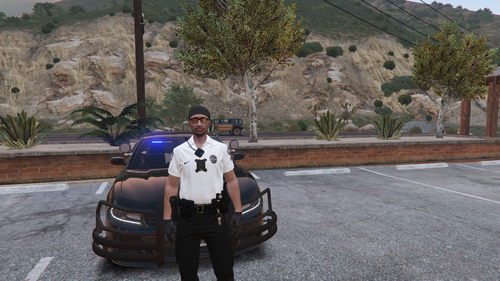
1 Screenshot

Adds some console commands that you might find useful, and well... Stupid ones as well

Working Commands:

AntiLoading - Removes a locked loading screen (default key: F1)

LEAVE - Disconnects from a Multiplayer session

HOST - Displays Players ingame, ID of players & the HOST ID

KILL - Obviously... It kills you.

Disabled Commands:

PING - Still cant get it to work

What's New in Version 1.1

Released

  • Disabled PING - Still cant get it to work
  • Added LEAVE - Disconnects from multiplayer sessions (Doesnt work in SP)
  • Added AntiLoading - Removes a locked loading screen (Useful for MP)
User Feedback

Recommended Comments

Chip.

Members

Theres, 'spawn' to. ex: spawn comet

Iconography

Members

These are commands that he created himself.

For a list of the native commands, just type help.

hardsty1e

Members

Whoa, thanks for this. Maybe a "Reloadscripts" command for future update.

Br3akD0wn

Members

How do I open this? Is it F1 ?

Faracus

Members

` opens up the scripthook and you type in commands there, Hardsty1e there already is a reloadscripts command built in to scripthook.

hardsty1e

Members

i mean a key bind for reloadscripts

Sgt.Kanyo

Members

Very nice addition, I have no idea how I missed this before.

Cidalex

Members

key ??

JakeKindaSus

Members

(edited)

On 9/1/2012 at 4:33 PM, Br3akD0wn said:

How do I open this? Is it F1 ?

to open the command click the key above tab. to close is also the button above tab


Edited by Dog14

Create an account or sign in to comment

Account

Navigation

Search

Search

Configure browser push notifications

Chrome (Android)
  1. Tap the lock icon next to the address bar.
  2. Tap Permissions → Notifications.
  3. Adjust your preference.
Chrome (Desktop)
  1. Click the padlock icon in the address bar.
  2. Select Site settings.
  3. Find Notifications and adjust your preference.