Skip to content
View in the app

A better way to browse. Learn more.

LCPDFR.com

A full-screen app on your home screen with push notifications, badges and more.

To install this app on iOS and iPadOS
  1. Tap the Share icon in Safari
  2. Scroll the menu and tap Add to Home Screen.
  3. Tap Add in the top-right corner.
To install this app on Android
  1. Tap the 3-dot menu (⋮) in the top-right corner of the browser.
  2. Tap Add to Home screen or Install app.
  3. Confirm by tapping Install.

Police Training Course

(1 review)

5 Screenshots

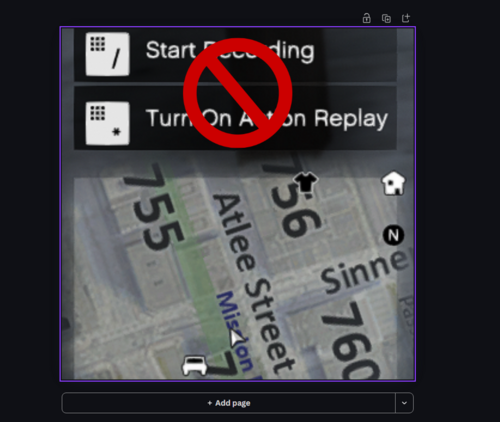
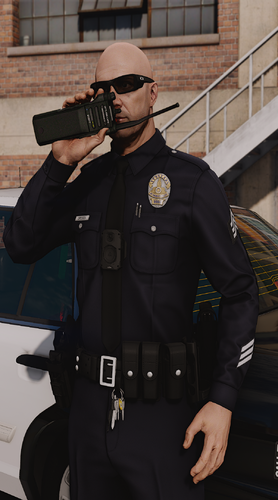
This is a police training course designed to work with the simple native trainer. You will need the simple native trainer in order to use this course.

Video run through of the courses.

User Feedback

Recommended Comments

Keith.

Members

This is actually a good idea. I can see clans using this type of thing to train new recruits.

Very good. 5/5

TaylorSwift

Members

Nice job man, Looks sweet!

snickyB

Members Author

This is actually a good idea. I can see clans using this type of thing to train new recruits.

Very good. 5/5

Ya I havent seen anything out in the community like this, so i figured there are some people that would like it.

googleplex2010

Members

What enb do you use?

jarpidelli

Members

nice too great

snickyB

Members Author

What enb do you use?

CryENB 2.7

Crenom

Members

Cool idea, i really like the range course and the obstacle course as well.

SohBag

Members

Thanks!! Officer

snickyB

Members Author

Cool idea, i really like the range course and the obstacle course as well.

Thank you!!

Fentomized

Members

May i ask where you got those uniforms? Nice training course by the way! Really love the obstacles.

snickyB

Members Author

May i ask where you got those uniforms? Nice training course by the way! Really love the obstacles.
They are from this website from spitfire.

Fentomized

Members

They are from this website from spitfire.

You sure? Or did you use 2.0 'Cause i just checked Spitfire's now and it's not like yours. Is it 3.1?

snickyB

Members Author

You sure? Or did you use 2.0 'Cause i just checked Spitfire's now and it's not like yours. Is it 3.1?
I made some adjustments for my personal use but i dont have permission to give them out.

SohBag

Members

42069

Members

I would kill for those uniforms, the ones I have are ugly compared to yours, damn shame it's private. Nice job on this, certainly an interesting mod.

NickieB

Members

Looks good - when I was watching the video and looking at everything this was bothering me so I have to say something. "Coarse" means rough or crude - "Course" is the word your looking for meaning a set of events for someone to complete.

Black Jesus

Members

Awesome! lol You playin a live scanner in the background?

TheRealNoodle

Members

wow nice :DDD

snickyB

Members Author

Looks good - when I was watching the video and looking at everything this was bothering me so I have to say something. "Coarse" means rough or crude - "Course" is the word your looking for meaning a set of events for someone to complete.
Lol sure seems i messed up with my grammar, good catch man. I will have to fix that when i get some time off work.

McAwesome6934

Members

Really nitpicky sidenote - means rough, or if used as an adjective to describe a person as rude.

snickyB

Members Author

Really nitpicky sidenote - means rough, or if used as an adjective to describe a person as rude. Course is the word that you were looking for. :P

Awesome! Have seen a few attempts at this idea, but this is by far the best. Great job.

Lol ya it was brought up before about my spelling. On my next set of days off, i am gonna redo the video and fix all spelling errors. And thank you :)

NickieB

Members

Really nitpicky sidenote - means rough, or if used as an adjective to describe a person as rude.

Create an account or sign in to comment

Latest Mods

Account

Navigation

Search

Search

Configure browser push notifications

Chrome (Android)
  1. Tap the lock icon next to the address bar.
  2. Tap Permissions → Notifications.
  3. Adjust your preference.
Chrome (Desktop)
  1. Click the padlock icon in the address bar.
  2. Select Site settings.
  3. Find Notifications and adjust your preference.